


与关节交互#
本教程展示了如何与仿真中的关节机器人进行交互。这是 与刚性物体交互 教程的延续,其中我们学习了如何与刚体对象交互。除了设置根状态外,我们还将看到如何设置关节状态并向关节机器人应用命令。
代码#
该教程对应于 scripts/tutorials/01_assets 目录中的 run_articulation.py 脚本。
代码 run_articulation.py 的内容
  1# Copyright (c) 2022-2026, The Isaac Lab Project Developers (https://github.com/isaac-sim/IsaacLab/blob/main/CONTRIBUTORS.md).
  2# All rights reserved.
  3#
  4# SPDX-License-Identifier: BSD-3-Clause
  5
  6"""This script demonstrates how to spawn a cart-pole and interact with it.
  7
  8.. code-block:: bash
  9
 10    # Usage
 11    ./isaaclab.sh -p scripts/tutorials/01_assets/run_articulation.py
 12
 13"""
 14
 15"""Launch Isaac Sim Simulator first."""
 16
 17
 18import argparse
 19
 20from isaaclab.app import AppLauncher
 21
 22# add argparse arguments
 23parser = argparse.ArgumentParser(description="Tutorial on spawning and interacting with an articulation.")
 24# append AppLauncher cli args
 25AppLauncher.add_app_launcher_args(parser)
 26# parse the arguments
 27args_cli = parser.parse_args()
 28
 29# launch omniverse app
 30app_launcher = AppLauncher(args_cli)
 31simulation_app = app_launcher.app
 32
 33"""Rest everything follows."""
 34
 35import torch
 36
 37import isaaclab.sim as sim_utils
 38from isaaclab.assets import Articulation
 39from isaaclab.sim import SimulationContext
 40
 41##
 42# Pre-defined configs
 43##
 44from isaaclab_assets import CARTPOLE_CFG  # isort:skip
 45
 46
 47def design_scene() -> tuple[dict, list[list[float]]]:
 48    """Designs the scene."""
 49    # Ground-plane
 50    cfg = sim_utils.GroundPlaneCfg()
 51    cfg.func("/World/defaultGroundPlane", cfg)
 52    # Lights
 53    cfg = sim_utils.DomeLightCfg(intensity=3000.0, color=(0.75, 0.75, 0.75))
 54    cfg.func("/World/Light", cfg)
 55
 56    # Create separate groups called "Origin1", "Origin2"
 57    # Each group will have a robot in it
 58    origins = [[0.0, 0.0, 0.0], [-1.0, 0.0, 0.0]]
 59    # Origin 1
 60    sim_utils.create_prim("/World/Origin1", "Xform", translation=origins[0])
 61    # Origin 2
 62    sim_utils.create_prim("/World/Origin2", "Xform", translation=origins[1])
 63
 64    # Articulation
 65    cartpole_cfg = CARTPOLE_CFG.copy()
 66    cartpole_cfg.prim_path = "/World/Origin.*/Robot"
 67    cartpole = Articulation(cfg=cartpole_cfg)
 68
 69    # return the scene information
 70    scene_entities = {"cartpole": cartpole}
 71    return scene_entities, origins
 72
 73
 74def run_simulator(sim: sim_utils.SimulationContext, entities: dict[str, Articulation], origins: torch.Tensor):
 75    """Runs the simulation loop."""
 76    # Extract scene entities
 77    # note: we only do this here for readability. In general, it is better to access the entities directly from
 78    #   the dictionary. This dictionary is replaced by the InteractiveScene class in the next tutorial.
 79    robot = entities["cartpole"]
 80    # Define simulation stepping
 81    sim_dt = sim.get_physics_dt()
 82    count = 0
 83    # Simulation loop
 84    while simulation_app.is_running():
 85        # Reset
 86        if count % 500 == 0:
 87            # reset counter
 88            count = 0
 89            # reset the scene entities
 90            # root state
 91            # we offset the root state by the origin since the states are written in simulation world frame
 92            # if this is not done, then the robots will be spawned at the (0, 0, 0) of the simulation world
 93            root_state = robot.data.default_root_state.clone()
 94            root_state[:, :3] += origins
 95            robot.write_root_pose_to_sim(root_state[:, :7])
 96            robot.write_root_velocity_to_sim(root_state[:, 7:])
 97            # set joint positions with some noise
 98            joint_pos, joint_vel = robot.data.default_joint_pos.clone(), robot.data.default_joint_vel.clone()
 99            joint_pos += torch.rand_like(joint_pos) * 0.1
100            robot.write_joint_state_to_sim(joint_pos, joint_vel)
101            # clear internal buffers
102            robot.reset()
103            print("[INFO]: Resetting robot state...")
104        # Apply random action
105        # -- generate random joint efforts
106        efforts = torch.randn_like(robot.data.joint_pos) * 5.0
107        # -- apply action to the robot
108        robot.set_joint_effort_target(efforts)
109        # -- write data to sim
110        robot.write_data_to_sim()
111        # Perform step
112        sim.step()
113        # Increment counter
114        count += 1
115        # Update buffers
116        robot.update(sim_dt)
117
118
119def main():
120    """Main function."""
121    # Load kit helper
122    sim_cfg = sim_utils.SimulationCfg(device=args_cli.device)
123    sim = SimulationContext(sim_cfg)
124    # Set main camera
125    sim.set_camera_view([2.5, 0.0, 4.0], [0.0, 0.0, 2.0])
126    # Design scene
127    scene_entities, scene_origins = design_scene()
128    scene_origins = torch.tensor(scene_origins, device=sim.device)
129    # Play the simulator
130    sim.reset()
131    # Now we are ready!
132    print("[INFO]: Setup complete...")
133    # Run the simulator
134    run_simulator(sim, scene_entities, scene_origins)
135
136
137if __name__ == "__main__":
138    # run the main function
139    main()
140    # close sim app
141    simulation_app.close()
代码解析#
场景设计#
与上一个教程相似,我们在场景中添加了地面平面和远程光线。现在,我们不再产生刚性物体,而是从其 USD 文件中生成一个车杆关节。车杆是一个简单的机器人,由一个小车和一个连接到它的杆组成。小车可以沿 x 轴自由移动,而杆可以围绕小车自由旋转。车杆的 USD 文件包含了机器人的几何形状、关节和其他物理性质。
对于车杆,我们使用其预定义的配置对象,这是 assets.ArticulationCfg 类的一个实例。这个类包含关于关节产生策略、默认初始状态、不同关节的执行器模型和其他元信息的信息。如何创建这个配置对象的更深入介绍在 编写资产配置 教程中提供。
正如在上一个教程中看到的,我们可以通过创建 assets.Articulation 类的实例并将配置对象传递给它的构造函数的方式类似地将关节放入场景中。
    # Create separate groups called "Origin1", "Origin2"
    # Each group will have a robot in it
    origins = [[0.0, 0.0, 0.0], [-1.0, 0.0, 0.0]]
    # Origin 1
    sim_utils.create_prim("/World/Origin1", "Xform", translation=origins[0])
    # Origin 2
    sim_utils.create_prim("/World/Origin2", "Xform", translation=origins[1])

    # Articulation
    cartpole_cfg = CARTPOLE_CFG.copy()
    cartpole_cfg.prim_path = "/World/Origin.*/Robot"
    cartpole = Articulation(cfg=cartpole_cfg)
运行仿真循环#
从上一个教程中继续,我们定期重置仿真,对关节机器人设置命令,推进仿真,并更新关节机器人的内部缓冲区。
重置仿真#
与刚体物体类似,关节机器人也有一个根状态。这个状态对应于关节机器人树中的根体。在根状态之上,关节机器人还有关节状态。这些状态对应于关节的位置和速度。
为了重置关节机器人,我们首先通过调用 Articulation.write_root_pose_to_sim() 和 Articulation.write_root_velocity_to_sim() 方法设置根状态。类似地,我们通过调用 Articulation.write_joint_state_to_sim() 方法设置关节状态。最后,我们调用 Articulation.reset() 方法重置任何内部缓冲区和缓存。
            # reset the scene entities
            # root state
            # we offset the root state by the origin since the states are written in simulation world frame
            # if this is not done, then the robots will be spawned at the (0, 0, 0) of the simulation world
            root_state = robot.data.default_root_state.clone()
            root_state[:, :3] += origins
            robot.write_root_pose_to_sim(root_state[:, :7])
            robot.write_root_velocity_to_sim(root_state[:, 7:])
            # set joint positions with some noise
            joint_pos, joint_vel = robot.data.default_joint_pos.clone(), robot.data.default_joint_vel.clone()
            joint_pos += torch.rand_like(joint_pos) * 0.1
            robot.write_joint_state_to_sim(joint_pos, joint_vel)
            # clear internal buffers
            robot.reset()
推进仿真#
向关节机器人应用命令涉及两个步骤:
设置关节目标: 这为关节机器人设置期望的关节位置、速度或努力目标。
将数据写入仿真: 根据关节机器人的配置,这一步处理任何 动作转换 并将转换后的值写入 PhysX 缓冲区。
在本教程中,我们使用关节努力命令来控制关节机器人。为此工作,我们需要将关节机器人的刚度和阻尼参数设置为零。这是在车杆的预定义配置对象内部预先完成的。
在每一步中,我们随机采样关节努力并通过调用 Articulation.set_joint_effort_target() 方法将它们设置给关节机器人。在设置好目标后,我们通过调用 Articulation.write_data_to_sim() 方法将数据写入 PhysX 缓冲区。最后,我们推进仿真。
        # Apply random action
        # -- generate random joint efforts
        efforts = torch.randn_like(robot.data.joint_pos) * 5.0
        # -- apply action to the robot
        robot.set_joint_effort_target(efforts)
        # -- write data to sim
        robot.write_data_to_sim()
更新状态#
每个关节机器人类包含一个 assets.ArticulationData 对象。这个对象保存了关节机器人的状态。为了更新缓冲区内的状态,我们调用 assets.Articulation.update() 方法。
        # Update buffers
        robot.update(sim_dt)
代码执行#
要运行代码并查看结果,让我们从终端运行脚本:
./isaaclab.sh -p scripts/tutorials/01_assets/run_articulation.py
这个命令应该会打开一个包含地面平面、灯光和两个随机移动的cart-poles的场景。要停止仿真,您可以关闭窗口,或在终端中按 Ctrl+C 。
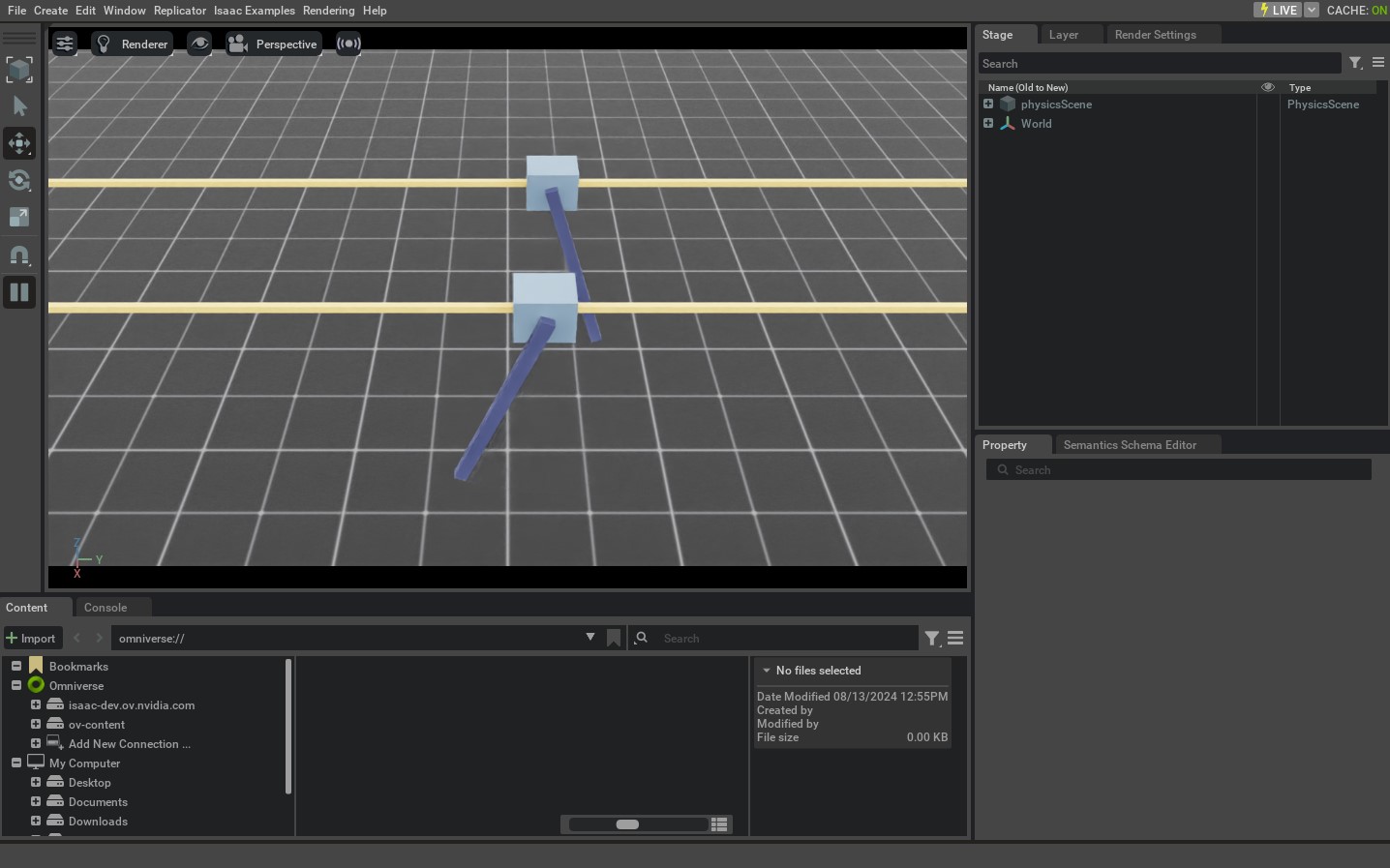
在本教程中,我们学会了如何创建和交互一个简单的关节机器人。我们看到了如何设置关节机器人的状态(其根和关节状态),以及如何对其应用命令。我们还看到了如何更新其缓冲区,以从仿真中读取最新状态。
除了这个教程之外,我们还提供了一些生成不同机器人的其他脚本。这些包括在 scripts/demos 目录中。您可以运行这些脚本,比如:
# Spawn many different single-arm manipulators
./isaaclab.sh -p scripts/demos/arms.py

# Spawn many different quadrupeds
./isaaclab.sh -p scripts/demos/quadrupeds.py