


Robot Self-Collision Detector#
About#
The Robot Self-Collision Detector extension detects and manages self-collision pairs between the rigid body links of a robot articulation.
During physics simulation, pairs of colliders that overlap in their initial configuration generate unwanted contact forces that destabilize the robot.
This tool enumerates those pairs and lets you mark them as Filtered Pairs using the UsdPhysics.FilteredPairsAPI, so the physics engine ignores contact between them.
To access this extension, go to the top menu bar and click Tools > Robotics > Asset Editors > Robot Self-Collision Detector.
This extension is enabled by default. If it is ever disabled, it can be re-enabled from the Extension Manager
by searching for isaacsim.robot_setup.collision_detector.
When to Use#
Use this tool after importing or authoring a robot asset whose collision meshes overlap at rest. Common scenarios include:
Newly imported URDF/MJCF robots that have adjacent-link colliders intersecting at joint boundaries.
Robots with dense collision geometry (e.g. dexterous hands) where many links are in close proximity.
Adding collision filtering as a physics feature layer on an existing asset following the asset structure guidelines.
User Interface#
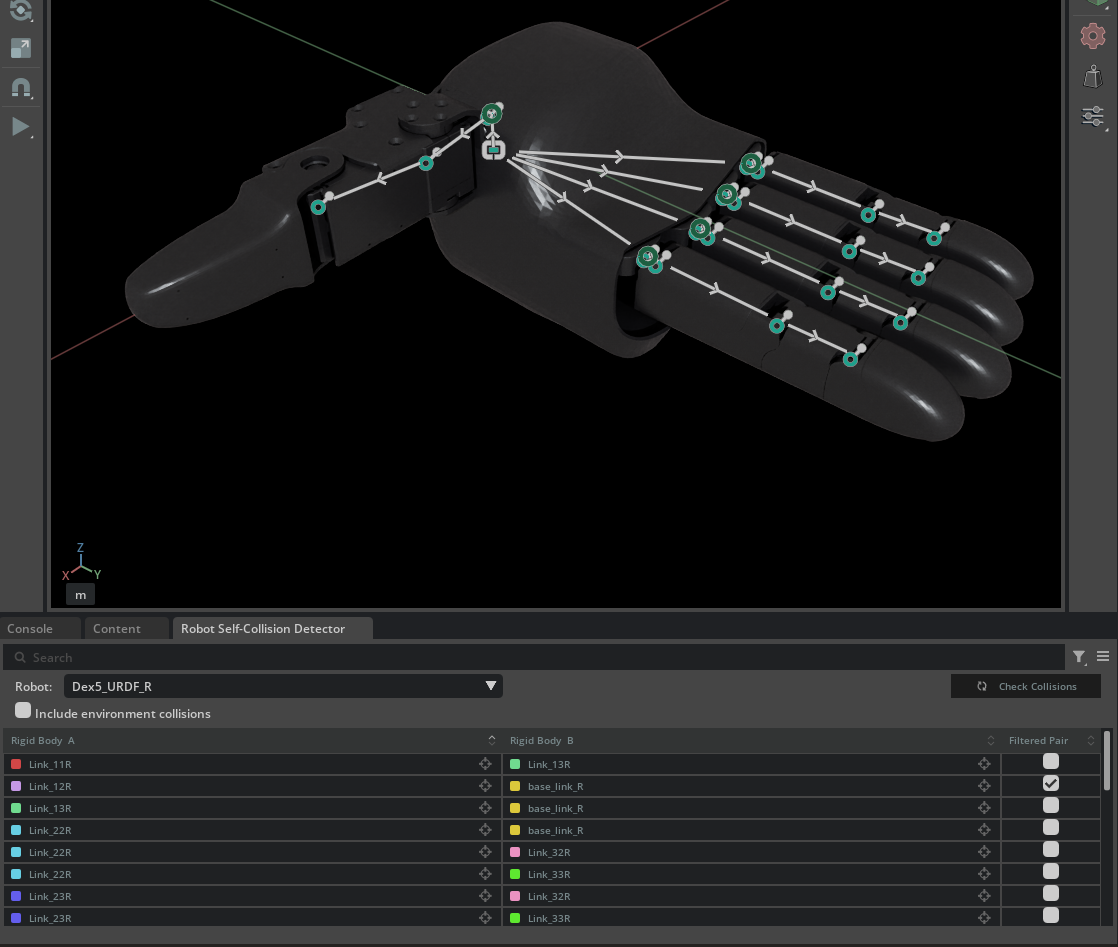
Robot Selection#
Robot dropdown: Lists all prims on the stage that have the Robot Schema applied. Select the robot you want to inspect.
Check Collisions button: Runs collision detection on the selected robot and populates the results table.
Options#
Include environment collisions: When enabled, the results also include collision pairs between robot links and non-robot bodies in the scene (e.g. a table or ground plane).
Collision Pairs Table#
The table has three columns:
Column |
Content |
Description |
|---|---|---|
Rigid Body A |
Color swatch + link name |
First body in the collision pair. Click the focal icon to select its collision prims in the Stage window. |
Rigid Body B |
Color swatch + link name |
Second body in the collision pair. Same focal-icon behavior. |
Filtered Pair |
Checkbox |
Toggle on to add a |
Additional table interactions:
Search bar: Filter rows by body name (case-insensitive).
Column sorting: Click the header sort icon to toggle alphabetical ordering.
Row selection: Click a row to highlight both bodies in the viewport with distinct colors, making it easy to visually locate the pair. Clicking elsewhere in the viewport clears the table selection.
Keyboard navigation: Press Ctrl+Up / Ctrl+Down to move the row selection up or down. When multiple rows are selected the entire block shifts together.
Batch toggle: Select multiple rows and toggle one checkbox to apply the same filtered state to all selected pairs.
No collisions: When no self-collisions are detected an overlay message is shown in place of the table.
Viewport Highlighting#
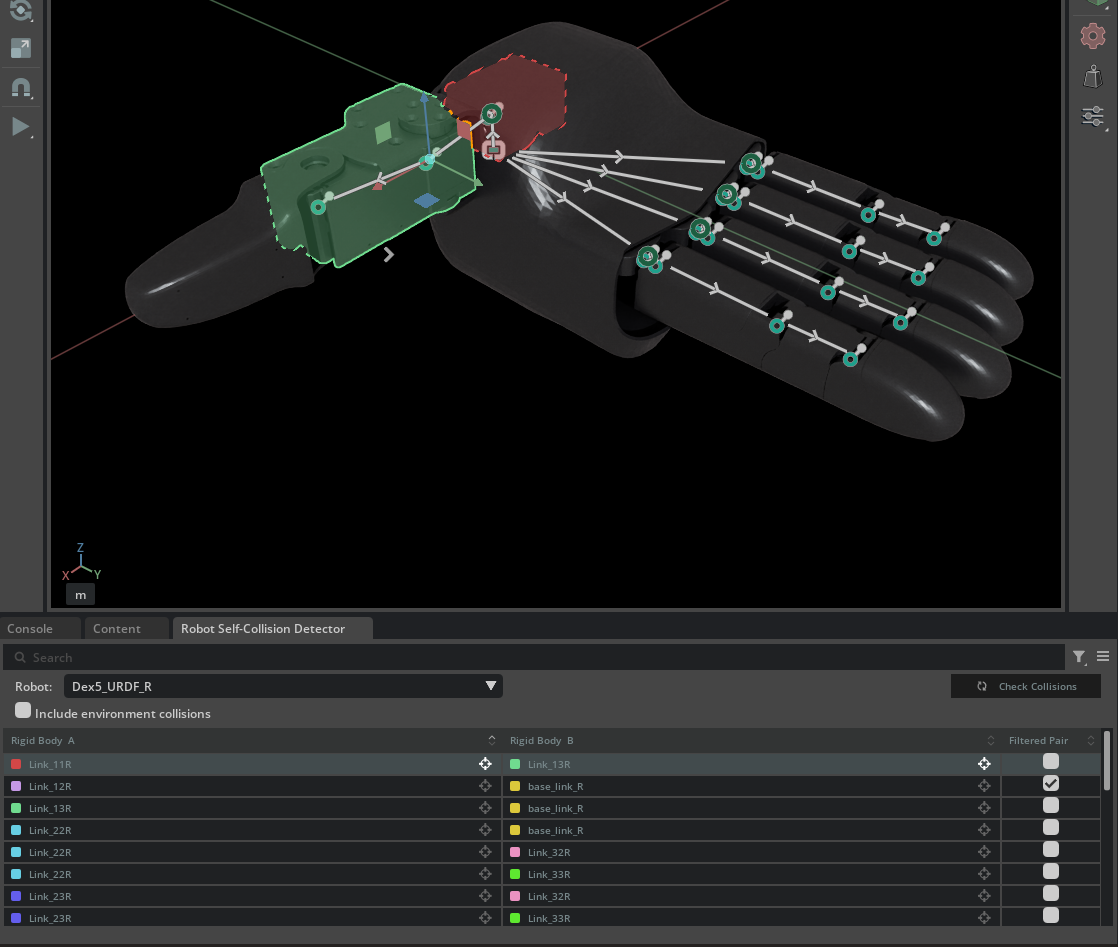
When a collision pair row is selected, the two rigid bodies are highlighted in the viewport using distinct colors from a 64-color palette. Each body receives a colored selection-group outline so you can distinguish them at a glance. If the viewport selection outline setting is disabled, the panel temporarily enables it for the duration of the selection and restores the original setting when the selection is cleared, the panel is hidden, or the extension shuts down.
Example Usage: Unitree Dex5 Hand#
This walkthrough uses the Isaac/Robots/Unitree/Dex5/Dex5-URDF-R.usda asset from the Isaac Sim asset library.
1. Open the Robot Asset#
Open or reference the Dex5 hand asset onto your stage:
File > Open or drag it from the Content Browser at Isaac/Robots/Unitree/Dex5/Dex5-URDF-R.usda.
2. Open the Self-Collision Detector#
Navigate to Tools > Robotics > Asset Editors > Robot Self-Collision Detector.
The panel opens docked at the bottom-left of the editor, adjacent to the Content window.
3. Select the Robot and Detect Collisions#
The robot dropdown auto-populates with every prim on the stage that has the Robot Schema applied. It automatically selects the first robot on the stage, and checks collisions. If you made modifications to the robot, click Check Collisions to update the results.
The tool queries the physics engine for all collider pairs that overlap in the robot’s current configuration, maps each collider to its owning rigid body link, and populates the table.
4. Inspect a Collision Pair#
Click a row to highlight both bodies in the viewport. Each body is drawn with a unique color so you can visually confirm whether the overlap is expected (e.g. adjacent finger segments) or unintended.
Click the focal icon (crosshair) next to a body name to select only that body in the viewport and the Stage window. The table row is selected (or kept selected if it already was), but only the clicked body receives the colored outline, making it easy to isolate one side of the pair. Clicking the focal icon on the other body in the same row switches the viewport highlight without changing the selected row.

5. Filter Collision Pairs#
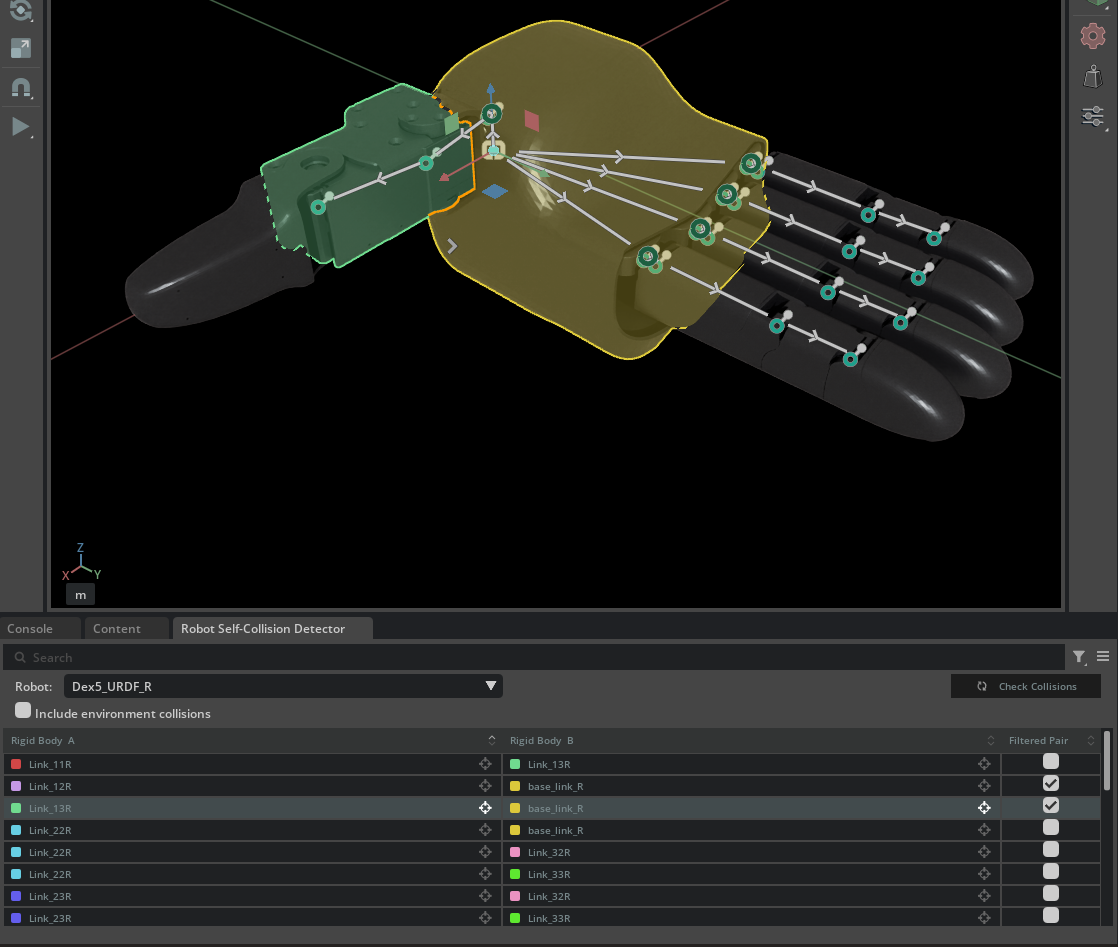
For each pair that should be ignored by the physics engine, check the Filtered Pair checkbox. This writes a UsdPhysics.FilteredPairsAPI relationship to the stage.
To filter multiple pairs at once, select the desired rows (hold Ctrl or Shift while clicking), then toggle one checkbox. All selected rows are updated together.
Note
Other ways to resolve for the collision pairs are to adjust the collision geometry, or modify the robot starting pose using the Robot Poser extension. Filtered pairs are displayed in the self-collision detector, so you can easily see which pairs are being ignored, but whenever a pair is not filtered nor is detected by the collision engine, it will not be displayed in the self-collision detector. When the robot has the self-collision disabled in the articulation root, no collision pairs will be detected by the collision engine, and a message will be displayed on the table.

6. Inspect Multiple Collision Pairs#
You can select multiple rows to highlight multiple pairs in the viewport. Hold Ctrl or Shift while clicking to select multiple rows. To quickly move the selection up or down, press Ctrl+Up or Ctrl+Down.
Further Learning#
Asset Structure for the recommended robot asset layering structure.
UsdPhysics.FilteredPairsAPI reference in the OpenUSD documentation.
Robot Schema for details on the Robot Schema used to identify robots on stage.