


Physics Data Flow and Engine Integration#
This page describes how physics data moves through Isaac Sim and how to integrate a new physics engine. The first section summarizes the three data pathways (USD, Fabric, and Physics Tensors) and the unified API layer. The second section explains the steps to implement a new backend that plugs into these same pathways.
Physics Data Flow#
Isaac Sim uses three data pathways to move physics data between user code, the active physics engine, and the rendering pipeline: USD, Fabric, and Physics Tensors. On top of these, isaacsim.core.experimental provides a unified API that abstracts backend differences and is the recommended way to interact with simulation data.
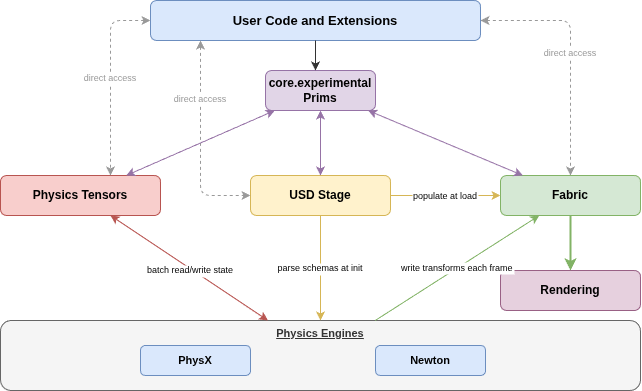
Physics data flow architecture in Isaac Sim.#
Data Pathways Explained#
USD is the authoring and persistence format. It stores scene structure, transforms, physics properties, and visual properties. Physics properties use USD Physics and engine-specific schemas. Use USD before and after play for scene authoring, initial configuration, and persisting state. It is not designed for per-frame bulk reads. For runtime performance use Fabric or Tensors.
Fabric is a GPU-accelerated runtime data store, populated from USD at load and updated by the active engine for each frame. It holds world transforms (for example, omni:fabric:worldMatrix) and is the bridge between simulation and rendering. Use Fabric when you need high-performance read access to transforms during simulation.
Physics Tensors provide batch read/write access to engine state (articulations, rigid bodies, contacts) and are available only after play. Create a SimulationView and view objects (for example, ArticulationView, RigidBodyView) to exchange data in NumPy, PyTorch, or Warp. Use Tensors for control loops, RL policies, and high-throughput state exchange. Both PhysX SDK and Newton expose a tensor API that conforms to the same view interface.
Unified API (``isaacsim.core.experimental``): The recommended approach is to use the prim wrappers (XformPrim, RigidPrim, ArticulationPrim), which abstract over USD, Fabric, and Tensors and auto-select the appropriate backend. When the simulation is running, operations route to the active engine’s tensor API. Refer to the Core API Overview for details on the Core Experimental API.
Per-Engine Data Pathways#
Both PhysX SDK and Newton import USD at initialization, write transforms to Fabric each frame, and provide a Tensor API with the same view types. PhysX SDK also supports a Fabric/USD change listener for runtime USD edits and extends the tensor API to deformable bodies. Newton’s tensor API covers rigid bodies, articulations, and rigid contacts.
Choosing a Pathway#
Choose:
USD for authoring and persistence
Fabric for runtime transforms (for example, for rendering)
Tensors for batch state read/write (RL, control, contact forces)
For engine-agnostic code the preference is to use isaacsim.core.experimental.
Implementing a Physics Engine#
To integrate a new physics engine with Isaac Sim, you must:
plug into the same data flow
parse USD at initialization
write body transforms to Fabric each frame
expose a Tensor API that matches the expected view interface
The runtime then drives your engine using the unified physics interface (omni.physics.core), making it available to SimulationManager, isaacsim.core.experimental, and the tensor API.
The isaacsim.physics.newton extension is the reference implementation.
Architecture Overview#
The integration connects your engine to the three data pathways described above. Five components are involved:
Simulation Function adapters — How the runtime drives simulation steps that include, attach/detach a USD stage, run a step (
simulate), fetch results, and expose step/contact callbacks and capability queries.Stage Update Function adapters — How the runtime handles stage and timeline events including, play, pause, reset, load physics from USD, and release resources.
Registration — A
Simulationobject holds your Simulation Function and Stage Update Function adapters. You can register it with the physics interface under a name (for example"newton") so theSimulationManagercan activate it.Fabric synchronization — For each frame, write your engine’s body transforms into Fabric so that the renderer can display the scene.
Tensor API — A
SimulationViewand view classes (for example,ArticulationView,RigidBodyView) that wrap your engine state and use the existing NumPy/PyTorch/Warp frontends so that your user code can read/write the state in bulk.
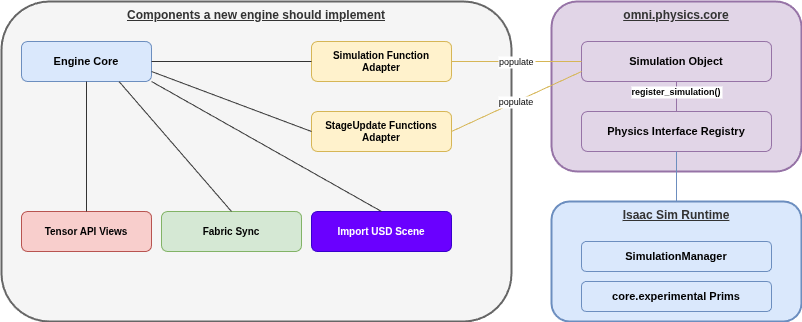
Engine integration architecture.#
Integration Flow#
Startup: The extension creates the engine stage and the Simulation Function and Stage Update Function adapters, builds a Simulation object from them, and registers it with get_physics_interface().register_simulation(simulation, "your_engine_name"). Optionally it switches the active engine to the new one using SimulationManager.
When the user hits Play: The runtime calls your Stage Update Function adapters (for example, on_attach, force_load_physics_from_usd()) to parse the USD stage and build simulation objects.
Each frame it calls
simulate(elapsed_time, current_time)to advance the engine and then write updated transforms to Fabric so that rendering stays in sync. Any code that you have that usesSimulationVieworArticulationViewtalks to your tensor backend, which reads and writes your engine’s buffers.
Shutdown: The extension unregisters the simulation and releases resources; if it had auto-switched, it switches back to the default engine.
For a complete example, refer to the isaacsim.physics.newton extension:
impl.simulation_functionsandimpl.stage_update_functionsimplement the two adapter interfacesimpl.fabrichandles Fabric writesimpl.tensorsimplements the view classesimpl.register_simulationandimpl.extensiontie registration and lifecycle together
Engine Switching at Runtime#
SimulationManager.switch_physics_engine(name) activates the engine registered under that name:
it deactivates the current engine (Stage Update Function adapters
on_detach)activates the new one (
on_attach)invalidates existing simulation views
triggers a fresh load from USD on the new engine.
Only one engine is active at a time. To switch it you must change it before starting the simulation.