


Asset Transformer#
The Asset Transformer is a framework for transforming USD assets in Isaac Sim. It provides utilities for batch transforms, schema routing, mesh deduplication, material optimization, and structural reorganization. The transformer operates through a rule-based pipeline where each rule performs a specific transformation on the USD stage, enabling complex multi-step asset optimization workflows.

The following sections explain the UI and functions behind each part of the Asset Transformer. To see the tool in action with step-by-step walkthroughs, refer to Asset Transformer Tutorials.
Purpose#
The Asset Transformer addresses key challenges when preparing assets for simulation:
Schema Separation: Extracting physics, robot, and other API schemas into dedicated layers for modularity.
Performance Optimization: Deduplicating geometries and materials to reduce memory usage and improve rendering performance.
Structural Reorganization: Flattening complex hierarchies, routing variants, and creating standardized asset structures.
Composition Setup: Generating interface layers with proper USD composition arcs (references, payloads, sublayers).
The result is a modular, simulation-ready asset structure that follows the Isaac Sim Asset Structure guidelines.
Related Documentation:
Asset Transformer Tutorials - Step-by-step practical walkthroughs
Asset Transformer Rules Reference - Complete reference of available transformation rules
Asset Transformer API - Programmatic usage and custom rule development
Opening the Asset Transformer#
The Asset Transformer UI is accessible from the menu bar: Tools > Robotics > Asset Editors > Asset Transformer.
User Interface#
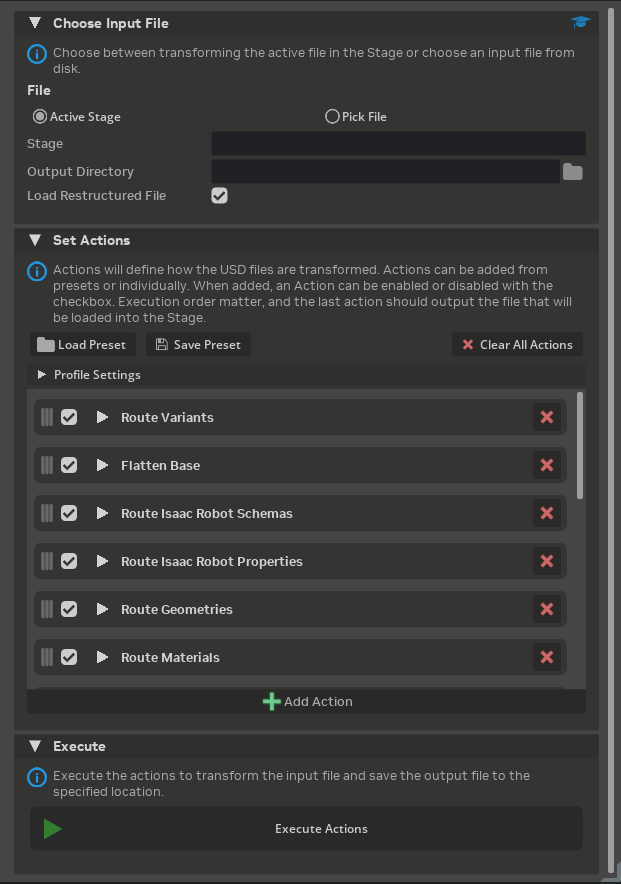
The window contains three main sections described below. Each section controls a stage of the transformation workflow: selecting input, configuring actions, and executing the pipeline.
Input Section#
Configure the source asset and output location:
Active Stage / Pick File: Choose between transforming the currently open stage or selecting a file from disk.
Output Directory: Destination folder for the transformed asset package.
Load Restructured File: Automatically open the output file after execution.
Actions Section#
Configure the transformation pipeline:
Load Preset: Load a saved rule profile from a JSON file. Recent presets appear in a quick-access menu.
Save Preset: Save the current configuration as a JSON preset file.
Clear All Actions: Remove all rules from the action list.
Profile Settings (collapsible): Configure profile metadata:
Profile Name: Display name for the profile
Version: Version string
Interface Asset: Output interface asset name
Base Name: Base stage filename
Flatten Source: Whether to flatten the source stage before processing
Action List: Ordered list of rules to execute. Each action row shows:
Drag handle for reordering
Enable/disable checkbox
Expansion triangle to reveal configuration
Rule name
Remove button
Add Action: Add a new rule to the pipeline. Review Asset Transformer Rules Reference for available rules.
When an action is expanded, the following configuration options appear:
Rule Type: Searchable dropdown to select the rule implementation. The dropdown lists each rule by its short class name in the Rule Name column and bundles rules by scope in the Package column.
Destination: Output path for the rule (relative to package root).
Parameters: Dynamic parameter editors generated from the rule’s configuration parameters.
Note
The Rule Type dropdown shows the short class name (for example, SchemaRoutingRule), while the documentation and saved profiles identify a rule by its fully qualified type. The fully qualified type combines the scope shown in the Package column with the class name: isaacsim.asset.transformer.rules.<package>.<module>.<ClassName>. For example, the Rule Name SchemaRoutingRule in the Package core corresponds to isaacsim.asset.transformer.rules.core.schemas.SchemaRoutingRule.
Use the filter icon next to the search field to show only rules from selected packages (core, perf, structure, isaac_sim). Refer to the Asset Transformer Rules Reference for the fully qualified type of each rule.
Execute Section#
Execute Actions: Run the transformation pipeline. The button is enabled when at least one action is enabled and an output directory is set.
Transformer Manager Process#
The AssetTransformerManager coordinates execution of a rule profile over USD stages.
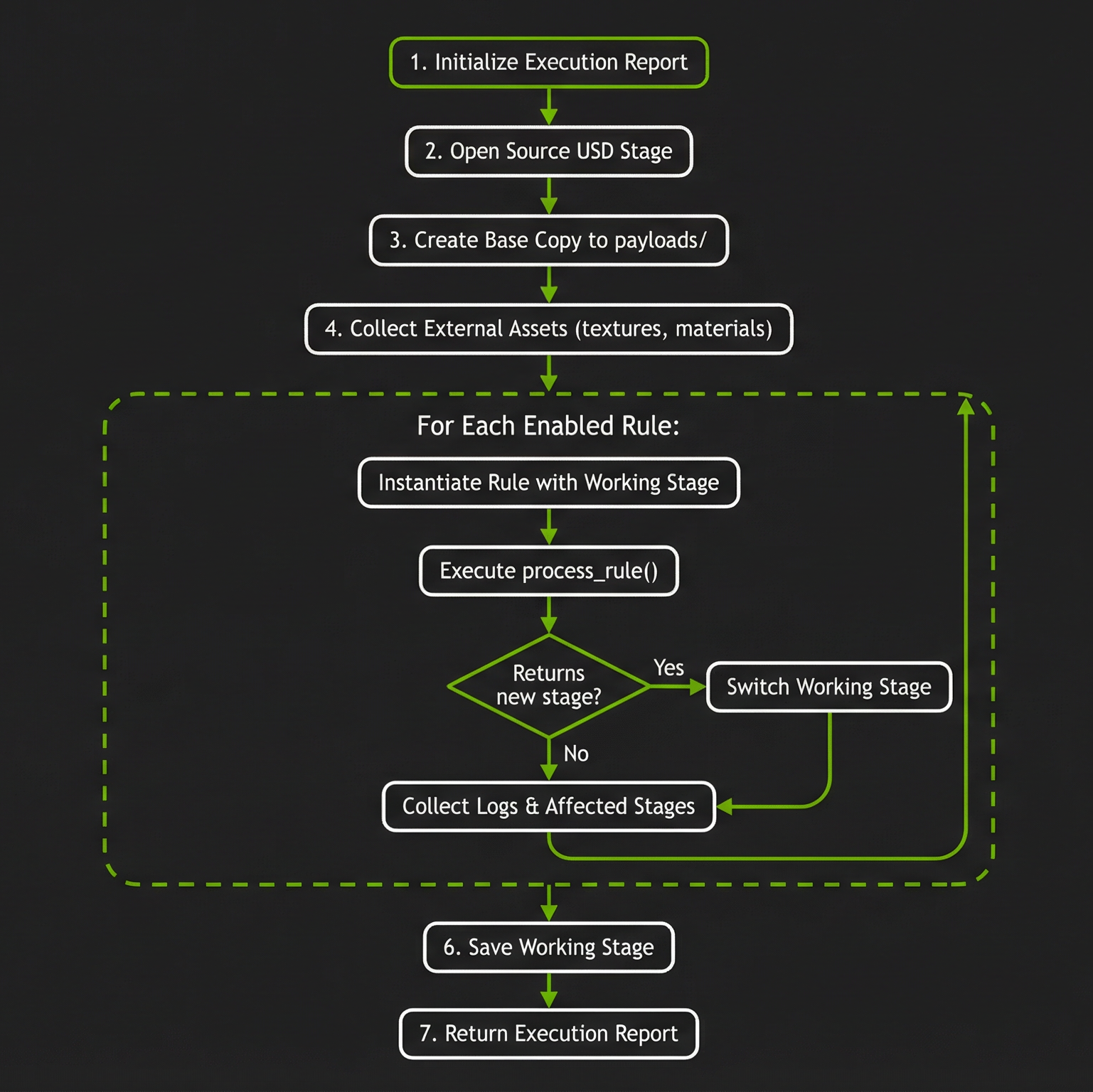
Process Flow:
Initialize: Create an execution report to track results.
Open Source Stage: Load the input USD stage from the specified path.
Create Base Copy: Export the source stage to
{package_root}/payloads/{base_name}. Ifflatten_sourceis enabled, the stage is flattened first.Collect External Assets: Copy external assets (textures, materials) to
{package_root}/source_assets/and update paths to local references.Execute Rules: For each enabled rule in the profile:
Instantiate the rule with the working stage
Execute
process_rule()If the rule returns a new stage path, switch to that stage for subsequent rules
Collect operation logs and affected stages
Save Working Stage: Save any unsaved changes to the root layer.
Return Report: Generate an execution report with per-rule logs and status.
Note
The Asset Transformer is meant to be used with atomic assets (assets that are not composed of other assets, or with external references). If the asset is composed of other assets, or has external references, the Asset Transformer will collect the external assets and include them in the output package.
Example:
Asset is composed of a base asset and a secondary asset (A robot and a Gripper or Sensor).
The base asset is the atomic asset.
The Asset Transformer will collect the referenced asset (Gripper or Sensor) and include it in the output package.
The output package will contain the base asset, and the referenced asset on a single new atomic asset.
If the secondary asset is loaded from a variant, it will be included in the variant structure of the new atomic asset.
Rule Profiles#
A rule profile defines a complete transformation pipeline. Profiles are stored as JSON files with the following structure:
{
  "profile_name": "My Profile",
  "version": "1.0",
  "rules": [
    {
      "name": "Rule Display Name",
      "type": "fully.qualified.rule.ClassName",
      "destination": "output/path",
      "params": {
        "param_name": "value"
      },
      "enabled": true
    }
  ],
  "interface_asset_name": "asset",
  "output_package_root": "/path/to/output",
  "flatten_source": false,
  "base_name": "base.usd"
}
Profile Fields:
Field |
Description |
|---|---|
|
Display name for the profile (required) |
|
Version string |
|
Ordered list of rule specifications |
|
Output interface asset identifier |
|
Default output directory |
|
Flatten source stage before processing |
|
Base stage filename |
Rule Specification Fields:
Field |
Description |
|---|---|
|
Display name for the rule (required) |
|
Fully qualified rule class name (required). Review Asset Transformer Rules Reference. |
|
Output path relative to package root |
|
Dictionary of parameter overrides |
|
Whether the rule is active |
Managing Profiles#
Loading a Profile:
Click the Load Preset button in the Actions section.
Select a preset from the recent presets menu, or choose Browse… to open a file picker.
The profile loads and populates the action list.
Saving a Profile:
Configure the desired rules and parameters.
Click the Save Preset button.
Choose a filename and location in the file picker.
The profile is saved as JSON and added to recent presets.
Editing a Profile:
Expand the Profile Settings frame to edit metadata.
Expand individual rules to modify their parameters.
Drag rules to reorder execution.
Use checkboxes to enable or disable rules.
Save the modified profile using Save Preset.
Transform Report#
The Asset Transformer generates a comprehensive execution report that documents every operation performed during the transformation process. This report is saved as transform_report.json in the output package root directory.
Report Structure#
The execution report contains the following information:
Top-Level Fields:
Field |
Description |
|---|---|
|
The complete profile configuration used for the transformation |
|
Path to the original input USD stage |
|
Output directory where transformed assets are written |
|
ISO 8601 timestamp when execution started |
|
ISO 8601 timestamp when execution completed |
|
Array of per-rule execution results |
|
Path to the final transformed asset |
Per-Rule Results:
Each rule’s execution result includes:
Field |
Description |
|---|---|
|
The rule specification (name, type, parameters, enabled status) |
|
Boolean indicating whether the rule completed successfully |
|
Array of log entries recorded during rule execution |
|
List of USD layer identifiers created or modified by the rule |
|
Error message if the rule failed (null on success) |
|
Timestamp when the rule started |
|
Timestamp when the rule completed |
Example Report
{
  "profile": {
    "profile_name": "Isaac Sim Structure",
    "version": "1.0",
    "rules": ["...truncated..."]
  },
  "input_stage": "/path/to/robot.usd",
  "package_root": "/output/robot_package",
  "started_at": "2024-01-15T10:30:00.000Z",
  "finished_at": "2024-01-15T10:30:45.123Z",
  "output_stage_path": "/output/robot_package/robot.usda",
  "results": [
    {
      "rule": {
        "name": "Route Physics Schemas",
        "type": "isaacsim.asset.transformer.rules.core.schemas.SchemaRoutingRule",
        "destination": "payloads/Physics",
        "params": {"schemas": ["Physics*"], "stage_name": "physics.usda"},
        "enabled": true
      },
      "success": true,
      "log": [
        {"message": "SchemaRoutingRule start destination=payloads/Physics/physics.usda"},
        {"message": "Schema patterns: Physics*"},
        {"message": "Using schemas layer: /output/robot_package/payloads/Physics/physics.usda"},
        {"message": "Moved 3 schema(s) from /World/Robot: PhysicsArticulationRootAPI, PhysicsRigidBodyAPI, PhysicsMassAPI"},
        {"message": "Processed 15 prim(s), moved 42 schema instance(s)"},
        {"message": "SchemaRoutingRule completed"}
      ],
      "affected_stages": ["payloads/Physics/physics.usda"],
      "error": null,
      "started_at": "2024-01-15T10:30:05.000Z",
      "finished_at": "2024-01-15T10:30:08.500Z"
    }
  ]
}
Using the Report#
The transform report serves multiple purposes:
Debugging: Identify the rule that failed and why it failed by examining log entries and error messages
Auditing: Review exactly what transformations were applied to an asset
Verification: Confirm that expected schemas, properties, or prims were routed to the correct layers
Automation: Parse the report programmatically to validate the transformation results in CI/CD pipelines
For programmatic access to reports, refer to the Asset Transformer API.
Isaac Sim Asset Structure Profile#
Isaac Sim includes a default profile called Isaac Sim Structure that transforms assets into the recommended Isaac Sim Asset Structure. This profile is automatically available in the recent presets menu.

The profile executes the following transformation pipeline:
Route Variants: Extract variant sets to separate files, excluding
none,default, andphysxvariants.Flatten Base: Create a flattened base stage with specific variant selections (for example, Physics: PhysX).
Route Isaac Robot Schemas: Move Isaac robot schemas (
IsaacRobotAPI,IsaacLinkAPI,IsaacJointAPI) torobot.usda.Route Isaac Robot Properties: Move Isaac robot properties to
robot.usda.Route Geometries: Deduplicate geometries and create instanceable references in
geometries.usdandinstances.usda.Fix Physics Joint Poses: Correct physics joint local poses (
localPos0/1,localRot0/1) that may have been invalidated by the geometry routing step combining parent/child transforms.Route Materials: Deduplicate visual materials, download textures, and create
materials.usda. Physics materials (those withPhysicsMaterialAPI) are left in the base layer.Route PhysX Schemas: Move PhysX schemas to
Physics/physx.usda.Route MuJoCo Schemas/Prims/Properties: Move MuJoCo-related opinions to
Physics/mujoco.usda.Route Physics Schemas/Prims: Move general physics schemas and prims to
Physics/physics.usda.Make Robot Schema: Apply Isaac Sim robot schema and populate robot relationships.
Make API Schemas Non-Explicit: Convert explicit apiSchemas lists to prepended list ops.
Generate Interface: Create the final interface layer with:
Reference to the base layer
Variant sets generated from folder structure
Sublayer connections for physics engines (PhysX, MuJoCo)
Default variant selections
Recovery of extraneous root-level prims (e.g.
Render, camera definitions) from the base layer into the interface layer so they remain reachable in the composed stage
Output Structure:
The resulting output follows the modular asset structure documented in Asset Structure, with:
Base geometry and hierarchy in
payloads/base.usdRobot schema in
payloads/robot.usdaDeduplicated geometries in
payloads/geometries.usdMaterials and textures in
payloads/materials.usdaandpayloads/Textures/Physics layers in
payloads/Physics/Variant options in individual files
Final composed asset in the interface layer