


Util Snippets#
Simple Async Task#
import asyncio

import omni


# Async task that pauses simulation once the incoming task is complete
async def pause_sim(task):
    done, pending = await asyncio.wait({task})
    if task in done:
        print("Waited until next frame, pausing")
        omni.timeline.get_timeline_interface().pause()


# Start simulation, then wait a frame and run the pause_sim task
omni.timeline.get_timeline_interface().play()
task = asyncio.ensure_future(omni.kit.app.get_app().next_update_async())
asyncio.ensure_future(pause_sim(task))
Get Camera Parameters#
The below script show how to get the camera parameters associated with a viewport.
import math

import omni
from omni.syntheticdata import helpers

stage = omni.usd.get_context().get_stage()
viewport_api = omni.kit.viewport.utility.get_active_viewport()
# Set viewport resolution, changes will occur on next frame
viewport_api.set_texture_resolution((512, 512))
# get resolution
width, height = viewport_api.get_texture_resolution()
aspect_ratio = width / height
# get camera prim attached to viewport
camera = stage.GetPrimAtPath(viewport_api.get_active_camera())
focal_length = camera.GetAttribute("focalLength").Get()
horiz_aperture = camera.GetAttribute("horizontalAperture").Get()
vert_aperture = camera.GetAttribute("verticalAperture").Get()
# Pixels are square so we can also do:
# vert_aperture = height / width * horiz_aperture
near, far = camera.GetAttribute("clippingRange").Get()
fov = 2 * math.atan(horiz_aperture / (2 * focal_length))
# helper to compute projection matrix
proj_mat = helpers.get_projection_matrix(fov, aspect_ratio, near, far)

# compute focal point and center
focal_x = height * focal_length / vert_aperture
focal_y = width * focal_length / horiz_aperture
center_x = height * 0.5
center_y = width * 0.5
Rendering#
There are three primary APIs you should use when making frequent updates to large amounts of geometry: UsdGeom.Points,
UsdGeom.PointInstancer, and DebugDraw. The different advantages and limitations of each of these methods are explained
below, and can help guide you on which method to use.
UsdGeom.Points#
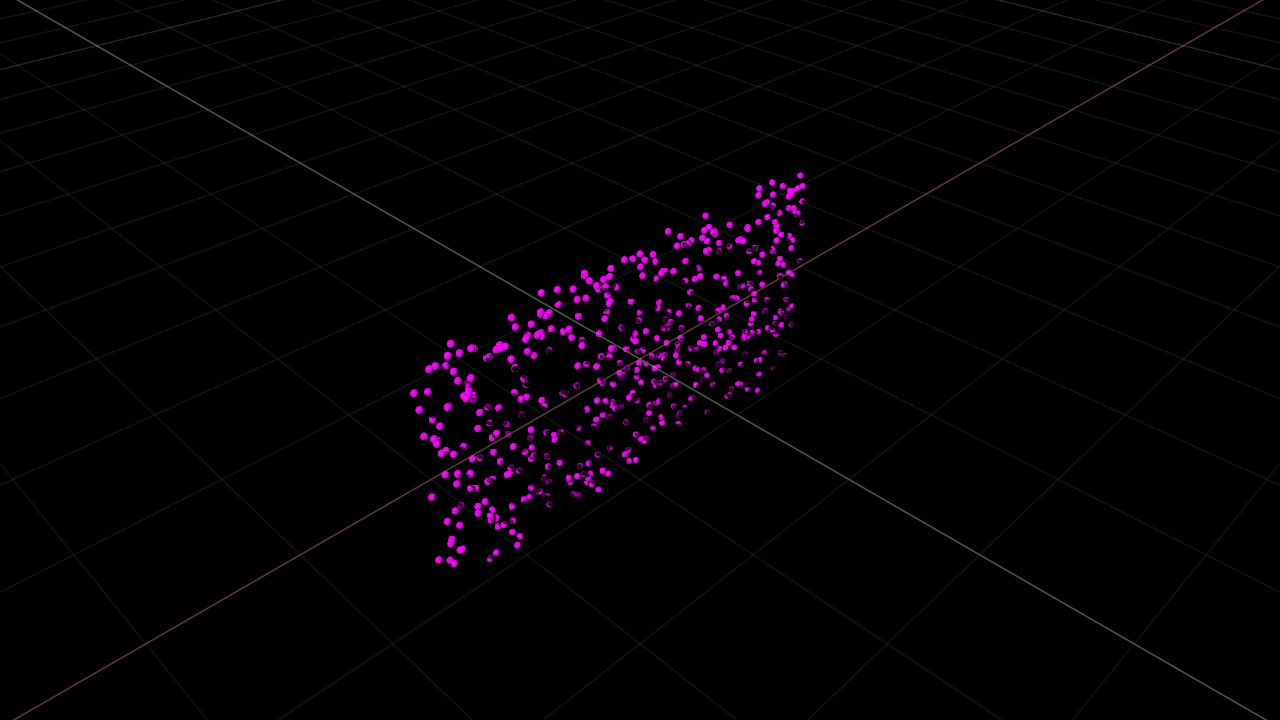
Use the UsdGeom.Points API when the geometry needs to interact with the renderer.
The UsdGeom.Points API is the most efficient method to render large amounts of point geometry.
import random

import omni.usd
from pxr import UsdGeom


class Example:
    def create(self):
        # Create Point List
        N = 500
        self.point_list = [
            (random.uniform(-2.0, 2.0), random.uniform(-0.1, 0.1), random.uniform(-1.0, 1.0)) for _ in range(N)
        ]
        self.sizes = [0.05 for _ in range(N)]

        points_path = "/World/Points"
        stage = omni.usd.get_context().get_stage()
        self.points = UsdGeom.Points.Define(stage, points_path)
        self.points.CreatePointsAttr().Set(self.point_list)
        self.points.CreateWidthsAttr().Set(self.sizes)
        self.points.CreateDisplayColorPrimvar("constant").Set([(1, 0, 1)])

    def update(self):
        # modify the point list
        for i in range(len(self.point_list)):
            self.point_list[i] = (random.uniform(-2.0, 2.0), random.uniform(-0.1, 0.1), random.uniform(-1.0, 1.0))
        # update the points
        self.points.GetPointsAttr().Set(self.point_list)


import asyncio

import omni

example = Example()
example.create()


async def update_points():
    # Update 10 times, waiting 10 frames between each update
    for _ in range(10):
        for _ in range(10):
            await omni.kit.app.get_app().next_update_async()
        example.update()


asyncio.ensure_future(update_points())
UsdGeom.PointInstancer#
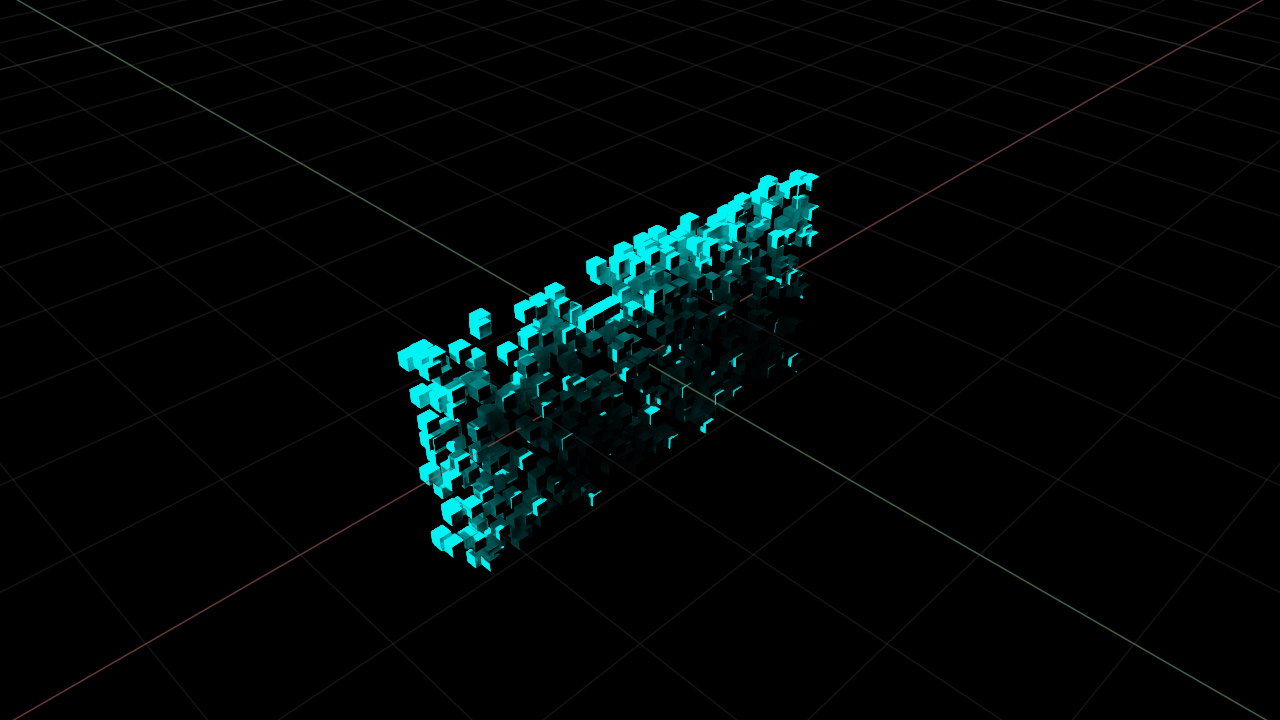
Use the UsdGeom.PointInstancer API when the geometry needs to interact with the physics scene.
The UsdGeom.PointInstancer API lets you efficiently replicate an instance of a prim — with all of its USD properties —
and update all instances with a list of positions, colors, and sizes.
See the PointInstancer Reference for more information regarding the PointInstancer API.
Below are code snippets for how to create and update geometry with UsdGeom.PointInstancer:
import random

import omni.usd
from pxr import Gf, UsdGeom


class Example:
    def create(self):
        # Create Point List
        N = 500
        scale = 0.05
        self.point_list = [
            (random.uniform(-2.0, 2.0), random.uniform(-0.1, 0.1), random.uniform(-1.0, 1.0)) for _ in range(N)
        ]
        self.colors = [(1, 1, 1, 1) for _ in range(N)]
        self.sizes = [(1.0, 1.0, 1.0) for _ in range(N)]

        # Set up Geometry to be Instanced
        cube_path = "/World/Cube"
        stage = omni.usd.get_context().get_stage()
        cube = UsdGeom.Cube(stage.DefinePrim(cube_path, "Cube"))
        cube.AddScaleOp().Set(Gf.Vec3d(1, 1, 1) * scale)
        cube.CreateDisplayColorPrimvar().Set([(0, 1, 1)])
        # Set up Point Instancer

        instance_path = "/World/PointInstancer"
        self.point_instancer = UsdGeom.PointInstancer(stage.DefinePrim(instance_path, "PointInstancer"))
        # Create & Set the Positions Attribute
        self.positions_attr = self.point_instancer.CreatePositionsAttr()
        self.positions_attr.Set(self.point_list)
        self.scale_attr = self.point_instancer.CreateScalesAttr()
        self.scale_attr.Set(self.sizes)
        # Set the Instanced Geometry
        self.point_instancer.CreatePrototypesRel().SetTargets([cube.GetPath()])

        self.proto_indices_attr = self.point_instancer.CreateProtoIndicesAttr()
        self.proto_indices_attr.Set([0] * len(self.point_list))

    def update(self):
        # modify the point list
        for i in range(len(self.point_list)):
            self.point_list[i] = (random.uniform(-2.0, 2.0), random.uniform(-0.1, 0.1), random.uniform(-1.0, 1.0))
        # update the points
        self.positions_attr.Set(self.point_list)


import asyncio

import omni

example = Example()
example.create()


async def update_points():
    # Update 10 times, waiting 10 frames between each update
    for _ in range(10):
        for _ in range(10):
            await omni.kit.app.get_app().next_update_async()
        example.update()


asyncio.ensure_future(update_points())
DebugDraw#
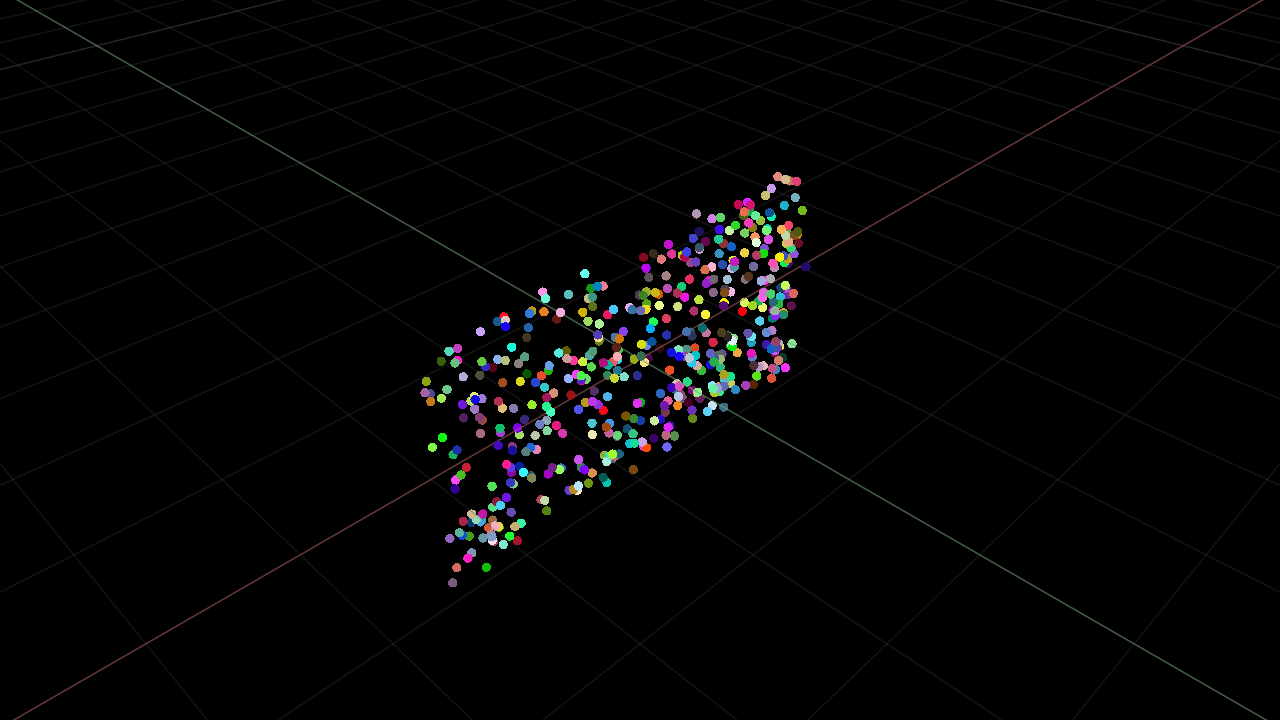
The Debug Drawing Extension API API is useful for purely visualizing geometry in the Viewport. Geometry drawn with the debug_draw_interface
cannot be rendered and does not interact with the physics scene. However, it is the most performance-efficient method of visualizing geometry.
See the API documentation for complete usage information.
Below are code snippets for how to create and update geometry visualed with DebugDraw:
import random

from isaacsim.util.debug_draw import _debug_draw


class Example:
    def create(self):
        self.draw = _debug_draw.acquire_debug_draw_interface()
        N = 500
        self.point_list = [
            (random.uniform(-2.0, 2.0), random.uniform(-0.1, 0.1), random.uniform(-1.0, 1.0)) for _ in range(N)
        ]
        self.color_list = [(random.uniform(0, 1), random.uniform(0, 1), random.uniform(0, 1), 1) for _ in range(N)]
        self.size_list = [10.0 for _ in range(N)]

    def update(self):
        # modify the point list
        for i in range(len(self.point_list)):
            self.point_list[i] = (random.uniform(-2.0, 2.0), random.uniform(-0.1, 0.1), random.uniform(-1.0, 1.0))

        # draw the points
        self.draw.clear_points()
        self.draw.draw_points(self.point_list, self.color_list, self.size_list)


import asyncio

import omni

example = Example()
example.create()


async def update_points():
    # Update 10 times, waiting 10 frames between each update
    for _ in range(10):
        for _ in range(10):
            await omni.kit.app.get_app().next_update_async()
        example.update()


asyncio.ensure_future(update_points())
Rendering Frame Delay#
The default rendering pipeline in the app experiences have upto 3 frames in flight to be rendered, which results in higher FPS since the simulation is not blocked until the latest state is rendered completely.
For applications that need the rendered data to correspond to the latest simulation state with no delay, the following experience file should be used apps/omni.isaac.sim.zero_delay.python.kit. Below is an example of how to use the experience file in a standlone workflow.
import os

from isaacsim import SimulationApp

SimulationApp({"headless": True}, experience=f"{os.environ['EXP_PATH']}/isaacsim.exp.base.zero_delay.kit")
Alternatively, if you would like to use the specific settings instead, you can set them with extra_args as well:
from isaacsim import SimulationApp

SimulationApp(
    {
        "headless": True,
        "extra_args": [
            "--/app/hydraEngine/waitIdle=1",
            "--/app/updateOrder/checkForHydraRenderComplete=1000",
            "--/exts/isaacsim.ros2.bridge/publish_multithreading_disabled=1",
        ],
    },
)