


Physical Space Event Generation#
Overview#
Isaacsim.Replicator.Incident (IRI) is an extension that allows you to generate events
in urban simulation scenes.
Currently, IRI supports the following spontaneous event types,
Box toppling events
Fire and smoke events
Liquid spills
To use IRI in a scene, follow this workflow:
1. Tag items in the scene with an appropriate event type using the property dropdown menu + Add > Incident Tagging. Items can be tagged, for instance, as ‘loose items’ that can be knocked over in a topple event, ‘spillable items’ that can leak or spill liquid in a spill event, or ‘flammable items’ that can catch fire in a fire event.
2. Save the scene to a usd file to commit that tagging information if you plan on closing and re-opening the scene. A sample scene with tags already applied is provided in the Content Browser
[Isaac Sim Assets Path]/Isaac/Samples/Replicator/Incidents/full_warehouse_with_incident_tags.usd.
Note
[Isaac Sim Assets Path]is the path to your Isaac Sim assets; refer to Isaac Sim Assets.Refer to Isaac Sim Assets Check for how to verify the assets access and how to retrieve the asset path.
3. (IRI standalone) Set up an event configuration file which defines what events will occur in the scene by using the Event Config File window located in the menu Tools > Action and Event Data Generation > Event Config File. This configuration can also be saved and loaded later, though it is not saved into the scene’s usd file and must be saved and loaded separately through the Event Config File panel. After configuring the events or loading an event config file, press Set Up Events to load the demons that will trigger the events at the specified times.
4. Run the simulation with the play button to preview the scene. To generate SDG data you can also use the Record Events button in the Event Config File window.
Event items are given semantic labels as the simulation runs to support replicator’s SDG collection. A separate incident report is also written
as JSON (by default incidents_report.json in the output directory) to record event details. Refer to Incident Report JSON.
Note
No adjustment is made to the viewport camera during an event, so you must manually find the event in the scene and move the viewport camera there to view it.
Warning
If fire effects do not render correctly during a fire event, disable multi-tick
rendering by setting /rtx/hydra/supportMultiTickRate to false. The fastest
way is to override it on the command line at launch:
./isaac-sim.sh --/rtx/hydra/supportMultiTickRate=false
.\isaac-sim.bat --/rtx/hydra/supportMultiTickRate=false
For other ways to apply this setting (Script Editor snippet, .kit or .toml
edits), refer to Modify Carb Settings. Refer to
Multi-Tick Rendering for what multi-tick rendering does and
the trade-offs of disabling it.
IRI Standalone UI Example#
This example shows how to use the standalone IRI UI to set up boxes falling off a shelf at a specific time. It starts with the warehouse scene from the isaac assets folder:
[Isaac Sim Assets Path]/Environments/Simple_Warehouse/full_warehouse.usd.
1. Open the warehouse scene and ensuring that the navmesh has been baked. This example uses the navmesh to determine the direction to topple the items.
Select boxes on a shelf and use the IncidentTagging > LooseItem > Navmesh button to tag them as loose items. When toppled, these boxes will fall off the shelf towards the nearest navmesh point, which will automatically make them fall towards the walkable area of the scene.
Optionally, you can save the scene to save your progress.
Open the Event Config File window located in the menu Tools > Action and Event Data Generation > Event Config File.
Remove the default Spill and Fire events, and examine the remaining default topple event settings.
The topple item is set to
$random_loose_item$, which will randomly select a loose item in the scene to topple. The trigger is a time based trigger, and the time is set to3seconds.Press Set Up Events to load the topple demon that will topple the item at the specified time.
Play the scene and collect event data with the Record Events button in the Event Config File window. Press Stop Record to stop the recording.
An incident report is written to the specified output directory (default file name incidents_report.json). Refer to Incident Report JSON for the JSON layout.
Scene Tagging#
To begin using IRI in a scene, tag the desired possible event items using the custom UI and then save the scene to a usd file using the
standard save dialogue File > Save.
Right-click a prim in the stage window or viewport and select + Add > Incident
Tagging and select either loose items, spillable items, or flammable items.
This menu is also accessible in the Property tab under the + Add
button.
Currently tagged items in the scene may be visualized by enabling the Incident Scene Tags visualizer under the eye icon on top of the viewport. Click Show By Type > Incident Scene Tags and toggle the category of tagged items you wish to view.
Loose Items#
To topple items in a scene, forces are applied in a particular direction that depends on the type of tag the loose item was given.
Random Direction#
Items tagged as ‘random direction’ will have a force applied in a random direction.
Closest Waypoint Direction#
The UI allows you to add ‘Waypoints’ to the scene. Waypoints are modeled as boxes that can be placed anywhere in the scene and resized to outline walking paths or aisles. Items tagged as ‘closest waypoint direction’ will have a force applied in the direction of the nearest point on the nearest waypoint.
Create Waypoint Prim#
To add a waypoint to the scene, use the property dropdown menu and select Create > Incident/Topple > Topple Destination. This button will add a waypoint to the scene for use with closest waypoint loose items. The prim may be resized and duplicated to create more complex structures like walking paths.
Flammable Items#
Flammable items are any items that can catch fire. When a flammable item is tagged as such, it can be a target for a pyro event. The item’s prim must have a visible mesh under it’s hierarchy to act as the fuel source.
Spillable Items#
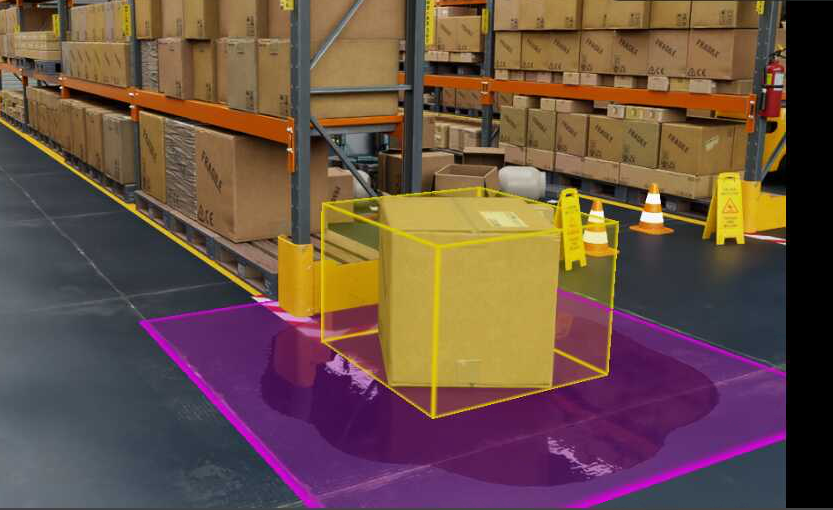
Spillable items are any items that can leak or spill liquid. When a spillable item is tagged as such, it can be a target for a spill event. Item’s currently leak by instantiating a flat liquid surface onto prims in the scene marked as ‘spillable area’ and which reside underneath the spillable item.
Spillable Area Floor#
Spillable areas are prims that liquid may spill onto. When a spill event occurs, the liquid will be instantiated on a prim below the spilling item with this tag. If no such prim exists, the liquid will be instantiated on the ground at height 0.0.
Untagging: Tagged items may be untagged in the Properties panel and removing any properties in the Raw Usd Properties section that begin with ‘isaacsim_replicator_incident_attr:’.
Event Configuration in IRI UI#
IRI has a standalone UI for configuring events. This UI is accessed by navigating to Tools > Action and Event Data Generation > Event Config File. Here, you can add and configure events in the scene and record them.
After adding an event, you must select and configure a trigger that will initiate the event. The currently supported triggers are
time: Begin the event at the designated timecarb_event: Begin the event whenever the provided carb event happens. Carb events are the main way to integrate IRI events with other extensions.physical_event: Use the beginning of another IRI event to trigger this event.
The commands are generated as a YAML file, which can be saved and loaded later, or edited directly to change the events configuration. As this file is not a part of the usd scene, saving and loading must be done separately using the save and load features in the Event Config File panel.
Event Configuration in IRI Script#
IRI saves the event configuration to the script file, which can be edited directly to change the event configuration.
isaacsim.replicator.incident:
version: 0.1.0
global:
    report_dir:
    seed: 654321
event:
    event_list:
    - ToppleEvent:
        name: my topple event
        topple_item:
            item: $random_loose_item$
            topple_nearby_radius: 1.5
        trigger:
            type: time
            time: 3
    - FireEvent:
        name: my fire event
        flammable_item:
            item: $random_flammable_item$
        trigger:
            type: time
            time: 6
    - SpillEvent:
        name: my spill event
        leakable_item:
            item: $random_leakable_item$
            target_size: 1.5
            leak_duration: 5.0
        trigger:
            type: time
            time: 9
In this example, three events are defined: a topple event, a fire event, and a spill event. Each event has a name, and a simple time based trigger that will trigger the event at the specified time.
The next few sections will go over the various event types and the parameters available for each.
Topple Event#
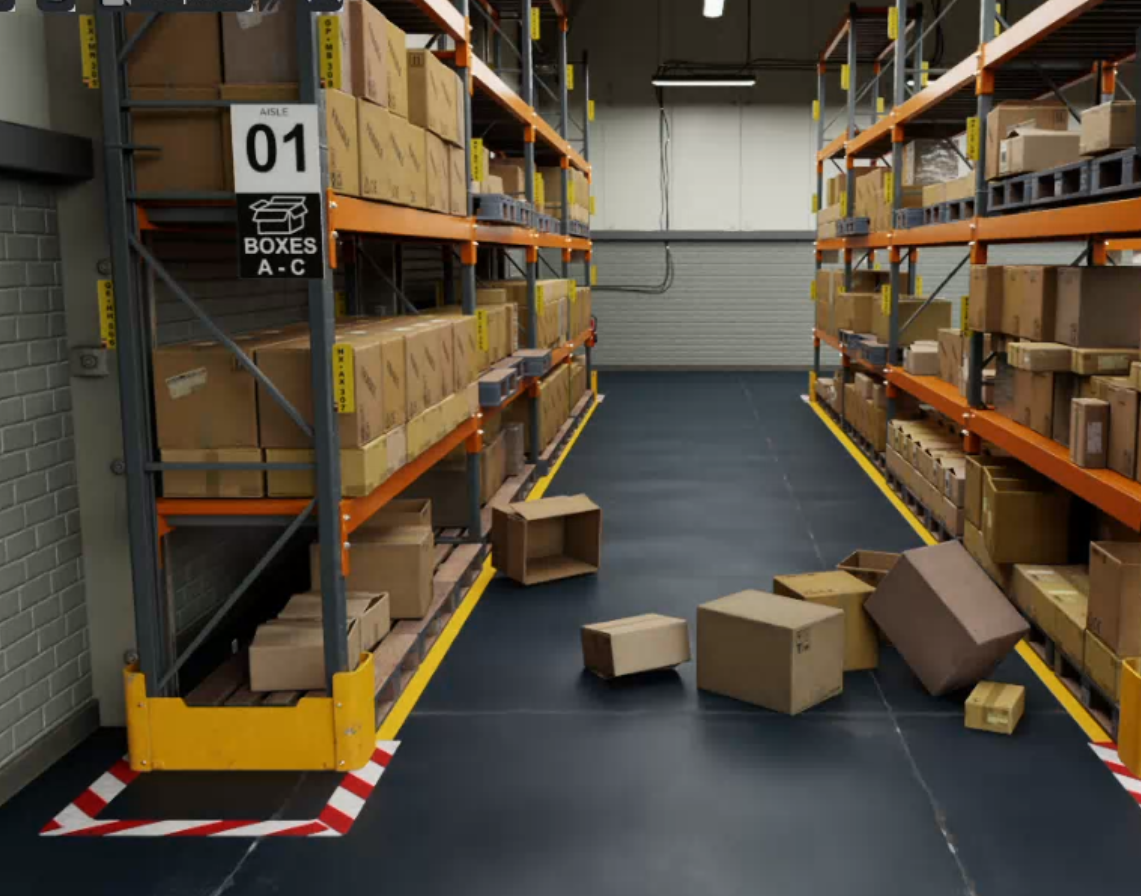
A topple event has the following required fields:
name: the name of the event
- topple_item: the item to topple. Can be a specific tagged item prim path, or a random tagged item given by $random_loose_item$
topple_nearby_radius: Other loose items within this radius will also be toppled.
trigger: the trigger for the event. Can be a time based trigger. Refer to Trigger Fields for the trigger section.
- ToppleEvent:
    name: my topple event
    topple_item:
        item: $random_loose_item$
        topple_nearby_radius: 1.5
    trigger:
        type: time
        time: 1.0
Toppled items in the scene will be given the semantic label ‘incident_toppled_item’.
Fire Event#
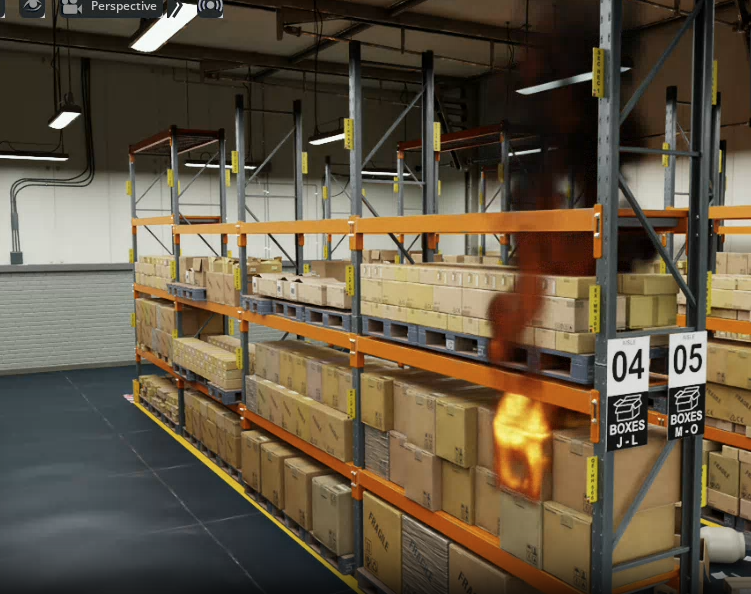
A fire event has the following required fields:
name: the name of the event
flammable_item: the item to catch fire. Can be a specific tagged item prim path, or a random tagged item given by
$random_flammable_item$trigger: the trigger for the event. Can be a time based trigger. Refer to Trigger Fields for the trigger section.
- FireEvent:
    name: my fire event
    flammable_item:
        item: $random_flammable_item$
    trigger:
        type: time
        time: 2.0
Flammable items in the scene will be given the semantic label ‘incident_flaming_item’. The flame itself will require a custom replicator writer to be written.
The YAML trigger above sets the fire start time in seconds on the trigger; the incident report JSON records that trigger under trigger_data and adds fire-specific simulation_data (start_time in frames and fire_prim). Refer to Incident Report JSON.
Spill Event#
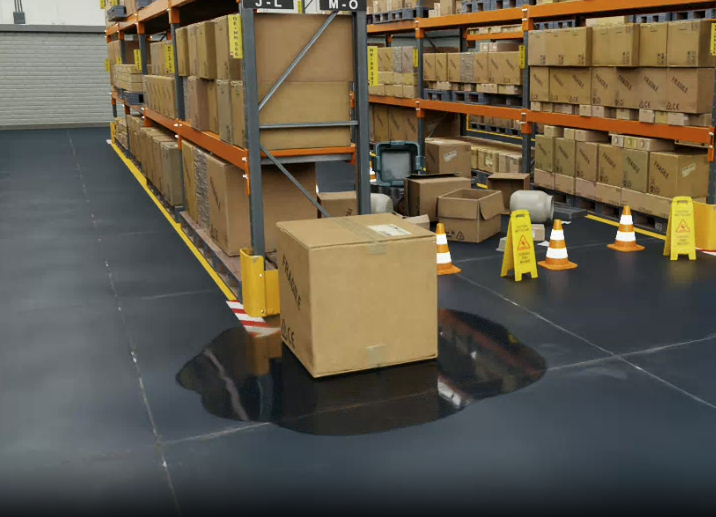
A spill event has the following required fields:
name: the name of the event
- leakable_item: the item to spill. Can be a specific tagged item prim path, or a random tagged item given by
$random_leakable_item$
target_size: the size of the spill area.
leak_duration: the duration of the spill.
trigger: the trigger for the event. Can be a time based trigger. Refer to Trigger Fields for the trigger section.
- SpillEvent:
    name: my spill event
    leakable_item:
        item: $random_leakable_item$
        target_size: 3.0
        leak_duration: 5.0
    trigger:
        type: time
        time: 1.5
Leaking items in the scene will be given the semantic label ‘incident_leaking_item’. The liquid itself is given a separate semantic label, ‘incident_liquid_spill’.
Triggers#
Each event type has a trigger field, which is used to specify when the event should occur. Here are the parameters for the various trigger types currently supported
time
trigger:
    type: time
    # time: the time in seconds
    time: 1.5
carb_event
trigger:
    type: carb_event
    # event_name: the name associated to the desired carb event
    event_name: my_extension_custom_event
physical_event
trigger:
    type: physical_event
    # incident_name: Each physical event in IRI has a unique name.
    # This triggers at the beginning of the provided IRI event
    incident_name: MyFireEvent
SDG Collection#
SDG collection is handled by the replicator’s SDG writers based on the semantic labels of the event items. The structured incident
metadata file written when you record events is JSON (incidents_report.json by default; refer to Incident Report JSON).
It is not a YAML event log. The event configuration you save and load in Event Config File remains YAML and is separate from the incident report.
Incident Report JSON#
Recording uses IncidentReport.start_recording in isaacsim.replicator.incident.core. By default the report file name is
incidents_report.json (override with the file_name argument).
The file is a JSON object whose top-level keys are event names (strings). Each event entry may include any of the following sections (all optional unless noted for a given event type):
event_data: Event-specific fields from configuration or setup.trigger_data: Present when the event is launched by a trigger whose callback forwards the trigger to the incident handler (typical for time triggers on all event types). Contains a nestedtriggerobject with fields such astype,priority, andtime. Time-based triggers usetimein seconds (refer to Triggers).simulation_data: Simulation timeline metadata in simulation frame indices (integers), not seconds. Do not equate these numbers with trigger time unless you convert it using your timeline FPS or ticks-per-frame.
Per event type (current implementation):
Topple:
event_data,trigger_data, andsimulation_datawithstart_timeandend_time(frames).end_timeis when the topple observer considers the event finished (for example, loose items sleeping), not only the trigger instant.Spill:
event_data,trigger_data, andsimulation_datawithstart_timeandend_time(frames). The interval spans from the trigger frame throughtrigger_time + leak_durationin simulation time (see spillleak_durationin the YAML/UI).Fire:
event_data,trigger_data(when the event is triggered through the standard trigger callback), andsimulation_datawith onlystart_time(frame at ignition) andfire_prim(USD path of the FlowEmitterBox emitter prim). Fire entries do not includeend_timeinsimulation_data. Note:event_datamay include a field such asflame_emitterthat refers to the flammable item prim path. Thefire_primfield is separate and points to the emitter prim used for the pyro effect.
Parsers should treat simulation_data keys as event-type-specific (for example end_time is absent for fire) and tolerate missing sections if older builds or code paths omit them.
API usage#
This extension also exposes a Python API which you can use to set up the various incidents from your own script.
Ensure that isaacsim.replicator.incident.core is enabled, and use the API as in the following example.
import carb
import isaacsim.core.utils.prims as prims_utils
import omni.kit.commands
import omni.usd
from isaacsim.replicator.incident.core import get_instance
from isaacsim.replicator.incident.core.extension import IncidentExt
from isaacsim.replicator.incident.core.settings import IncidentSettings
from isaacsim.storage.native import get_assets_root_path
from omni.metropolis.pipeline.triggers import TriggersManager
from pxr import Gf, UsdLux

SEED = 12345
SKY_TEXTURE = "/NVIDIA/Assets/Skies/Clear/evening_road_01_4k.hdr"

stage = omni.usd.get_context().get_stage()
assets_root = get_assets_root_path()

# Skybox backdrop via dome light HDRI (skipped if assets are unreachable)
if assets_root is not None:
    dome = UsdLux.DomeLight.Define(stage, "/World/SkyDome")
    dome.GetIntensityAttr().Set(1000.0)
    dome.GetTextureFileAttr().Set(assets_root + SKY_TEXTURE)
    dome.GetTextureFormatAttr().Set(UsdLux.Tokens.latlong)
else:
    carb.log_warn("Could not find Isaac Sim assets folder; skipping sky backdrop")

# Get the incident manager and create pyro event manager
incident_manager = get_instance().get_incident_manager()

# Create a TimeTrigger and add callback
time_trigger = TriggersManager.get_instance().create_trigger_by_dict({"trigger": {"type": "time", "time": 1.0}})
time_trigger.add_callback(lambda trigger: carb.log_info("Trigger fired!"))

# Create 3 cubes with incident tags
# Cube 1: Flammable item (for fire events)
prims_utils.create_prim(
    prim_path="/World/FlammableCube",
    prim_type="Cube",
    position=[-1.0, 0.0, 0.5],
    attributes={"size": 0.5},
)

omni.kit.commands.execute("ApplyFlammableItemTagCommand", prims="/World/FlammableCube", flammable_item_type="Box")
# Create randomly selected fire event
pyro_event_manager = incident_manager.create_pyro_event_manager(
    data_path=IncidentExt.data_path, seed=SEED, report=incident_manager.get_incident_report()
)

pyro_event_manager.generate_pyro_event(
    name="fire event",
    selected_flammable_item_prim_path=IncidentSettings.RANDOM_FLAMMABLE_ITEM,
    pyro_nearby_radius=0.0,
    trigger=time_trigger,
)

# Cube 2: Loose item (for topple events)
prims_utils.create_prim(
    prim_path="/World/LooseCube",
    prim_type="Cube",
    position=[0.0, 0.0, 0.5],
    attributes={"size": 0.5},
)

omni.kit.commands.execute("ApplyLooseItemTagCommand", prims="/World/LooseCube", loose_item_type="RandomDir")
# Create randomly selected topple event
topple_event_manager = incident_manager.create_topple_event_manager(
    seed=SEED, report=incident_manager.get_incident_report()
)
topple_event_manager.generate_topple_event(
    name="topple event",
    selected_loose_item=IncidentSettings.RANDOM_LOOSE_ITEM,
    topple_nearby_radius=0.01,
    trigger=time_trigger,
)

# Cube 3: Leakable item (for spill events)
prims_utils.create_prim(
    prim_path="/World/LeakableCube",
    prim_type="Cube",
    position=[1.0, 0.0, 0.5],
    attributes={"size": 0.5},
)
omni.kit.commands.execute("ApplyLeakableItemTagCommand", prims="/World/LeakableCube", leakable_item_type="Item")

# Create a plane for the floor and tag it as a spillable area
omni.kit.commands.execute(
    "AddGroundPlaneCommand",
    stage=stage,
    planePath="/World/Floor",
    axis="Z",  # Normal along Z-axis for x-y plane (ground)
    size=25.0,
    position=Gf.Vec3f(0.0, 0.0, 0.0),
    color=Gf.Vec3f(0.5, 0.5, 0.5),
)
omni.kit.commands.execute("ApplySpillableAreaTagCommand", prims="/World/Floor", spillable_area_type="Floor")
# Create randomly selected spill event
spill_event_manager = incident_manager.create_spill_event_manager(
    seed=SEED, report=incident_manager.get_incident_report()
)
spill_event_manager.generate_spill_event(
    name="spill event",
    selected_spillable_item=IncidentSettings.RANDOM_LEAKABLE_ITEM,
    target_size=1.0,
    leak_duration=1.0,
    trigger=time_trigger,
)
You can now press the play button to observe the simulated incidents in a windowed mode or
use Isaac’s SimulationApp API to step through the scene frames if running the scene using
Python in a headless mode.