


PhysX SDK lidar#
Deprecated since version 6.0: The PhysX SDK Lidar sensor (isaacsim.sensors.physx) is deprecated. Use
isaacsim.sensors.experimental.physics.RaycastSensor as the replacement, which provides
configurable raycast-based sensing.
See PhysX Lidar for step-by-step migration instructions, or the isaacsim.sensors.experimental.physics API Documentation for the replacement APIs.
The PhysX SDK lidar sensor in Isaac Sim uses PhysX SDK raycasts to simulate a Lidar. You can set horizontal and vertical beam resolution, rotation rate, and other Lidar parameters; the PhysX SDK lidar then reports depth information from each beam. The PhysX SDK lidar cannot interact with non-visual materials, and it always reports ground truth information. For example, the Lidar measures depth of a transparent object with respect to the Lidar, even if a beam would normally pass through the transparent object in real life.
See the Isaac Sim Conventions documentation for a complete list of Isaac Sim conventions.
GUI#
PhysX SDK lidar sensor example#
To run the example:
Activate
Robotics Examplestab from Windows > Examples > Robotics Examples.Click Robotics Examples > Sensors > Physx Lidar Sensor.
Press the Load Sensor button.
Press the Load Scene button.
Press the Open Source Code button to view the source code. The source code illustrates how to add and control the sensor using the Python API.
Press the Play button to begin simulating.

Adding a PhysX SDK lidar sensor to a simulation#
Scene setup#
Begin setting up the scene by creating a PhysicsScene and a PhysX Lidar in the environment:
To create a Physics Scene, go to the top Menu Bar and click Create > Physics > Physics Scene. Verify that there is now a

PhysicsScenePrim in the Stage panel on the right.To create a Lidar, go to the top Menu Bar and click Create > Sensors > PhysX Lidar > Rotating. Next, set the Lidar properties for rotation and visualization:
Select the newly created Lidar prim from the Stage panel.
After selecting it, the Property panel in the lower left populates with all available Lidar properties.
Scroll down in the Property panel to the Raw USD Properties section.
Enable the drawLines checkbox to enable line rendering.
Set the revolutions per second to
1 Hzby settingrotationRateto1.0.To fire LIDAR rays in all directions at once, set the
rotationRateto0.0.
Note
You can update all of the Lidar parameters on the fly while the stage is running. When the rotation rate reaches zero or less, the Lidar prim casts rays in all directions based on your FOV and resolution.
Set up collision detection#
The Lidar can only detect objects with Collisions Enabled. Add an object for the Lidar to detect:
Go to the top Menu Bar and click Create > Mesh > Cube.
Translate the cube to
(2, 0, 0).
Next, add a Physics Collider to the Cube:
With the Cube selected, go to the Property panel and click the + Add button.
Select + Add > Physics > Collider.

Use the mouse to move the Cube around the scene and see how the Lidar rays interact with the geometry.
Attach a Lidar to geometry#
For most use cases, attach Lidars to more complex assemblies, such as cars or robots. Use a Cylinder as a placeholder for a more complex prim. Add a Cylinder to the scene and nest the Lidar prim under it:
Right click in the viewport and select Create > Mesh > Cylinder.
Set the translation of the Cylinder to
(0, 0, 0).In the Stage panel, drag-and-drop the
LIDARprim onto theCylinder.This makes the
Cylinderthe parent of theLIDAR. When theCylindermoves, theLIDARmoves with it. All information reported by the LIDAR is now relative to theCylinder.Add an offset to
LIDARto precisely position it relative to theCylinder. Select theLIDARprim from the Stage and move it to(0.5, 0.5, 0).Move the
Cylinderaround the environment. The LIDAR maintains this relative transform.Re-select the
LIDARprim and reset itsTranslatevalue to its default setting(0, 0, 0).

Attach a Lidar to a moving robot#
You can attach a LIDAR prim to a robot. You can use the Carter V1 robot as an example.
Open the Isaac Sim Content Browser, navigate to
Robots/NVIDIA/Carter/carter_v1.usd, and open thecarter_v1.usdfile.Open the left wheel joint at carter/chassis_link/left_wheel, scroll down on the property panel, and set the Target Velocity to 100.
Repeat the same process for the right wheel joint at carter/chassis_link/right_wheel.
Press Play and the Carter robot drives forward automatically.
Create a
LIDARby going to the top Menu Bar and clicking Create > Sensors > PhysX LIDAR > Rotating. TheLIDARprim is created as a child of the selected prim.In the Stage panel, select your
LIDARprim and drag it onto/carter/chassis_link.Set the translation of the PhysX lidar to -0.06, 0.0, 0.38 to move it to the correct location.
Enable draw lines and set the rotation rate to zero for easier debugging.

Script Editor#
Use the Lidar Python API to create, control, and query the sensor through scripts and extensions. Use the Script Editor and Python API to retrieve data from the Lidar’s last sweep:
Go to the top menu bar and click Window > Script Editor to open the Script Editor window.
Add the necessary imports:
import asyncio  # Used to run sample asynchronously to not block rendering thread

import omni  # Provides the core omniverse APIs
from isaacsim.sensors.physx import _range_sensor  # Imports the python bindings to interact with Lidar sensor
from pxr import Gf, UsdGeom, UsdPhysics  # pxr usd imports used to create the cube
Grab the Stage, Simulation Timeline, and LIDAR interface:
import omni

stage = omni.usd.get_context().get_stage()  # Used to access Geometry
timeline = omni.timeline.get_timeline_interface()  # Used to interact with simulation
lidarInterface = _range_sensor.acquire_lidar_sensor_interface()  # Used to interact with the LIDAR

# These commands are the Python-equivalent of the first half of this tutorial
omni.kit.commands.execute("AddPhysicsSceneCommand", stage=stage, path="/World/PhysicsScene")
lidarPath = "/LidarName"
result, prim = omni.kit.commands.execute(
    "RangeSensorCreateLidar",
    path=lidarPath,
    parent="/World",
    min_range=0.4,
    max_range=100.0,
    draw_points=False,
    draw_lines=True,
    horizontal_fov=360.0,
    vertical_fov=30.0,
    horizontal_resolution=0.4,
    vertical_resolution=4.0,
    rotation_rate=0.0,
    high_lod=False,
    yaw_offset=0.0,
    enable_semantics=False,
)
Create an obstacle for the LIDAR:
from isaacsim.core.experimental.utils.stage import get_current_stage
from pxr import Gf, UsdGeom, UsdPhysics

stage = get_current_stage()
CubePath = "/World/CubeName"  # Create a Cube
cubeGeom = UsdGeom.Cube.Define(stage, CubePath)
cubePrim = stage.GetPrimAtPath(CubePath)
cubeGeom.AddTranslateOp().Set(Gf.Vec3f(2.0, 0.0, 0.0))  # Move it away from the LIDAR
cubeGeom.CreateSizeAttr(1)  # Scale it appropriately
collisionAPI = UsdPhysics.CollisionAPI.Apply(cubePrim)  # Add a Physics Collider to it
Get the LIDAR data:
The Lidar needs one simulation frame to get data for the first frame, so start the simulation by calling
timeline.play, wait for a frame to complete, and then pause simulation usingtimeline.pause()to populate the depth buffers in the Lidar. Because the simulation is running asynchronously with our script, useasyncioandensure_futureto wait for our script to complete callingtimeline.pause()is optional, data from the sensor can be gathered anytime while simulating.import asyncio import omni.timeline async def get_lidar_param(): # Function to retrieve data from the LIDAR await omni.kit.app.get_app().next_update_async() # wait one frame for data timeline.pause() # Pause the simulation to populate the LIDAR's depth buffers depth = lidarInterface.get_linear_depth_data("/World" + lidarPath) zenith = lidarInterface.get_zenith_data("/World" + lidarPath) azimuth = lidarInterface.get_azimuth_data("/World" + lidarPath) print("depth", depth) # Print the data print("zenith", zenith) print("azimuth", azimuth) timeline = omni.timeline.get_timeline_interface() timeline.play() # Start the Simulation asyncio.ensure_future(get_lidar_param()) # Only ask for data after sweep is complete
Run the full script:
Expand to display full code
# provides the core omniverse APIs
# used to run sample asynchronously to not block rendering thread
import asyncio

import omni

# import the python bindings to interact with Lidar sensor
from isaacsim.sensors.physx import _range_sensor

# pxr usd imports used to create cube
from pxr import Gf, UsdGeom, UsdPhysics

stage = omni.usd.get_context().get_stage()
lidarInterface = _range_sensor.acquire_lidar_sensor_interface()
timeline = omni.timeline.get_timeline_interface()
omni.kit.commands.execute("AddPhysicsSceneCommand", stage=stage, path="/World/PhysicsScene")
lidarPath = "/LidarName"
result, prim = omni.kit.commands.execute(
    "RangeSensorCreateLidar",
    path=lidarPath,
    parent="/World",
    min_range=0.4,
    max_range=100.0,
    draw_points=False,
    draw_lines=True,
    horizontal_fov=360.0,
    vertical_fov=30.0,
    horizontal_resolution=0.4,
    vertical_resolution=4.0,
    rotation_rate=0.0,
    high_lod=False,
    yaw_offset=0.0,
    enable_semantics=False,
)

CubePath = "/World/CubeName"
cubeGeom = UsdGeom.Cube.Define(stage, CubePath)
cubePrim = stage.GetPrimAtPath(CubePath)
cubeGeom.AddTranslateOp().Set(Gf.Vec3f(2.0, 0.0, 0.0))
cubeGeom.CreateSizeAttr(1)
collisionAPI = UsdPhysics.CollisionAPI.Apply(cubePrim)


async def get_lidar_param():
    await omni.kit.app.get_app().next_update_async()
    timeline.pause()
    depth = lidarInterface.get_linear_depth_data("/World" + lidarPath)
    zenith = lidarInterface.get_zenith_data("/World" + lidarPath)
    azimuth = lidarInterface.get_azimuth_data("/World" + lidarPath)
    print("depth", depth)
    print("zenith", zenith)
    print("azimuth", azimuth)


timeline.play()
asyncio.ensure_future(get_lidar_param())
Verify that you have the following:
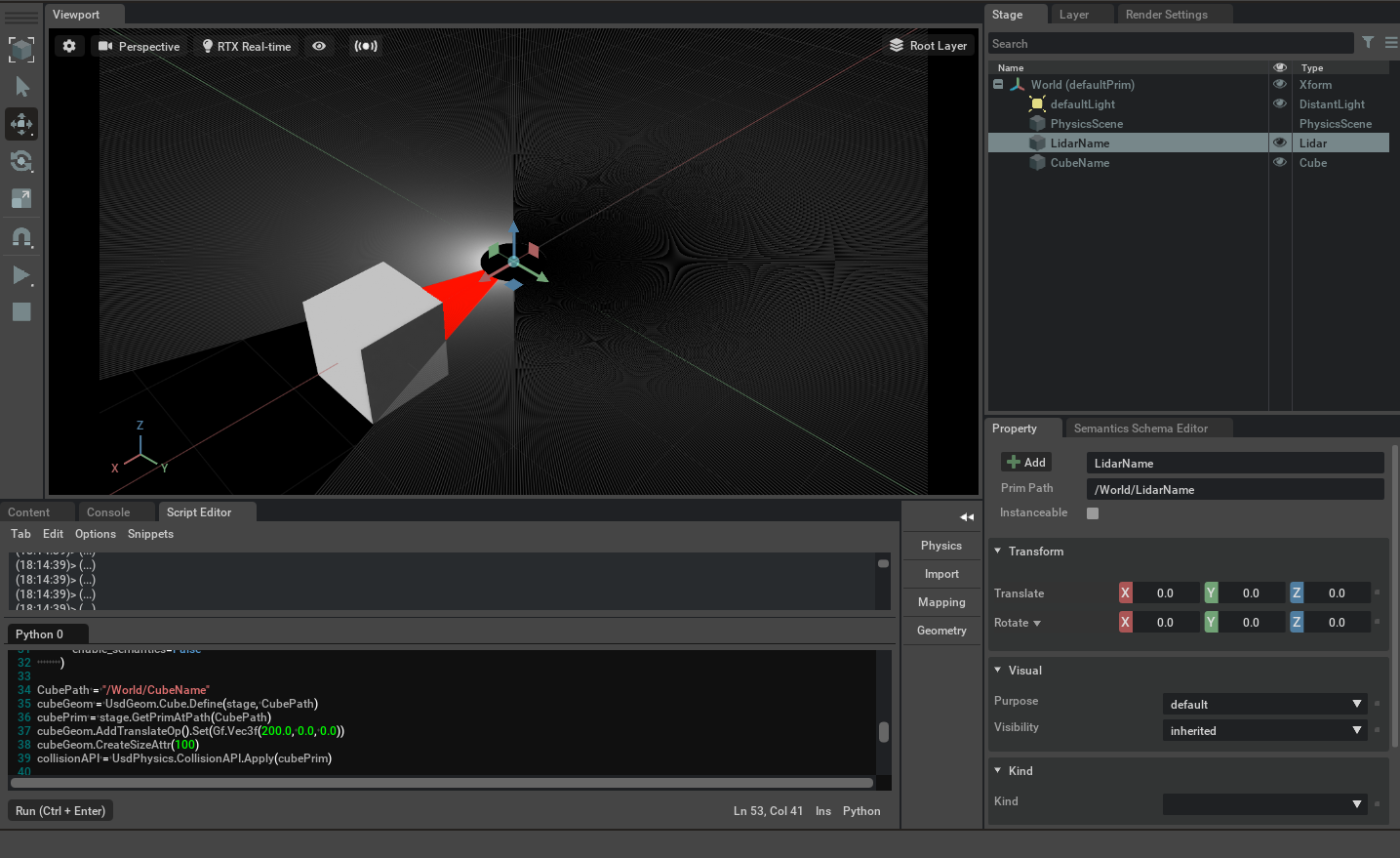
Segment a Point Cloud#
This code snippet shows how to add semantic labels to the depth data for segmenting its resulting point cloud.
import asyncio  # Used to run sample asynchronously to not block rendering thread

import omni  # Provides the core omniverse APIs
from isaacsim.sensors.physx import _range_sensor  # Imports the python bindings to interact with Lidar sensor
from pxr import Gf, Semantics, UsdGeom, UsdPhysics  # pxr usd imports used to create cube

stage = omni.usd.get_context().get_stage()  # Used to access Geometry
timeline = omni.timeline.get_timeline_interface()  # Used to interact with simulation
lidarInterface = _range_sensor.acquire_lidar_sensor_interface()  # Used to interact with the LIDAR
# These commands are the Python-equivalent of the first half of this tutorial
omni.kit.commands.execute("AddPhysicsSceneCommand", stage=stage, path="/World/PhysicsScene")
lidarPath = "/LidarName"
# Create Lidar prim
result, prim = omni.kit.commands.execute(
    "RangeSensorCreateLidar",
    path=lidarPath,
    parent="/World",
    min_range=0.4,
    max_range=100.0,
    draw_points=True,
    draw_lines=False,
    horizontal_fov=360.0,
    vertical_fov=60.0,
    horizontal_resolution=0.4,
    vertical_resolution=0.4,
    rotation_rate=0.0,
    high_lod=True,
    yaw_offset=0.0,
    enable_semantics=True,
)
UsdGeom.XformCommonAPI(stage.GetPrimAtPath("/World" + lidarPath)).SetTranslate((2.0, 0.0, 0.0))

# Create a cube, sphere, add collision and different semantic labels
primType = ["Cube", "Sphere"]
for i in range(2):
    prim = stage.DefinePrim("/World/" + primType[i], primType[i])
    UsdGeom.XformCommonAPI(prim).SetTranslate((-2.0, -2.0 + i * 4.0, 0.0))
    UsdGeom.XformCommonAPI(prim).SetScale((1, 1, 1))
    collisionAPI = UsdPhysics.CollisionAPI.Apply(prim)

    # Add semantic label
    sem = Semantics.SemanticsAPI.Apply(prim, "Semantics")
    sem.CreateSemanticTypeAttr()
    sem.CreateSemanticDataAttr()
    sem.GetSemanticTypeAttr().Set("class")
    sem.GetSemanticDataAttr().Set(primType[i])


# Get point cloud and semantic id for Lidar hit points
async def get_lidar_param():
    await asyncio.sleep(1.0)
    timeline.pause()
    pointcloud = lidarInterface.get_point_cloud_data("/World" + lidarPath)
    semantics = lidarInterface.get_prim_data("/World" + lidarPath)

    print("Point Cloud", pointcloud)
    print("Semantic ID", semantics)


timeline.play()  # Start the Simulation
asyncio.ensure_future(get_lidar_param())  # Only ask for data after sweep is complete
The main differences between this example and the previous are as follows:
The LIDAR’s
enable_semanticsflag is set toTrueon creation.The Cube and Sphere prims have different
semantic labels.Use
get_point_cloud_dataandget_prim_datato retrieve the point cloud data and semantic IDs.
The segmented point cloud from the Lidar sensor looks like the image below:
