


ROS 2 Installation (Other Platforms)#
NVIDIA Isaac Sim provides a ROS 2 bridge for ROS system integration. The same set of common components are used to define the types of data being published and received by the simulator.
The Isaac Sim supported ROS distros are:
Platform |
ROS Distro |
ROS Installation Notes |
|---|---|---|
Ubuntu 24.04 |
Jazzy (recommended) |
|
Ubuntu 22.04 |
Humble |
Use default installation (Python 3.10). Use Python 3.12 build of ROS 2 Workspace to use custom ROS interfaces with Isaac Sim. |
Ubuntu 22.04 |
Jazzy |
Build from source (Python 3.10). Use Python 3.12 build of ROS 2 Workspace to use custom ROS interfaces with Isaac Sim. |
Windows 11 |
Humble |
WSL installation (Deprecated). Custom ROS Interfaces are not supported. |
Windows 11 |
Jazzy |
Pixi: Pixi-based native ROS installation. Isaac Sim can source the Pixi ROS installation directly. WSL (Deprecated): Custom ROS Interfaces are not supported. |
For the ROS 2 bridge, Isaac Sim is compatible with ROS 2 Humble and ROS 2 Jazzy.
Attention
Experimental: Native ROS 2 Distro Support – Isaac Sim now experimentally supports loading any ROS 2 distro that is natively installed on your platform (Ubuntu 22.04 or Ubuntu 24.04). To use this, source your locally installed ROS 2 distro and launch Isaac Sim from the same terminal. While Humble and Jazzy remain the officially tested and recommended distros, other natively supported distros may work with this workflow.
ROS 2 Jazzy on Ubuntu 24.04 is recommended. Refer to ROS 2 Installation (Default), if that is your mode of installation. Otherwise, verify or choose your configuration to continue:
ROS 2 Setup
Install ROS 2#
Download ROS 2 following the instructions on the official website:
(Optional) Some message types (Detection2DArray and Detection3DArray used for publishing bounding boxes) in the ROS 2 Bridge depend on the vision_msgs_package. Run the command below to install the package on your system. If you have built ROS 2 from source, clone the package and include it in your ROS 2 installation workspace before re-building. If you don’t need to run the
vision_msgspublishers, you can skip this step.sudo apt install ros-humble-vision-msgs
(Optional) Some message types (
AckermannDriveStampedused for publishing and subscribing to Ackermann steering commands) in the ROS 2 Bridge depend on the ackermann_msgs_package. Run the command below to install the package on your system. If you have built ROS 2 from source, clone the package and include it in your ROS 2 installation workspace before re-building. If you don’t need to run theackermann_msgspublishers or subscribers, you can skip this step.sudo apt install ros-humble-ackermann-msgs
Ensure that the ROS environment is sourced in the terminal or in your
~/.bashrcfile. You must perform this step each time and before using any ROS commands:source /opt/ros/humble/setup.bash
Note
For Linux, you can not source this installation in the same terminal as running Isaac Sim. Source with Isaac Sim internal ROS libraries, Python 3.12, before running Isaac Sim.
Download and build ROS 2 Jazzy from source following the instructions on the official website:
(Optional) Some message types (
Detection2DArrayandDetection3DArray, which are used for publishing bounding boxes) in the ROS 2 Bridge depend on the vision_msgs_package. Clone the linked repository and build it in a ROS workspace. If you don’t need to run thevision_msgspublishers, you can skip this step.(Optional) Clone the linked repository and build it in a ROS workspace. If you have built ROS 2 from source, clone the package and include it in your ROS 2 installation workspace before re-building. If you don’t need to run the
ackermann_msgspublishers or subscribers, you can skip this step. Some message types (AckermannDriveStampedused for publishing and subscribing to Ackermann steering commands) in the ROS 2 Bridge depend on the ackermann_msgs_package.Ensure that the ROS environment is sourced in the terminal or in your
~/.bashrcfile. You must perform this step each time and before using any ROS commands:. ~/ros2_jazzy/install/local_setup.bash
Note
For Linux, you can not source this installation in the same terminal as running Isaac Sim. Source with Isaac Sim internal ROS libraries, Python 3.12, before running Isaac Sim.
Note
Pixi-based native ROS 2 installation is only supported with ROS 2 Jazzy at this time. Please select Jazzy as your ROS 2 distro, or switch to the WSL2 install method to use Humble.
Use WSL2 to run ROS 2 on Windows, which communicates with the Isaac Sim ROS Bridge run using internal ROS 2 libraries.
Install WSL2 on your Windows machine.
Open Powershell with Admin privileges and change the WSL version to 2.
wsl --set-default-version 2
Install Ubuntu 22.04 distro inside WSL.
wsl --install -d Ubuntu-22.04
After the installation is complete, restart the machine and open the Ubuntu 22.04 app in Windows. It takes a few moments to install.
Note
If you encounter errors with enabling virtualization, follow the Windows virtualization enabling instructions.
After Ubuntu 22.04 is installed in WSL2, download ROS 2 following the instructions on the official website:
(Optional) Some message types (
Detection2DArrayandDetection3DArray, which are used for publishing bounding boxes) in the ROS 2 Bridge depend on the vision_msgs_package. Run the command below to install the package on your system. If you have built ROS 2 from source, clone the package and include it in your ROS 2 installation workspace before re-building. If you don’t need to run thevision_msgspublishers, you can skip this step.sudo apt install ros-humble-vision-msgs
(Optional) Some message types (
AckermannDriveStampedused for publishing and subscribing to Ackermann steering commands) in the ROS 2 Bridge depend on the ackermann_msgs_package. Run the command below to install the package on your system. If you have built ROS 2 from source, clone the package and include it in your ROS 2 installation workspace before re-building. If you don’t need to run theackermann_msgspublishers or subscribers, you can skip this step.sudo apt install ros-humble-ackermann-msgs
Ensure that the ROS environment is sourced in the terminal or in your WSL2
~/.bashrcfile. You must perform this step each time and before using any ROS commands:source /opt/ros/humble/setup.bash
After ROS 2 installation is complete, open WSL2 and run the following command to get the IP address of WSL2:
hostname -I
Open Powershell as Admin and run the following command to retrieve the IPv4 address of the Windows host:
ipconfig /all
Set the variables in Powershell according to the respective IP addresses:
$Windows_IP = "<WINDOWS_IP>"
$WSL2_IP = "<WSL2_IP>"
Setup port forwarding in Powershell for the specific ports used by default DDS (FastDDS) in ROS:
netsh interface portproxy add v4tov4 listenport=7400 listenaddress=$Windows_IP connectport=7400 connectaddress=$WSL2_IP
netsh interface portproxy add v4tov4 listenport=7410 listenaddress=$Windows_IP connectport=7410 connectaddress=$WSL2_IP
netsh interface portproxy add v4tov4 listenport=9387 listenaddress=$Windows_IP connectport=9387 connectaddress=$WSL2_IP
After the ROS Bridge is enabled on Isaac Sim and the Windows network settings have been applied, Isaac Sim is able to communicate with ROS 2 nodes in WSL2.
Use WSL2 to run ROS 2 on Windows, which communicates with the Isaac Sim ROS Bridge run using internal ROS 2 libraries.
Install WSL2 on your Windows machine.
Open Powershell with Admin privileges and change the WSL version to 2.
wsl --set-default-version 2
Install Ubuntu 24.04 distro inside WSL.
wsl --install -d Ubuntu-24.04
After the installation is complete, restart the machine and open the Ubuntu 24.04 app in Windows. It takes a few moments to install.
Note
If you encounter errors with enabling virtualization, follow the Windows virtualization enabling instructions.
After Ubuntu 24.04 is installed in WSL2, download ROS 2 following the instructions on the official website:
(Optional) Some message types (
Detection2DArrayandDetection3DArray, which are used for publishing bounding boxes) in the ROS 2 Bridge depend on the vision_msgs_package. Run the command below to install the package on your system. If you have built ROS 2 from source, clone the package and include it in your ROS 2 installation workspace before re-building. If you don’t need to run thevision_msgspublishers, you can skip this step.sudo apt install ros-jazzy-vision-msgs
(Optional) Some message types (
AckermannDriveStampedused for publishing and subscribing to Ackermann steering commands) in the ROS 2 Bridge depend on the ackermann_msgs_package. Run the command below to install the package on your system. If you have built ROS 2 from source, clone the package and include it in your ROS 2 installation workspace before re-building. If you don’t need to run theackermann_msgspublishers or subscribers, you can skip this step.sudo apt install ros-jazzy-ackermann-msgs
Ensure that the ROS environment is sourced in the terminal or in your WSL2
~/.bashrcfile. You must perform this step each time and before using any ROS commands:source /opt/ros/jazzy/setup.bash
After ROS 2 installation is complete, open WSL2 and run the following command to get the IP address of WSL2:
hostname -I
Open Powershell as Admin and run the following command to retrieve the IPv4 address of the Windows host:
ipconfig /all
Set the variables in Powershell according to the respective IP addresses:
$Windows_IP = "<WINDOWS_IP>"
$WSL2_IP = "<WSL2_IP>"
Setup port forwarding in Powershell for the specific ports used by default DDS (FastDDS) in ROS:
netsh interface portproxy add v4tov4 listenport=7400 listenaddress=$Windows_IP connectport=7400 connectaddress=$WSL2_IP
netsh interface portproxy add v4tov4 listenport=7410 listenaddress=$Windows_IP connectport=7410 connectaddress=$WSL2_IP
netsh interface portproxy add v4tov4 listenport=9387 listenaddress=$Windows_IP connectport=9387 connectaddress=$WSL2_IP
After the ROS Bridge is enabled on Isaac Sim and the Windows network settings have been applied, Isaac Sim is able to communicate with ROS 2 nodes in WSL2.
The Pixi workspace installs ROS 2 Jazzy natively on Windows via RoboStack conda packages. WSL2 is not required, and all Isaac Sim ROS 2 tutorials are supported.
ROS 2 Jazzy is installed automatically as part of the Pixi workspace. No separate ROS 2 installation is needed. Ensure the following prerequisites are met before proceeding to the workspace setup:
Requirement |
Notes |
|---|---|
Windows 11 x64 |
|
|
|
Required to clone the workspace repository. |
|
MSVC Build Tools 2022 |
Select the “Desktop development with C++” workload. Required for source builds. To get VS 2022 specifically, scroll to “Older Downloads” on the Visual Studio downloads page and expand 2022. |
Install the standalone Isaac Sim package following Workstation Setup. The Pixi workspace expects it at |
Continue to Isaac Sim ROS Workspaces to clone and set up the Pixi workspace.
To install the ROS 2 workspaces and run our tutorials, follow the steps in the Isaac Sim ROS Workspaces section.
Isaac Sim ROS Workspaces#
The ROS 2 workspaces contain the necessary packages to run our ROS 2 tutorials and examples.
Included ROS 2 Packages#
A list of sample ROS 2 packages created for NVIDIA Isaac Sim:
carter_navigation: Contains the required launch file and ROS 2 navigation parameters for the NVIDIA Carter robot.
cmdvel_to_ackermann: Contains a script file and launch file used to convert command velocity messages (Twist message type) to Ackermann Drive messages (
AckermannDriveStampedmessage type).custom_message: Contains the required launch file and ROS 2 navigation parameters for the NVIDIA Carter robot.
h1_fullbody_controller: Contains the required launch files, parameters and scripts for running a full body controller for the H1 humanoid robot.
isaac_compressed_image_decoder: Contains a decoder node for converting H.264 compressed images (
sensor_msgs/CompressedImage) back to rawsensor_msgs/Imagemessages using PyAV.isaac_moveit: Contains the launch files and parameter to run Isaac Sim with the MoveIt2 stack.
isaac_ros_navigation_goal: Used to automatically set random or user-defined goal poses in ROS 2 Navigation.
isaac_ros2_messages: A custom set of ROS 2 service interfaces for retrieving poses as well as listing prims and manipulate their attributes.
isaacsim_bringup: Contains launch files and scripts for running and launching Isaac Sim as a ROS 2 node.
isaac_tutorials: Contains launch files, RViz2 config files, and scripts for the tutorial series.
iw_hub_navigation: Contains the required launch file and ROS 2 navigation parameters for the iw.hub robot.
Setup ROS 2 Workspaces#
To run our ROS 2 tutorials and examples, you must source your ROS 2 installation workspace in the terminal you plan to work in.
To build the Isaac Sim ROS workspaces, ensure you have followed Install ROS 2.
Important
You are also able to build the workspaces using a ROS Docker container, as described in Running ROS in Docker Containers. Return to this step after setting up your Docker container.
Clone the Isaac Sim ROS Workspace Repository from https://github.com/isaac-sim/IsaacSim-ros_workspaces.
A few ROS packages are necessary for the Isaac Sim ROS 2 tutorial series. The entire ROS 2 workspaces are included with the necessary packages.
If you have built ROS 2 from source, replace the
source /opt/ros/<ros_distro>/setup.bashcommand withsource <path_ros2_ws>/install/setup.bashbefore building additional workspaces.To build the ROS 2 workspace, you might need to install additional packages:
# For rosdep install command
sudo apt install python3-rosdep build-essential
# For colcon build command
sudo apt install python3-colcon-common-extensions
Ensure that your native ROS 2 has been sourced:
source /opt/ros/humble/setup.bash
Resolve any package dependencies from the root of the ROS 2 workspace by running the following command:
cd humble_ws
git submodule update --init --recursive # If using docker, perform this step outside the container and relaunch the container
rosdep install -i --from-path src --rosdistro humble -y
Build the workspace:
colcon buildUnder the root directory, new
build,install, andlogdirectories are created.To start using the ROS 2 packages built within this workspace, open a new terminal and source the workspace with the following commands:
source /opt/ros/humble/setup.bash
cd humble_ws
source install/local_setup.bash
Custom ROS Interfaces
If you want to use rclpy and custom ROS 2 packages with Isaac Sim, your ROS 2 workspace must also be built with Python 3.12 which Isaac Sim will interface. Dockerfiles are included with the Isaac Sim ROS Workspaces repository that build minimal dependencies of ROS 2 with Python 3.12.
Additionally, Dockerfiles are included to build the ROS 2 workspace with Python 3.12. Packages built using this Dockerfile can be used directly with rclpy and can be sourced to run the Isaac Sim ROS 2 Bridge.
To use the Dockerfile to build ROS 2 and the workspace with Python 3.12:
cd IsaacSim-ros_workspaces

./build_ros.sh -d humble -v 22.04
The minimal
humble_wsneeded to run Isaac Sim is under build_ws/humble/humble_ws. Additional workspaces can also be created and built in this Dockerfile.Open a new terminal and source the ROS 2 Python 3.12 build:
source build_ws/humble/humble_ws/install/local_setup.bash
In the same terminal, source the built ROS 2 workspace:
source build_ws/humble/isaac_sim_ros_ws/install/local_setup.bash
Run Isaac Sim from the same terminal. The sourced workspace contains the minimal ROS 2 Humble dependencies needed to enable the ROS 2 bridge.
To run external nodes, use a different terminal and source the Python 3.10 build of the workspace in the default ROS distro as explained at the beginning of this section.
Since ROS 2 Jazzy is not natively supported on Ubuntu 22.04, Docker is required to build the ROS 2 workspaces.
Clone the Isaac Sim ROS Workspace Repository from https://github.com/isaac-sim/IsaacSim-ros_workspaces.
A few ROS packages are necessary for the Isaac Sim ROS 2 tutorial series. The entire ROS 2 workspaces are included with the necessary packages.
Follow the instructions in Running ROS in Docker Containers to build and source the workspace using a ROS Docker container.
Custom ROS Interfaces
If you want to use rclpy and custom ROS 2 packages with Isaac Sim, your ROS 2 workspace must also be built with Python 3.12 which Isaac Sim will interface. Dockerfiles are included with the Isaac Sim ROS Workspaces repository that build minimal dependencies of ROS 2 with Python 3.12.
Packages built using this Dockerfile can be used directly with rclpy and can be sourced to run the Isaac Sim ROS 2 Bridge.
To use the Dockerfile to build ROS 2 and the workspace with Python 3.12:
cd IsaacSim-ros_workspaces

./build_ros.sh -d jazzy -v 22.04
The minimal
jazzy_wsneeded to run Isaac Sim is under build_ws/jazzy/jazzy_ws. Additional workspaces can also be created and built in this Dockerfile.Open a new terminal and source the ROS 2 Python 3.12 build:
source build_ws/jazzy/jazzy_ws/install/local_setup.bash
In the same terminal, source the built ROS 2 workspace:
source build_ws/jazzy/isaac_sim_ros_ws/install/local_setup.bash
Run Isaac Sim from the same terminal. The sourced workspace contains the minimal ROS 2 Jazzy dependencies needed to enable the ROS 2 bridge.
To run external nodes, use the Docker container as described in Running ROS in Docker Containers.
Note
Pixi-based native ROS 2 installation is only supported with ROS 2 Jazzy at this time. Please select Jazzy as your ROS 2 distro, or switch to the WSL2 install method to use Humble.
To run our ROS 2 tutorials and examples, it’s necessary to source your ROS 2 installation workspace in the WSL2 terminal you plan to work in.
Open the Ubuntu 22.04 app (WSL2) in Windows and wait for the WSL2 terminal to be available.
To build the Isaac Sim ROS workspaces, ensure you have followed Install ROS 2 in WSL2.
Clone the Isaac Sim ROS Workspace Repository from https://github.com/isaac-sim/IsaacSim-ros_workspaces.
A few ROS packages are needed to go through the Isaac Sim ROS 2 tutorial series. The entire ROS 2 workspaces are included with the necessary packages.
If you have built ROS 2 from source, replace the
source /opt/ros/<ros_distro>/setup.bashcommand withsource <path_ros2_ws>/install/setup.bashbefore building additional workspaces.To build the ROS 2 workspace, you might need to install additional packages:
# For rosdep install command
sudo apt install python3-rosdep build-essential
# For colcon build command
sudo apt install python3-colcon-common-extensions
Ensure that your native ROS 2 has been sourced:
source /opt/ros/humble/setup.bash
Resolve any package dependencies from the root of the ROS 2 workspace by running the following commands:
cd humble_ws
git submodule update --init --recursive # If using Docker, perform this step outside the container and relaunch the container
rosdep install -i --from-path src --rosdistro humble -y
Build the workspace:
colcon buildUnder the root directory, new
build,install, andlogdirectories are created.To start using the ROS 2 packages built within this workspace, open a new terminal and source the workspace with the following commands:
source /opt/ros/humble/setup.bash
cd humble_ws
source install/local_setup.bash
To run our ROS 2 tutorials and examples, it’s necessary to source your ROS 2 installation workspace in the WSL2 terminal you plan to work in.
Open the Ubuntu 24.04 app (WSL2) in Windows and wait for the WSL2 terminal to be available.
To build the Isaac Sim ROS workspaces, ensure you have followed Install ROS 2 in WSL2.
Clone the Isaac Sim ROS Workspace Repository from https://github.com/isaac-sim/IsaacSim-ros_workspaces.
A few ROS packages are needed to go through the Isaac Sim ROS 2 tutorial series. The entire ROS 2 workspaces are included with the necessary packages.
If you have built ROS 2 from source, replace the
source /opt/ros/<ros_distro>/setup.bashcommand withsource <path_ros2_ws>/install/setup.bashbefore building additional workspaces.To build the ROS 2 workspace, you might need to install additional packages:
# For rosdep install command
sudo apt install python3-rosdep build-essential
# For colcon build command
sudo apt install python3-colcon-common-extensions
Ensure that your native ROS 2 has been sourced:
source /opt/ros/jazzy/setup.bash
Resolve any package dependencies from the root of the ROS 2 workspace by running the following command:
cd jazzy_ws
git submodule update --init --recursive # If using docker, perform this step outside the container and relaunch the container
rosdep install -i --from-path src --rosdistro jazzy -y
Build the workspace:
colcon buildUnder the root directory, new
build,install, andlogdirectories are created.To start using the ROS 2 packages built within this workspace, open a new terminal and source the workspace with the following commands:
source /opt/ros/jazzy/setup.bash
cd jazzy_ws
source install/local_setup.bash
The Pixi workspace bundles ROS 2 Jazzy via RoboStack conda packages and uses Zenoh as the RMW middleware, eliminating the need for WSL2 or DDS port forwarding. Pixi manages every dependency — ROS 2, the MSVC-compatible compilers, colcon, and CMake — inside a project-local environment, so no system-wide ROS installation is required.
Warning
Keep the workspace root short on Windows, such as C:\\IsaacSim-ros_workspaces. Long paths can exceed the 260-character Windows path limit and cause Pixi build or launch errors.
Clone the Isaac Sim ROS Workspace Repository:
git clone https://github.com/isaac-sim/IsaacSim-ros_workspaces.git C:\\IsaacSim-ros_workspaces
Open a Command Prompt and navigate to the Jazzy workspace:
cd C:\\IsaacSim-ros_workspaces\\jazzy_wsInstall all ROS 2 Jazzy packages and build dependencies (this may take several minutes on first run):
pixi install
Build the workspace with MSVC:
pixi run build
The
buildtask runscolcon build --merge-installunder the Pixi-managed MSVC toolchain.Note
The build uses
--merge-installto keep the install tree flat and avoid WindowsMAX_PATHissues.Note
After the first successful build, Pixi sources
install\\setup.batautomatically whenever you enterpixi shellor invokepixi run. Your built packages are available without any manual sourcing.
Running Isaac Sim with the Pixi workspace
Note
RMW_IMPLEMENTATION=rmw_zenoh_cpp is set permanently in the Pixi workspace configuration. Zenoh is enabled by default for all ROS 2 nodes started via pixi shell or pixi run.
Start each of the following in a separate Command Prompt, in order:
Terminal 1 — Start the Zenoh router
The Zenoh router must be running before any ROS 2 nodes start:
cd C:\\IsaacSim-ros_workspaces\\jazzy_ws
pixi run zenoh
Terminal 2 — Start Isaac Sim
The workspace exposes a sim task that launches Isaac Sim with the ROS 2 bridge already enabled:
cd C:\\IsaacSim-ros_workspaces\\jazzy_ws
pixi run sim
Note
The sim task uses the isaac_sim_package_path environment variable defined under [target.win.activation] in pixi.toml (default: C:\\isaacsim). Edit that value if Isaac Sim is installed in a different location.
Note
For Pixi workflows, run standalone scripts with the Pixi Python environment, for example pixi run python <path\\to\\script.py> or python <path\\to\\script.py> inside pixi shell. Do not use the bundled python.bat or python.sh launchers, because Pixi installs Isaac Sim from PyPI into the active environment.
To verify the ROS 2 bridge from within Isaac Sim:
Click through Tools > Robotics > ROS 2 OmniGraphs > Clock > OK.
Press the Play button.
Terminal 3 — Run ROS 2 commands
Run any ros2 command through pixi run (or enter pixi shell once and call ros2 directly):
cd C:\\IsaacSim-ros_workspaces\\jazzy_ws
pixi run ros2 topic list
You should see at minimum:
/clock
/parameter_events
/rosout
Note
On Windows you may see a symlink warning from the ROS logger: [WinError 1314] A required privilege is not held by the client. This is harmless. To suppress it, enable Developer Mode in Windows Settings > System > For developers.
Adding dependencies
When you add new dependencies to a package.xml file, regenerate pixi.toml so the new packages are pulled in on the next pixi install:
pixi ros init --distro jazzy
To add a conda package directly:
pixi add <package-name>
To add a PyPI package:
pixi add --pypi <package-name>
If pixi.toml contains entries marked # NOT FOUND after running pixi ros init, the package could not be resolved from the default channels. Options:
Re-run init with a custom channel:
pixi ros init --distro jazzy --channel https://prefix.dev/my-channel.Add the channel manually:
pixi project channel add <channel-url>.Verify the package name in
package.xml.Install from PyPI instead:
pixi add --pypi <package-name>.Contribute the package to ros-jazzy on RoboStack if it is missing from the default ROS channel.
Common issues
Build fails — Confirm all dependencies installed cleanly with
pixi install, then clean and rebuild:pixi run clean pixi run build
``ros2`` command not found — The ROS environment must be activated. Either prefix the command with
pixi run(for example,pixi run ros2 topic list) or enterpixi shellfirst.Active ROS environment detected — If
pixi ros initwarns about an active ROS installation, you have ROS sourced elsewhere on your machine. Remove any manualsourcecalls or environment overrides from your startup scripts and restart the terminal. Pixi manages the ROS environment automatically — no manual sourcing is needed.
Configuring Options and Enabling Internal ROS Libraries#
Because you are already sourcing the Python 3.12 build of ROS 2 and the Python 3.12 build of your ROS 2 workspace, you would not need to enable the internal ROS 2 libraries that ship with Isaac Sim.
If you meet the following configurations, you must run Isaac Sim with the internal ROS libraries that ship with Isaac Sim:
Need to use ROS Docker containers
Have a ROS 2 workspace built locally, but you only plan on using default or command ROS interfaces (for example,
std_msgs,geometry_msgs,nav_msgs)
In Ubuntu 22.04, Isaac Sim interactive GUI automatically loads the internal ROS 2 Humble libraries if no other ROS libraries are sourced. Use the regular launch command to run Isaac Sim with the ROS 2 Bridge enabled.
./isaac-sim.sh
Note
The ROS_DISTRO environment variable is used to check whether ROS has been sourced.
Running Standalone Scripts
If you are using ./python.sh to run standalone Isaac Sim scripts, you must manually enable the internal libs.
To directly set a specific internal ROS 2 library, you must set the following environment variables in a new terminal or command prompt before running Isaac Sim. If Isaac Sim is installed in a non-default location, replace isaac_sim_package_path environment variable with the path to your Isaac Sim installation root folder.
For running Standalone Scripts:
export isaac_sim_package_path=$HOME/isaacsim

export ROS_DISTRO=humble

export RMW_IMPLEMENTATION=rmw_fastrtps_cpp

# Can only be set once per terminal.
# Setting this command multiple times will append the internal library path again potentially leading to conflicts
export LD_LIBRARY_PATH=$LD_LIBRARY_PATH:$isaac_sim_package_path/exts/isaacsim.ros2.core/humble/lib

# Run Isaac Sim Standalone scripts
$isaac_sim_package_path/python.sh <path/to/standalone/script>
Because you are already sourcing the Python 3.12 build of ROS 2 and the Python 3.12 build of your ROS 2 workspace, you do not need to enable the internal ROS 2 libraries that ship with Isaac Sim.
If you meet the following configuration, you must run Isaac Sim with the internal ROS libraries that ship with Isaac Sim.
Need to use ROS Docker containers
Have a ROS 2 workspace built locally, but you only plan on using default or command ROS interfaces (for example,
std_msgs,geometry_msgs,nav_msgs).
In Ubuntu 22.04, the Isaac Sim interactive GUI automatically loads the internal ROS 2 Humble libraries, if no other ROS libraries are sourced. Therefore, you must manually override that setting to use Jazzy internal ROS 2 libs.
Note
The ROS_DISTRO environment variable is used to check whether ROS has been sourced.
Running Standalone Scripts or Manually Specify ROS 2 Internal Libraries
If you are using ./python.sh to run standalone Isaac Sim scripts, you must manually enable the internal libs.
To directly set a specific internal ROS 2 library, you must set the following environment variables in a new terminal or command prompt before running Isaac Sim. If Isaac Sim is installed in a non-default location, replace isaac_sim_package_path environment variable with the path to your Isaac Sim installation root folder.
To run Isaac Sim using manually selected ROS 2 internal libraries (override to Jazzy):
export isaac_sim_package_path=$HOME/isaacsim

export ROS_DISTRO=jazzy

export RMW_IMPLEMENTATION=rmw_fastrtps_cpp

# Can only be set once per terminal.
# Setting this command multiple times will append the internal library path again potentially leading to conflicts
export LD_LIBRARY_PATH=$LD_LIBRARY_PATH:$isaac_sim_package_path/exts/isaacsim.ros2.core/jazzy/lib

# Run Isaac Sim Standalone scripts
$isaac_sim_package_path/isaac-sim.sh
To run using standalone scripts:
export isaac_sim_package_path=$HOME/isaacsim

export ROS_DISTRO=jazzy

export RMW_IMPLEMENTATION=rmw_fastrtps_cpp

# Can only be set once per terminal.
# Setting this command multiple times will append the internal library path again potentially leading to conflicts
export LD_LIBRARY_PATH=$LD_LIBRARY_PATH:$isaac_sim_package_path/exts/isaacsim.ros2.core/jazzy/lib

# Run Isaac Sim Standalone scripts
$isaac_sim_package_path/python.sh <path/to/standalone/script>
Note
Pixi-based native ROS 2 installation is only supported with ROS 2 Jazzy at this time. Please select Jazzy as your ROS 2 distro, or switch to the WSL2 install method to use Humble.
In Windows, Isaac Sim automatically loads the internal ROS 2 Humble libraries, if no other ROS libraries are sourced. Enable the ROS 2 Bridge and run Isaac Sim using:
set isaac_sim_package_path=C:\isaacsim

REM Run Isaac Sim with ROS 2 Bridge Enabled
%isaac_sim_package_path%\isaac-sim.bat --/isaac/startup/ros_bridge_extension=isaacsim.ros2.bridge
# Set environment variables

$env:isaac_sim_package_path = "C:\isaacsim"

# Run Isaac Sim with ROS 2 Bridge Enabled
& "$env:isaac_sim_package_path\isaac-sim.bat" --/isaac/startup/ros_bridge_extension=isaacsim.ros2.bridge
Running Standalone Scripts
If you are using ./python.bat to run standalone Isaac Sim scripts, you must manually enable the internal libs.
set isaac_sim_package_path=C:\isaacsim

set ROS_DISTRO=humble

set RMW_IMPLEMENTATION=rmw_fastrtps_cpp

REM Can only be set once per terminal.
REM Setting this command multiple times will append the internal library path again potentially leading to conflicts
set PATH=%PATH%;%isaac_sim_package_path%\exts\isaacsim.ros2.core\humble\lib

REM Run Isaac Sim Standalone scripts
%isaac_sim_package_path%\python.bat <path/to/standalone/script>
# Set environment variables

$env:isaac_sim_package_path = "C:\isaacsim"
$env:ROS_DISTRO = "humble"
$env:RMW_IMPLEMENTATION = "rmw_fastrtps_cpp"

# Only set this once per session to avoid path conflicts
$env:PATH = "$env:PATH;$env:isaac_sim_package_path\exts\isaacsim.ros2.core\humble\lib"

# Run Run Isaac Sim Standalone scripts
& "$env:isaac_sim_package_path\python.bat" <path/to/standalone/script>
In Windows, Isaac Sim automatically loads the internal ROS 2 Humble libraries, if no other ROS libraries are sourced. To manually override that setting to enable Jazzy internal ROS 2 libs, enable the ROS 2 Bridge and run Isaac Sim using:
set isaac_sim_package_path=C:\isaacsim

set ROS_DISTRO=jazzy

set RMW_IMPLEMENTATION=rmw_fastrtps_cpp

REM Can only be set once per terminal.
REM Setting this command multiple times will append the internal library path again potentially leading to conflicts
set PATH=%PATH%;%isaac_sim_package_path%\exts\isaacsim.ros2.core\jazzy\lib

REM Run Isaac Sim with ROS 2 Bridge Enabled
%isaac_sim_package_path%\isaac-sim.bat --/isaac/startup/ros_bridge_extension=isaacsim.ros2.bridge
# Set environment variables

$env:isaac_sim_package_path = "C:\isaacsim"
$env:ROS_DISTRO = "jazzy"
$env:RMW_IMPLEMENTATION = "rmw_fastrtps_cpp"

# Only set this once per session to avoid path conflicts
$env:PATH = "$env:PATH;$env:isaac_sim_package_path\exts\isaacsim.ros2.core\jazzy\lib"

# Run Isaac Sim with ROS 2 Bridge Enabled
& "$env:isaac_sim_package_path\isaac-sim.bat" --/isaac/startup/ros_bridge_extension=isaacsim.ros2.bridge
Running Standalone Scripts
If you are using ./python.bat to run standalone Isaac Sim scripts, you must manually enable the internal libs.
set isaac_sim_package_path=C:\isaacsim

set ROS_DISTRO=jazzy

set RMW_IMPLEMENTATION=rmw_fastrtps_cpp

REM Can only be set once per terminal.
REM Setting this command multiple times will append the internal library path again potentially leading to conflicts
set PATH=%PATH%;%isaac_sim_package_path%\exts\isaacsim.ros2.core\jazzy\lib

REM Run Isaac Sim Standalone scripts
%isaac_sim_package_path%\python.bat <path/to/standalone/script>
# Set environment variables

$env:isaac_sim_package_path = "C:\isaacsim"
$env:ROS_DISTRO = "jazzy"
$env:RMW_IMPLEMENTATION = "rmw_fastrtps_cpp"

# Only set this once per session to avoid path conflicts
$env:PATH = "$env:PATH;$env:isaac_sim_package_path\exts\isaacsim.ros2.core\jazzy\lib"

# Run Run Isaac Sim Standalone scripts
& "$env:isaac_sim_package_path\python.bat" <path/to/standalone/script>
With the Pixi workspace, ROS 2 Jazzy and Zenoh middleware are pre-configured. You do not need to set internal ROS 2 library paths manually.
Run standalone scripts with the Pixi Python environment:
pixi run python <path\\to\\standalone\\script.py>
Enabling the ROS 2 Bridge#
The instructions Enabling the ROS 2 Bridge using Fast DDS are the recommended way to enable the ROS 2 bridge.
You can alternatively enable:
Enabling the ROS 2 Bridge using Fast DDS#
If using the ROS 2 Bridge to communicate with ROS 2 nodes running on the same machine, use the default configuration of FastDDS. This ensures you are using shared memory transport resulting in the best simulation performance.
If you intend to use the ROS 2 bridge to connect to ROS nodes on different machines on the same network, before launching Isaac Sim, you need to set the Fast DDS middleware on all terminals that will be passing ROS 2 messages and enable UDP transport:
Ensure
fastdds.xmlexists and that environment variables are set:If you followed Setup ROS 2 Workspaces, a
fastdds.xmlfile is located at the root of the <ros2_ws> folder. Set the environment variable by typingexport FASTRTPS_DEFAULT_PROFILES_FILE=<path_to_ros2_ws>/fastdds.xmlin all the terminals that will use ROS 2 functions.If you DID NOT follow Setup ROS 2 Workspaces, create a file named
fastdds.xmlunder~/.ros/, paste the following snippet link into the file:<?xml version="1.0" encoding="UTF-8" ?> <license>Copyright (c) 2022-2026, NVIDIA CORPORATION. All rights reserved. NVIDIA CORPORATION and its licensors retain all intellectual property and proprietary rights in and to this software, related documentation and any modifications thereto. Any use, reproduction, disclosure or distribution of this software and related documentation without an express license agreement from NVIDIA CORPORATION is strictly prohibited.</license> <profiles xmlns="http://www.eprosima.com/XMLSchemas/fastRTPS_Profiles" > <transport_descriptors> <transport_descriptor> <transport_id>UdpTransport</transport_id> <type>UDPv4</type> </transport_descriptor> </transport_descriptors> <participant profile_name="udp_transport_profile" is_default_profile="true"> <rtps> <userTransports> <transport_id>UdpTransport</transport_id> </userTransports> <useBuiltinTransports>false</useBuiltinTransports> </rtps> </participant> </profiles>
Run
export FASTRTPS_DEFAULT_PROFILES_FILE=~/.ros/fastdds.xmlin the terminals that will use ROS 2 functions.(Optional) Run
export ROS_DOMAIN_ID=(id_number)before launching Isaac Sim. Later you can decide whether to use thisROS_DOMAIN_IDinside your environment, or explicitly use a different ID number for any given topic.Source your ROS 2 installation or internal ROS 2 libraries and workspace before launching Isaac Sim.
To use the ROS 2 bridge to connect to ROS nodes in WSL2, you must set the Fast DDS middleware on all terminals that will be passing ROS 2 messages and enable UDP transport:
If you DID NOT follow Setup ROS 2 Workspaces, create a file named
fastdds.xmlunderC:\.ros\, paste the following snippet link into the file:<?xml version="1.0" encoding="UTF-8" ?> <license>Copyright (c) 2022-2026, NVIDIA CORPORATION. All rights reserved. NVIDIA CORPORATION and its licensors retain all intellectual property and proprietary rights in and to this software, related documentation and any modifications thereto. Any use, reproduction, disclosure or distribution of this software and related documentation without an express license agreement from NVIDIA CORPORATION is strictly prohibited.</license> <profiles xmlns="http://www.eprosima.com/XMLSchemas/fastRTPS_Profiles" > <transport_descriptors> <transport_descriptor> <transport_id>UdpTransport</transport_id> <type>UDPv4</type> </transport_descriptor> </transport_descriptors> <participant profile_name="udp_transport_profile" is_default_profile="true"> <rtps> <userTransports> <transport_id>UdpTransport</transport_id> </userTransports> <useBuiltinTransports>false</useBuiltinTransports> </rtps> </participant> </profiles>
Run
set FASTRTPS_DEFAULT_PROFILES_FILE=C:\.ros\fastdds.xmlin the terminals that will use ROS 2 functions.(Optional) Run
set ROS_DOMAIN_ID=(id_number)before launching Isaac Sim. Later you can decide whether to use thisROS_DOMAIN_IDinside your environment, or explicitly use a different ID number for any given topic.Ensure the internal ROS 2 libraries are sourced in the same terminal before launching Isaac Sim.
Note
Fast DDS is not applicable for Pixi-based installations. Pixi uses Zenoh middleware, which is supported. See Enabling the ROS 2 Bridge using Zenoh (ROS 2 Jazzy).
Enabling the ROS 2 Bridge using Cyclone DDS#
Isaac Sim supports Cyclone DDS middleware on Linux with ROS 2 Humble and Jazzy. The ROS 2 bridge uses Fast DDS when RMW_IMPLEMENTATION is unset. To switch to Cyclone DDS, stop Isaac Sim, run export RMW_IMPLEMENTATION=rmw_cyclonedds_cpp in the terminal, and relaunch.
Note
Isaac Sim supports Cyclone DDS middleware for Linux only. Windows WSL2 is not supported at this time.
Note
Cyclone DDS is not applicable for Pixi-based installations. Pixi uses Zenoh middleware, which is supported. See Enabling the ROS 2 Bridge using Zenoh (ROS 2 Jazzy).
Enabling the ROS Bridge using Cyclone DDS (Linux Only)#
Note
Windows WSL2 is not supported at this time.
Note
Cyclone DDS is not applicable for Pixi-based installations. Pixi uses Zenoh middleware. See Enabling the ROS 2 Bridge using Zenoh (ROS 2 Jazzy).
Follow the ROS 2 Humble installation steps or ROS 2 Jazzy installation steps to setup Cyclone DDS for your ROS 2 installation.
Note
Isaac Sim ROS 2 Humble and Jazzy internal libraries include Cyclone DDS compiled with Python 3.12.
Before running Isaac Sim, make sure to set the
RMW_IMPLEMENTATIONenvironment variable. Moving forward, if any examples show setting the environment variable tormw_fastrtps_cppyou can replace it with the command below:export RMW_IMPLEMENTATION=rmw_cyclonedds_cpp
Enabling the ROS 2 Bridge using Zenoh (ROS 2 Jazzy)#
Note
Zenoh middleware support via WSL2 is untested on Windows at this time.
The Pixi workspace uses Zenoh (rmw_zenoh_cpp) as the default middleware. Zenoh is pre-configured as part of the workspace setup. Refer to the Isaac Sim ROS Workspaces section above for running instructions.
Note
Zenoh middleware support is untested on Ubuntu 22.04 with ROS 2 Humble due to Python 3.12 compilation requirements. For ROS 2 Humble, use Fast DDS or Cyclone DDS.
Note
Zenoh middleware support is untested on Ubuntu 22.04 with ROS 2 Jazzy at this time.
Isaac Sim supports Zenoh middleware for Linux and ROS 2 Jazzy. Zenoh is an open source communication protocol designed for efficient data distribution across heterogeneous systems, providing an alternative to traditional DDS implementations.
Note
Isaac Sim does not ship with internal Zenoh libraries. You must build Zenoh with Python 3.12 and source it before running Isaac Sim.
For more details on Zenoh, review the ROS 2 Zenoh documentation.
Installing and running Zenoh
Ensure you have already cloned the Isaac Sim ROS Workspace Repository from https://github.com/isaac-sim/IsaacSim-ros_workspaces. If not, follow the steps in Setup ROS 2 Workspaces.
Clone the
rmw_zenohrepository into thejazzy_ws/srcdirectory:cd IsaacSim-ros_workspaces/jazzy_ws/src git clone https://github.com/ros2/rmw_zenoh.git -b jazzy
Use the Dockerfile to build ROS 2 and the workspace (including Zenoh) with Python 3.12:
cd IsaacSim-ros_workspaces

./build_ros.sh -d jazzy -v 22.04
The built workspace including Zenoh is under
build_ws/jazzy/jazzy_ws.In a separate terminal, start the Zenoh router. The router must be running before any ROS 2 nodes can discover each other.
Use the Docker container from the Running ROS in Docker Containers section. If you have not already started the
ros_ws_dockercontainer, follow the steps there first. Then, inside the container, installros-jazzy-rmw-zenoh-cppand start the router:# Inside the ros_ws_docker container apt-get update && apt-get install -y ros-jazzy-rmw-zenoh-cpp source /opt/ros/jazzy/setup.bash export RMW_IMPLEMENTATION=rmw_zenoh_cpp ros2 run rmw_zenoh_cpp rmw_zenohd
Note
Without the Zenoh router, nodes will not be able to discover each other because multicast discovery is disabled by default in the node’s session config. Instead, nodes receive discovery information about other peers through the Zenoh router’s gossip functionality.
Before running Isaac Sim, set the
RMW_IMPLEMENTATIONenvironment variable in the terminal where you will launch Isaac Sim. Moving forward, if any examples show setting the environment variable tormw_fastrtps_cppyou can replace it with the command below:export RMW_IMPLEMENTATION=rmw_zenoh_cpp
Source the Python 3.12 build of both
jazzy_wsandisaac_sim_ros_ws, then run Isaac Sim:cd IsaacSim-ros_workspaces source build_ws/jazzy/jazzy_ws/install/local_setup.bash source build_ws/jazzy/isaac_sim_ros_ws/install/local_setup.bash cd ~/isaacsim ./isaac-sim.sh
For any additional terminals running ROS 2 nodes that need to communicate with Isaac Sim, open a new terminal in the same Docker container:
docker exec -it ros_ws_docker /bin/bash -c \
  "source /opt/ros/jazzy/setup.bash && \
   export RMW_IMPLEMENTATION=rmw_zenoh_cpp && \
   cd /jazzy_ws && source install/local_setup.bash && \
   bash"
Disabling the ROS Bridge in isaac-sim.sh#
Note
In Windows, the ROS Bridge is disabled by default.
To disable the ROS bridge, use the following steps:
Open the file located at
~/isaacsim/apps/isaacsim.exp.full.kit.Find the line
isaac.startup.ros_bridge_extension = "isaacsim.ros2.bridge".Change it to
isaac.startup.ros_bridge_extension = ""to disable the ROS 2 bridge.Save and close the file.
Running ROS in Docker Containers#
Note
The Docker workflow is not supported on Windows WSL2.
Note
The Docker workflow is not required for Pixi-based installations. The Pixi workspace handles all dependencies natively.
Ensure you have already cloned Isaac Sim ROS Workspace Repository.
Navigate to the root of the cloned repo and run the following command. If the repo was cloned to a different location, make sure to update the path in
~/IsaacSim-ros_workspacesto the correct one:cd ~/IsaacSim-ros_workspaces git submodule update --init --recursive
Run the appropriate ROS 2 Docker container and mount the appropriate workspace from the Isaac Sim ROS Workspaces repo. If the repo was cloned to a different location, make sure to update the path in
-v ~/IsaacSim-ros_workspacesto the correct one.xhost + docker run -it --net=host --env="DISPLAY" --env="ROS_DOMAIN_ID" -v ~/IsaacSim-ros_workspaces/humble_ws:/humble_ws --name ros_ws_docker osrf/ros:humble-desktop /bin/bash
xhost +

docker run -it --net=host --env="DISPLAY" --env="ROS_DOMAIN_ID" -v ~/IsaacSim-ros_workspaces/jazzy_ws:/jazzy_ws --name ros_ws_docker osrf/ros:jazzy-desktop /bin/bash
Here
--net=hostallows communication between Isaac Sim and ROS Docker containers, whilexhost +and--env="DISPLAY"facilitate passing through the DISPLAY environment variable, which enables GUI applications, such asrviz, to open from the Docker container.--name <container name>allows you to refer to the container with a fixed name.Inside the Docker container navigate to the ros workspace.
cd /${ROS_DISTRO}_ws
Inside the Docker container, set the
FASTRTPS_DEFAULT_PROFILES_FILEenvironment variable as per instructions in Enabling the ROS 2 Bridge using Fast DDS.To install additional dependencies, build the workspace, and source the workspace after it’s built:
cd /${ROS_DISTRO}_ws
apt-get update
git submodule update --init --recursive # If using Docker, perform this step outside the container and relaunch the container
rosdep install --from-paths src --ignore-src --rosdistro=$ROS_DISTRO -y
source /opt/ros/$ROS_DISTRO/setup.sh
colcon build
source install/local_setup.bash
If you need to open a new terminal, open the existing Docker:
docker exec -it ros_ws_docker /bin/bash -c 'source /opt/ros/$ROS_DISTRO/setup.bash; exec bash'
Optionally, to test your installation you can setup a basic publisher of clocks inside Isaac Sim using the OmniGraph node Isaac Sim OmniGraph Tutorial:
Press play in the simulator.
Open a separate terminal, open the Docker, set the
FASTRTPS_DEFAULT_PROFILES_FILEenvironment variable.Source ROS 2.
Verify that
ros2 topic echo /clockprints the timestamps coming from Isaac Sim.
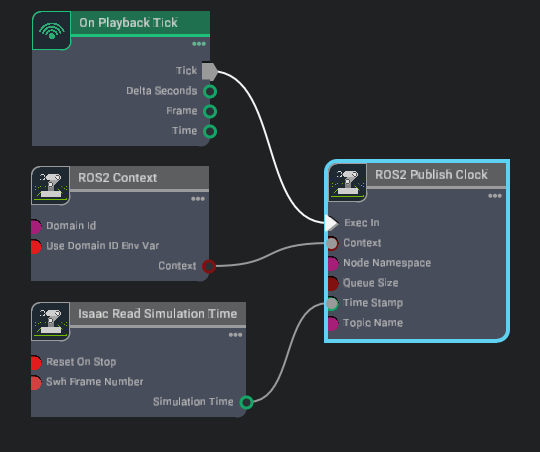
(Optional) To save the container with all installed dependencies and built workspaces as a new Docker image for future use:
Open a new terminal on the host and commit the container to an image:
docker commit ros_ws_docker isaac_sim_ros_ws:latest
Remove the old container before starting a new one with the same name:
docker rm ros_ws_docker
To reuse the saved image in a future session, start a new container from it:
xhost +

docker run -it --net=host --env="DISPLAY" --env="ROS_DOMAIN_ID" -v ~/IsaacSim-ros_workspaces/humble_ws:/humble_ws --name ros_ws_docker isaac_sim_ros_ws:latest /bin/bash
xhost +

docker run -it --net=host --env="DISPLAY" --env="ROS_DOMAIN_ID" -v ~/IsaacSim-ros_workspaces/jazzy_ws:/jazzy_ws --name ros_ws_docker isaac_sim_ros_ws:latest /bin/bash
Inside the container, source the workspace and it is ready to use without rebuilding:
source /opt/ros/$ROS_DISTRO/setup.bash
cd /${ROS_DISTRO}_ws
source install/local_setup.bash