


Tutorial 11: Tuning Joint Drive Gains#
Learning Objectives#
In this tutorial, you use the Gain Tuner to bring an un-tuned UR10 manipulator from zero gains to a working set of stiffness and damping values. Along the way you learn how to:
Diagnose missing or insufficient gains with the Snap-to-Limits test.
Distinguish Fail from Blocked results using the Disable Self-Collisions toggle.
Validate tuned gains with the Stress Test and observe how velocity limits contribute to solver stability.
For a full explanation of how the Gain Tuner works, the physics behind joint drives, and the complete parameter reference for each test, see Gain Tuner Extension.
10-15 Minute Tutorial
Prerequisites#
Complete the Tutorial: Import URDF tutorial to import the UR10 onto the stage. The URDF importer sets all joint stiffness and damping to zero by default, so the robot has no active drives.
Read the Gain Tuner Extension reference for background on the parameters, physics, and detailed result interpretation guide.
Step 1: Open the Gain Tuner and observe zero gains#
Go to Tools > Robotics > Asset Editors > Gain Tuner.
Select the UR10 from the Select Robot dropdown.
Ensure that Mode is set to Position for each joint.
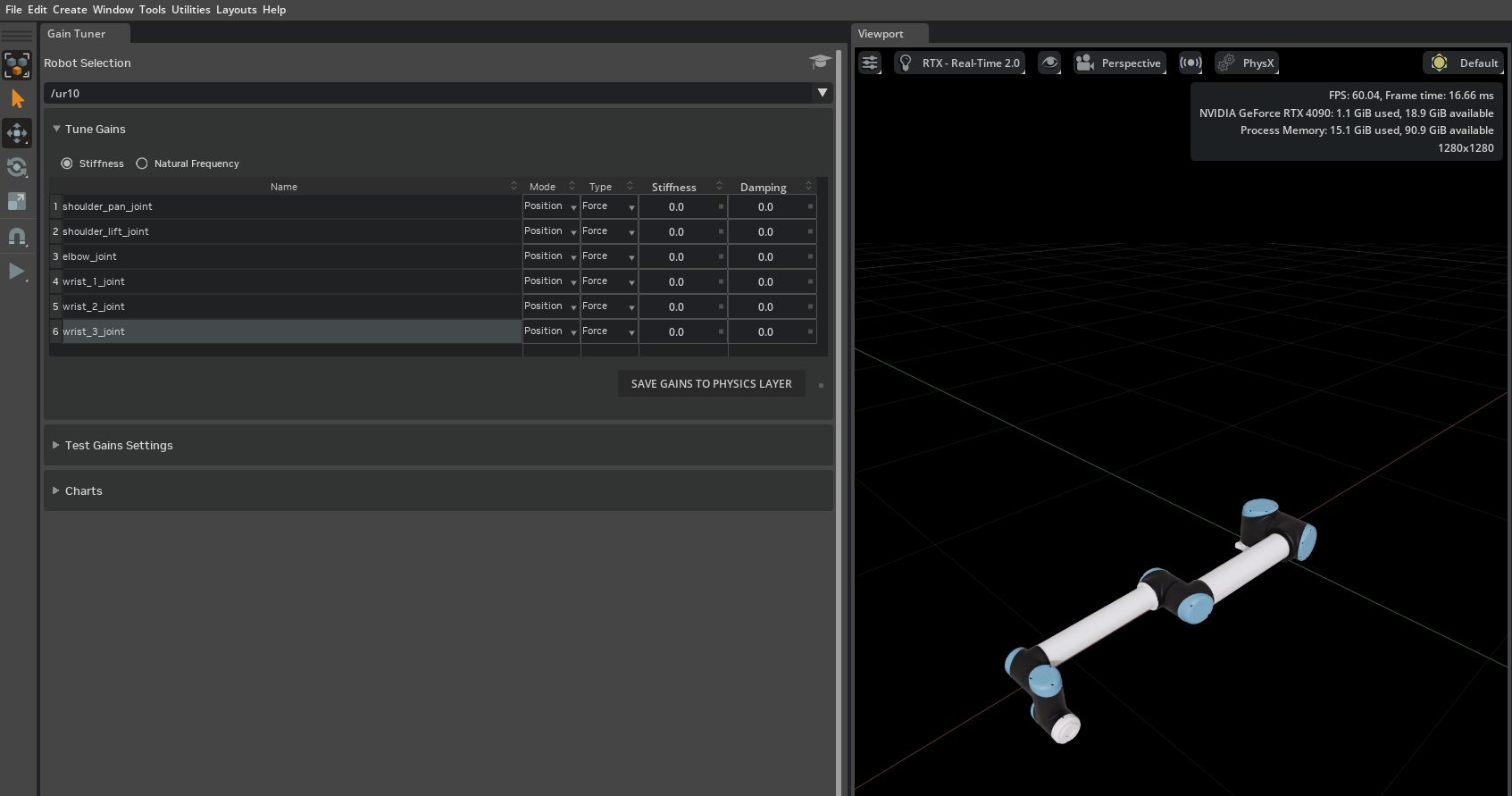
Observe that all six joints —
shoulder_pan_joint,shoulder_lift_joint,elbow_joint,wrist_1_joint,wrist_2_joint,wrist_3_joint— have Stiffness and Damping set to0. With zero gains the robot has no active drives and will collapse under gravity when the simulation is played.
Step 2: Snap-to-Limits with weak gains#
Set initial gains to see how the robot responds with deliberately low stiffness and no damping:
In the Stiffness column, set all six joints to
10. Leave Damping at0.Select the Snap-to-Limits test mode (the default).
Enable the Test checkbox for all joints.
Press Play, then press Run Test.
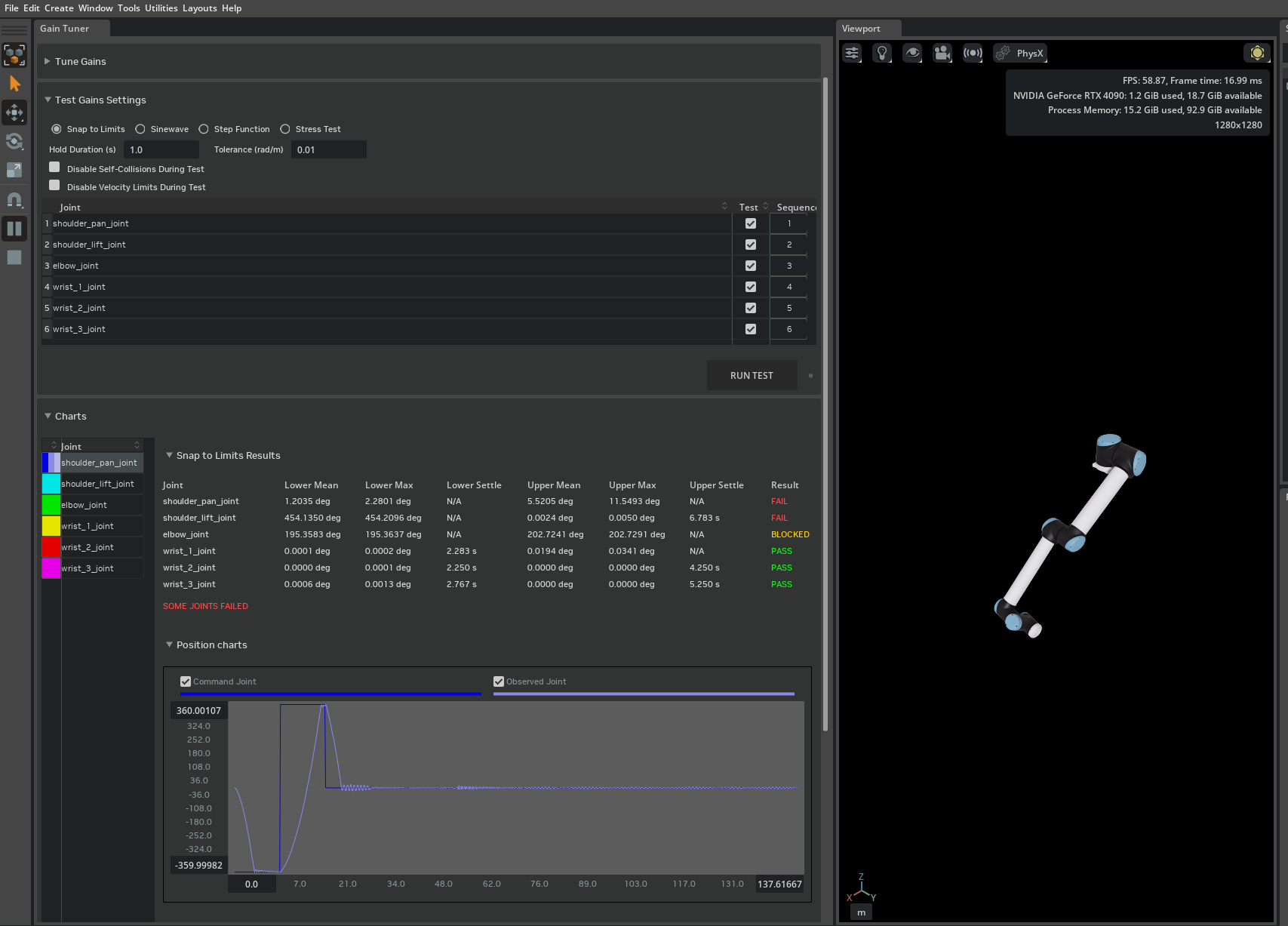
With stiffness at only 10 Nm/rad and no damping, expect:
shoulder_lift_jointandelbow_jointare likely to Fail. These joints bear the full weight of the arm and 10 Nm/rad of stiffness is far too low to drive them to their limits.Wrist joints may also Fail or show long settling times with oscillation, since there is no damping to absorb overshoot.
Some joints may report Blocked if the collision geometry prevents them from reaching a limit.
Note
If a joint reports Blocked, re-run with Disable Self-Collisions enabled. If the joint then passes, the joint limit extends beyond what the collision geometry allows — tighten the joint limit in USD rather than adjusting gains.
Step 3: Tuned parameters#
Before adjusting gains, check the joint force limits. The UR10’s URDF defines max effort values (330 Nm for the shoulder joints, 150 Nm for the elbow, 56 Nm for the wrist joints) that are imported as the joint Max Force in USD. With high stiffness, the PD controller may need to apply forces that exceed these limits to drive the heavy shoulder and elbow links to their targets. If a joint still fails Snap-to-Limits after increasing stiffness, select the joint in the Properties panel and set Max Force to a higher value or to inf (infinite) under Joint > Advanced > Maximum Force. For the UR10, shoulder_pan_joint and shoulder_lift_joint require infinite max force to pass.
The following gains produce a UR10 that passes Snap-to-Limits. They were found using the position-drive tuning heuristic described in the Tuning Workflow section of the Gain Tuner reference:
Joint |
Stiffness |
Damping |
|---|---|---|
|
500000 |
50 |
|
500000 |
50 |
|
50000 |
50 |
|
500 |
0.5 |
|
500 |
0.5 |
|
50 |
0.0 |
Note
These values are starting-point examples. Fine-tune them for your specific application by iterating with the Gain Tuner tests. The shoulder and elbow joints require higher gains because they bear the weight of the full arm, while the lighter wrist joints respond well at lower values.
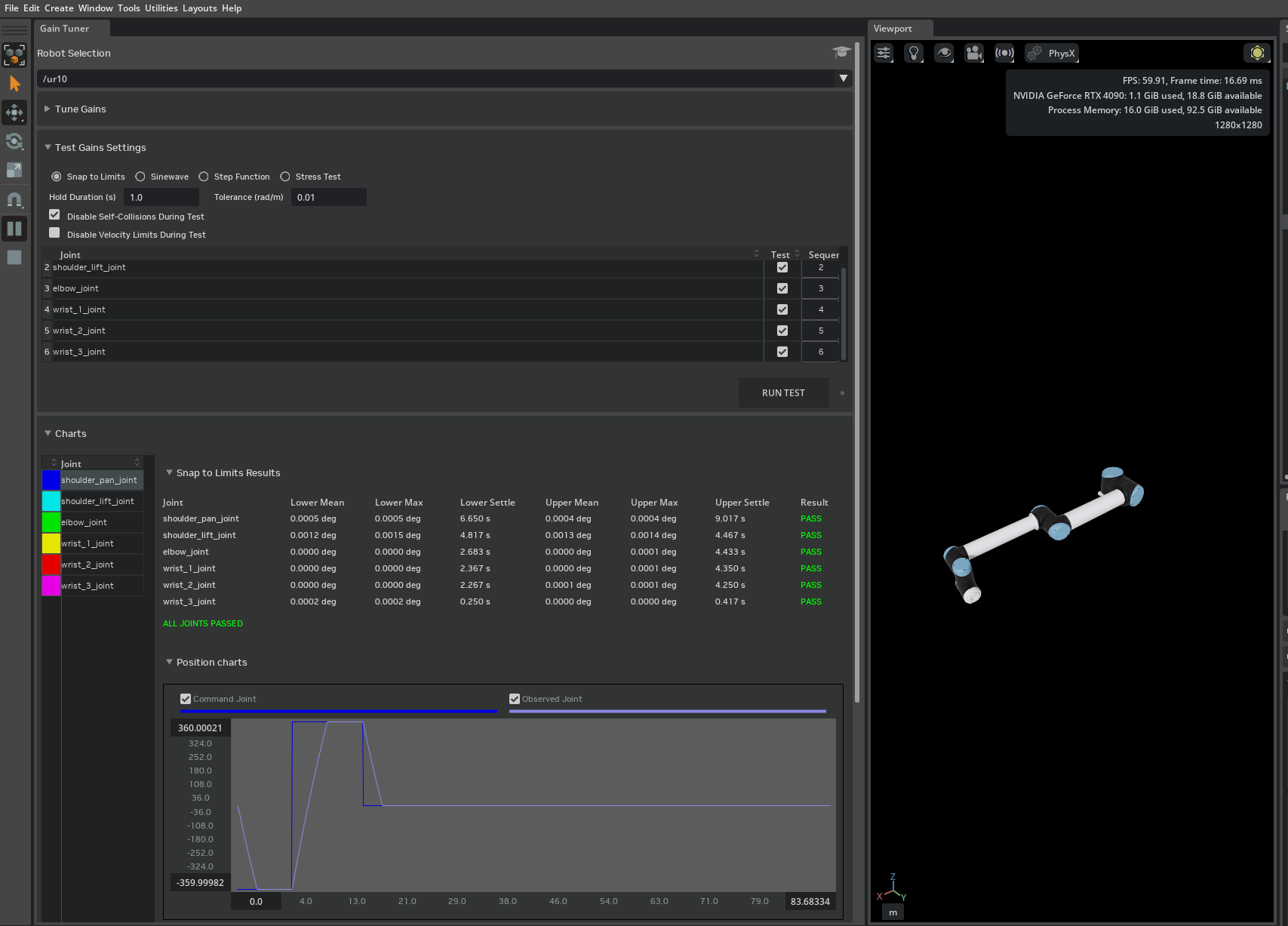
Enter these values, re-run the Snap-to-Limits test, and confirm that all joints now Pass.
You can further validate tracking quality with the Sinusoidal and Step Function test modes. For configuration details and result interpretation, see Sinusoidal and Step Function.
Step 4: Stress Test with tuned gains#
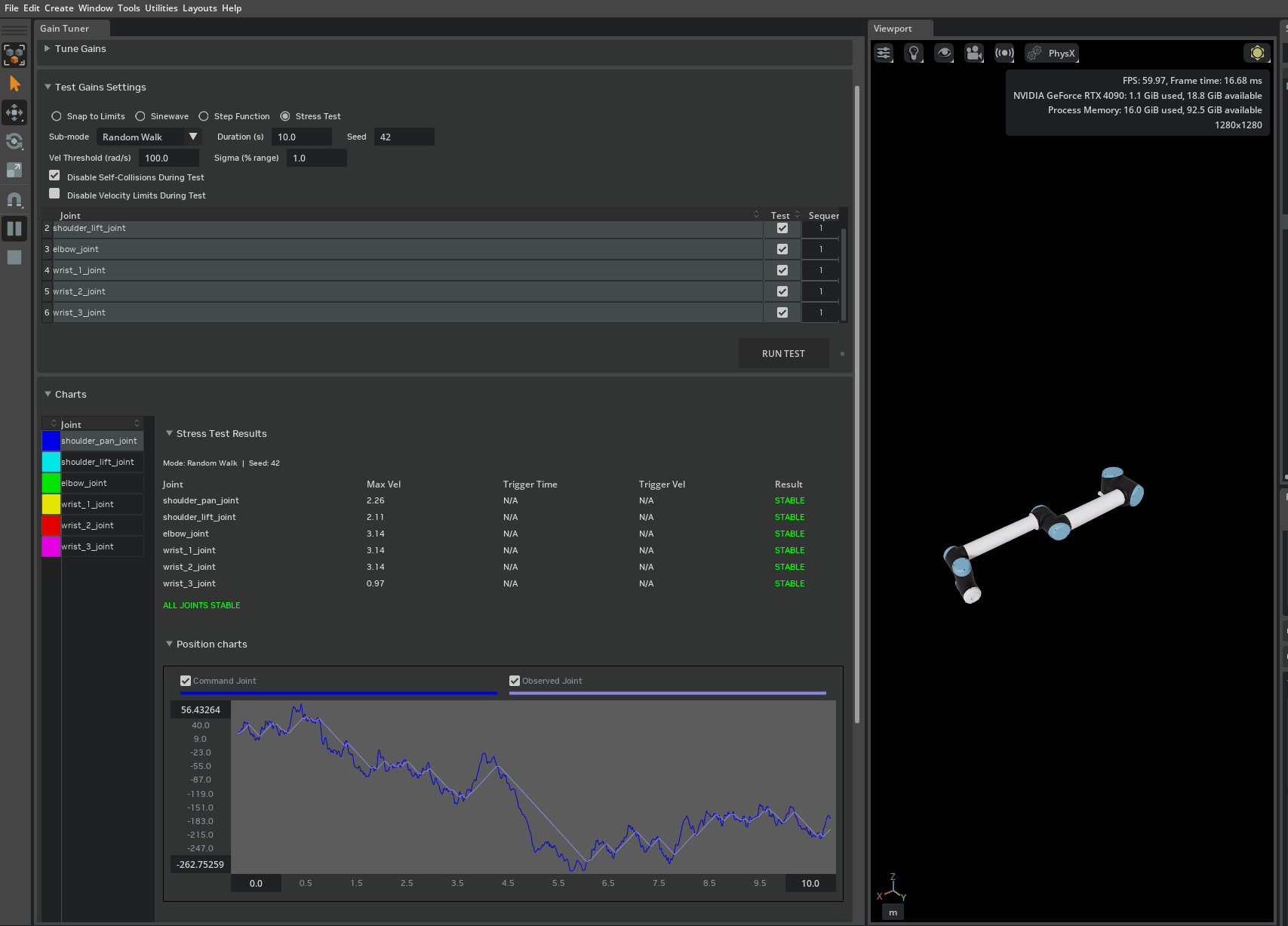
With the tuned gains from Step 3: Tuned parameters applied, run the Stress Test to verify the robot is stable under the extreme commands typical of reinforcement learning training:
Select the Stress Test mode and choose the Random Walk sub-mode.
Set Sequence for all joints to
1so that the joints are tested in parallel.Leave Disable Velocity Limits off (the default).
Press Play, then press Run Test.
All joints should report Stable.
Now observe what happens without velocity limits:
Enable Disable Velocity Limits.
Press Run Test again.
Some joints now report Unstable.
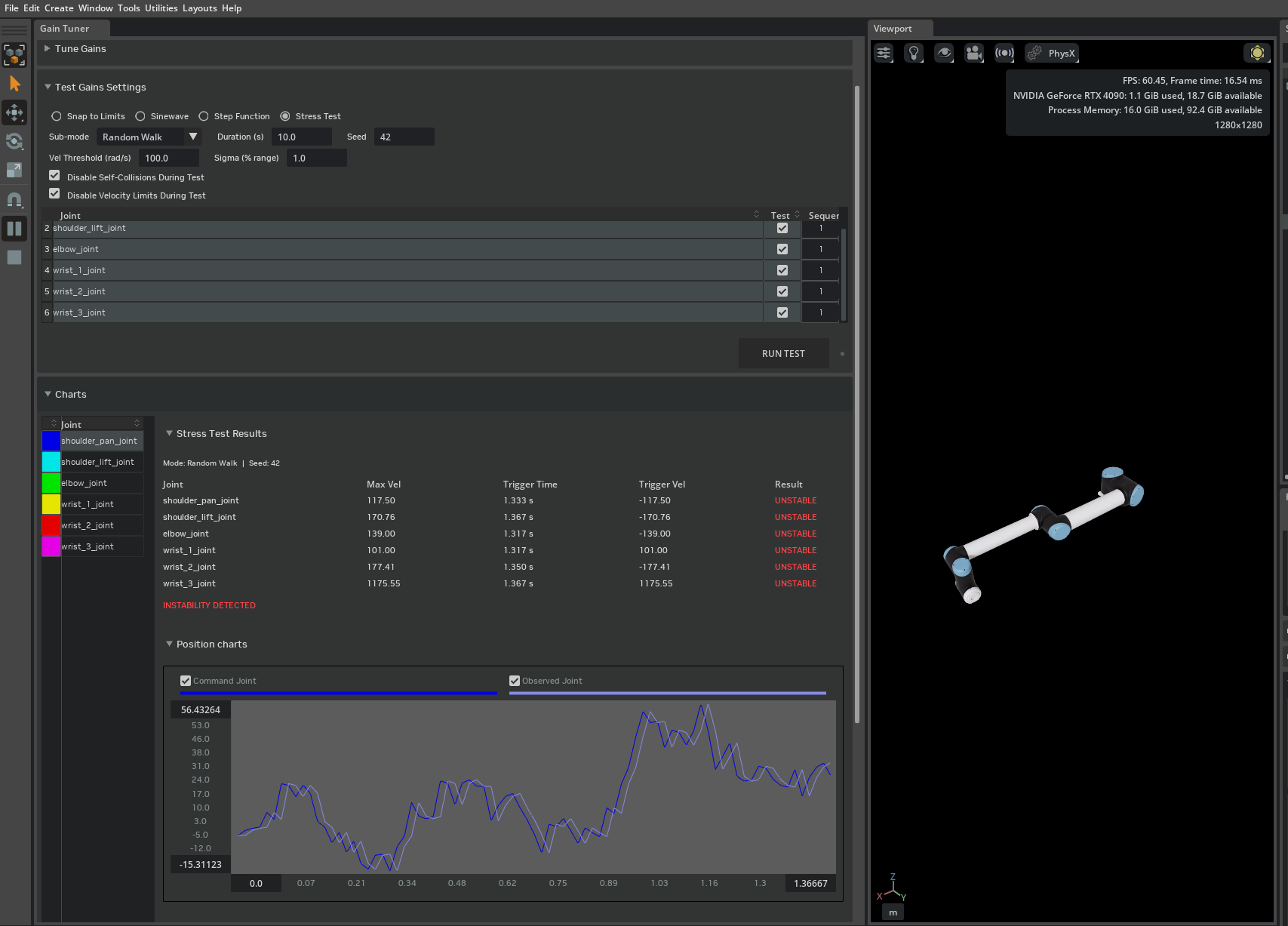
Without velocity limits, the PD controller responds to the stress test’s large position errors by generating forces that accelerate joints to extreme speeds within a single simulation timestep. At these speeds the discrete-time solver can fail to converge, leading to energy blowup or NaN values.
Velocity limits serve two purposes:
Physical fidelity — real actuators have maximum speeds defined by the manufacturer. The UR10’s URDF specifies velocity limits of approximately 2–3 rad/s per joint. Setting these in simulation reproduces the real robot’s motion envelope.
Solver stability — by capping joint speed, velocity limits keep per-step displacements within the range where the PhysX implicit integrator remains numerically stable.
If your application requires higher velocity limits than the manufacturer specification, increase them incrementally and re-run the Stress Test after each change to confirm the solver remains stable at the new limits.
Repeat the comparison in Adversarial sub-mode to confirm the same behavior under worst-case correlated configurations.
Note
A Stable result is meaningful only at the sigma and snap interval values used. When assessing readiness for Isaac Lab training, record these parameters alongside results. See Stress Test for a full explanation of how to interpret each result combination.
Summary#
This tutorial covered:
Starting from an un-tuned UR10 imported from URDF with zero gains.
Using Snap-to-Limits to identify joints with insufficient stiffness and distinguishing Fail from Blocked results.
Applying tuned gains and confirming all joints pass Snap-to-Limits.
Using the Stress Test to demonstrate why velocity limits are important for solver stability.