


IMU sensor#
Deprecated since version 6.0: The isaacsim.sensors.physics IMU Sensor extension is deprecated.
Use isaacsim.sensors.experimental.physics.IMUSensor instead.
See the API Documentation section below for links.
The IMU sensor in Isaac Sim tracks body motion and outputs simulated accelerometer and gyroscope readings.
Like real IMU sensors, simulated IMUs give acceleration and angular velocity measurements in the local x, y, z axes with stage units.
See the Isaac Sim Conventions documentation for a complete list of Isaac Sim conventions.
IMU sensor properties
enabledparameter determines if the sensor is running or not.sensorPeriodparameter specifies the time in between sensor measurement. Deprecated sinceisaacsim.robot.schema6.2.0 — only used by the deprecatedisaacsim.sensors.physicsextension. The newisaacsim.sensors.experimental.physicsextension reads every physics step.angularVelocityFilterWidthparameter specifies the size of the angular velocity rolling average. Increasing this parameter smooths angular velocity output.linearAccelerationFilterWidthparameter specifies the size of the linear acceleration rolling average. Increasing this parameter smooths linear acceleration output.orientationFilterWidthparameter specifies the size of the orientation rolling average. Increasing this parameter smooths orientation output.
The size of the data buffer used in interpolation is two times the max of the filter width or 20, whichever is greater.
For the full USD attribute definitions, see the IMU Sensor schema reference.
GUI#
Creating and modifying the IMU#
To create and modify an IMU sensor, start with a prim in the scene that you want to attach the sensor to:

To create a Physics Scene, go to the top Menu Bar and click Create > Physics > Physics Scene. Verify that you have a
PhysicsScenePrim in the Stage panel on the right.To create an IMU, left click on the prim to attach the IMU on the stage, then go to the top Menu Bar and click Create > Sensors > Imu Sensor.
To change the position and orientation of the IMU, left click on the
Imu_Sensorprim, then modify the Transform properties under the Property tab.To change other IMU properties, expand the Raw USD Properties section and modify properties such as filter width, enable/disable sensor, and sensor period.
IMU Example#
To run the IMU example:
Activate Robotics Examples tab from Windows > Examples > Robotics Examples.
Click Robotics Examples > Sensors > IMU Sensor > Load Scene.
Verify that you have a window containing each axis of the accelerometer and gyro readings being displayed.
Press the Open Source Code button to view the source code. The source code illustrates how to load an Ant body into the scene and then add the sensor to it using the Python API.
Press the Play button to begin simulating.
Press
SHIFT + LEFT_CLICKover the ant to drag it around and see changes in the readings.
OmniGraph workflow#
The following tutorial shows how to use OmniGraph to interact with the IMU sensor.
Scene setup#


Begin by adding a Simple Articulation to the scene. Access the articulation file through a Omniverse Nucleus server in the content window. Connecting to this server gives you access to the library of Isaac Sim robots, sensors, and environments.
After connecting to the server:
Navigate to
Robots/IsaacSim/SimpleArticulation/simple_articulation.usdin the Content Browser.Drag
simple_articulationonto the World prim in the Stage UI window on the right hand side to add an instance into the environment.To drive the revolute joint, in the Stage window, select the RevoluteJoint prim at /World/simple_articulation/Arm/RevoluteJoint, and scroll down to Drive in the Property window. Set the target velocity to
90 deg/sand stiffness to0.
To add an IMU sensor to your robot and collect some data:
In the Stage tab, navigate to the /World/simple_articulation/Arm prim and select it.
Add the sensor to the prim by Create > Sensors > Imu Sensor.
The newly added IMU sensor can be viewed by hitting the + button next to the Arm prim.
Note
In general, sensors must be added to rigid body prims to correctly report data. The prims in this robot are already rigid bodies, so no extra setup is required for this case.
OmniGraph setup#

To set up the OmniGraph to collect readings from this sensor:
Create the new action graph by navigating to Window > Graph Editors > Action Graph, and selecting New Action Graph in the new tab that opens.
Add the following nodes to the graph, and set their properties as follows:
On Playback Tick: Executes the graph nodes every simulation timestep.
Isaac Read IMU Node: Reads the IMU sensor. In the Property tab, set IMU Prim to /World/simple_articulation/Arm/Imu_Sensor, to point to the location of the IMU sensor prim. Select read gravity to read gravitational acceleration.
To String: Converts the IMU readings to string format.
Print Text: Prints the string readings to console. In the Property tab, set Log Level to Warning so that messages are visible in the terminal/console by default.
Connect the above nodes as follows to print out the IMU sensor reading:
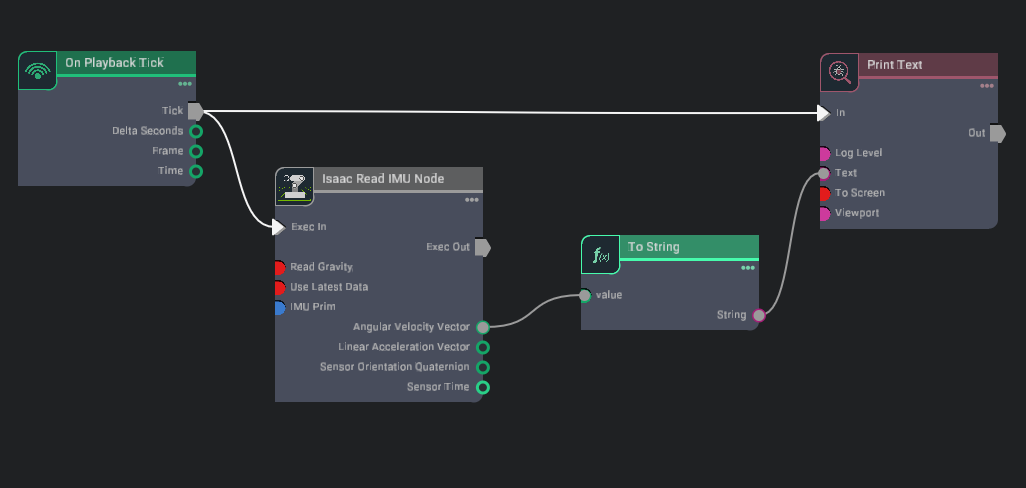
Press the Play button on the GUI. If set up correctly, verify that the Isaac Sim internal Console reads out the IMU sensor’s angular velocity.
Standalone Python#
Creating and modifying the IMU#
There are two ways to create an IMU Sensor in Python:
Use the
IMU.create()authoring class method, then wrap withIMUSensorfor runtime reads.Use the
IMUauthoring class constructor directly, then wrap withIMUSensor.
This section provides snippets to execute with standalone Python. Modify them to suit your use case. The following snippet adds a ground plane, cube prim with collision and rigid body physics, and physics scene to an Isaac Sim scene. The reference snippets below require these objects.
from isaacsim import SimulationApp

simulation_app = SimulationApp({"headless": False})

import numpy as np
import omni.usd
from isaacsim.core.experimental.objects import Cube, GroundPlane
from isaacsim.core.experimental.prims import GeomPrim, RigidPrim
from pxr import UsdPhysics

# Create physics scene
stage = omni.usd.get_context().get_stage()
UsdPhysics.Scene.Define(stage, "/World/PhysicsScene")

# Add ground plane and a dynamic cube with collision and rigid body
GroundPlane("/World/groundPlane", sizes=10, colors=np.array([0.5, 0.5, 0.5]))
Cube(
    "/World/Cube",
    positions=np.array([-0.5, -0.2, 1.0]),
    scales=np.array([0.5, 0.5, 0.5]),
    colors=np.array([0.2, 0.3, 0.0]),
)
RigidPrim("/World/Cube")
GeomPrim("/World/Cube", apply_collision_apis=True)
Using the Python API#
You can add an IMU to the cube prim created above using IMU.create() and then wrap it with IMUSensor for runtime data access, as demonstrated in the following snippet. The path must include the parent prim path; the remaining arguments are optional.
import numpy as np
from isaacsim.sensors.experimental.physics import IMU, IMUSensor

sensor = IMUSensor(
    IMU.create(
        "/World/Cube/imu_sensor",
        linear_acceleration_filter_size=10,
        angular_velocity_filter_size=10,
        orientation_filter_size=10,
        translations=np.array([[0.0, 0.0, 0.0]]),
        orientations=np.array([[1.0, 0.0, 0.0, 0.0]]),
    )
)
Using the Python wrapper#
You can also add an IMU to the cube prim, created above, by constructing an IMU authoring object directly and wrapping it with IMUSensor for runtime data access, as demonstrated in the following snippet. The IMU constructor wraps an existing sensor prim or creates a new one with default attributes; the IMUSensor runtime then exposes get_sensor_reading() and get_data() for reading sensor output. Modify USD attributes (e.g., filter widths) via the authoring object reachable as sensor.imu after construction.
import numpy as np
from isaacsim.sensors.experimental.physics import IMU, IMUSensor

IMUSensor(
    IMU(
        "/World/Cube/Imu",
        translations=np.array([[0.0, 0.0, 0.0]]),  # or, positions=np.array([[0.0, 0.0, 0.0]]),
        orientations=np.array([[1.0, 0.0, 0.0, 0.0]]),
        linear_acceleration_filter_size=10,
        angular_velocity_filter_size=10,
        orientation_filter_size=10,
    )
)
Note
translations and positions cannot both be provided as input arguments — they are mutually exclusive (local-frame vs world-frame).
The IMUSensor Python API documentation specifies the usage of each input argument.
To set filter widths at construction time, pass them to IMU.create() (or IMU(path, ...)) — see the snippet above. To modify them after construction, set the underlying USD attributes (linearAccelerationFilterWidth, angularVelocityFilterWidth, orientationFilterWidth) on the sensor prim — the prim is reachable as sensor.imu.prims[0]. Filter widths are captured by the C++ runtime when the sensor is created at simulation start; stop and restart the simulation to pick up changes. The IMUSensor reads every physics step.
Reading sensor output#
The sensors are created dynamically on Play. Moving the sensor prim while the simulation is running invalidates the sensor. If you need to make hierarchical changes to the IMU, such as changing its rigid body parent, stop the simulator, make the changes, and then restart the simulation.
There are three methods for reading the sensor output:
IMUSensor.get_sensor_reading(read_gravity=True)— returns the raw C++ struct directlyIMUSensor.get_data(read_gravity=True)— returns a structured dictionaryOmniGraph node
Isaac Read IMU Node
The following snippets assume you have created a /World/Cube prim and IMU sensor prim using one of the two snippets above.
IMUSensor.get_sensor_reading(read_gravity=True)
Returns an ImuSensorReading C++ struct exposing is_valid, time, linear_acceleration_x/_y/_z, angular_velocity_x/_y/_z, and orientation_w/_x/_y/_z properties. The sensor reads the C++ backend every physics step; pass read_gravity=False to exclude gravitational acceleration.
Sample usage to get the reading from the current physics step with gravitational effects:
from isaacsim.sensors.experimental.physics import IMUSensor

sensor = IMUSensor("/World/Cube/Imu")
sensor.get_sensor_reading(read_gravity=True)
Sample usage without gravitational effects:
from isaacsim.sensors.experimental.physics import IMUSensor

sensor = IMUSensor("/World/Cube/Imu")
sensor.get_sensor_reading(read_gravity=False)
IMUSensor.get_data(read_gravity=True)
The get_data() member function on the IMUSensor runtime class wraps get_sensor_reading() and returns a dictionary with time, physics_step, linear_acceleration (np.ndarray shape (3,)), angular_velocity (np.ndarray shape (3,)), and orientation (np.ndarray shape (4,), wxyz).
Sample usage:
import numpy as np
from isaacsim.sensors.experimental.physics import IMU, IMUSensor

sensor = IMUSensor(
    IMU(
        "/World/Cube/Imu",
        translations=np.array([[0.0, 0.0, 0.0]]),
        orientations=np.array([[1.0, 0.0, 0.0, 0.0]]),
        linear_acceleration_filter_size=10,
        angular_velocity_filter_size=10,
        orientation_filter_size=10,
    )
)

value = sensor.get_data()
print(value)
API documentation#
Deprecated since version 6.0: The isaacsim.sensors.physics extension is deprecated. Use isaacsim.sensors.experimental.physics.IMUSensor instead.
See the isaacsim.sensors.experimental.physics API Documentation for the current API and isaacsim.sensors.physics API Documentation (deprecated) for the deprecated API.