


Synthetic Data Recorder#
This tutorial introduces the Synthetic Data Recorder for Isaac Sim, which is a GUI extension for recording synthetic data with the possibility of using custom writers to record the data in various formats.
The Synthetic Data Recorder requires assets to be semantically labelled for all of the annotators to work correctly. The recorder uses the BasicWriter by default with access to most common annotators.
Getting Started#
The UI window can be opened from the main menu using Tools > Replicator > Synthetic Data Recorder.
This tutorial uses the following stage as an example:
https://omniverse-content-production.s3-us-west-2.amazonaws.com/Assets/Isaac/6.0
/Isaac/Samples/Replicator/Stage/full_warehouse_worker_and_anim_cameras.usd
The stage asset can be found in the Content Browser under Isaac Sim > Samples > Replicator > Stage > full_warehouse_worker_and_anim_cameras.usd, or can be loaded using by inserting the whole URL in the path field.

The example stage comes preloaded with semantic annotations and multiple cameras. Some of the included cameras are animated to move around the scene when running the simulation. To create custom camera movement animations, review the Camera Animation Tutorial.
Basic Usage#
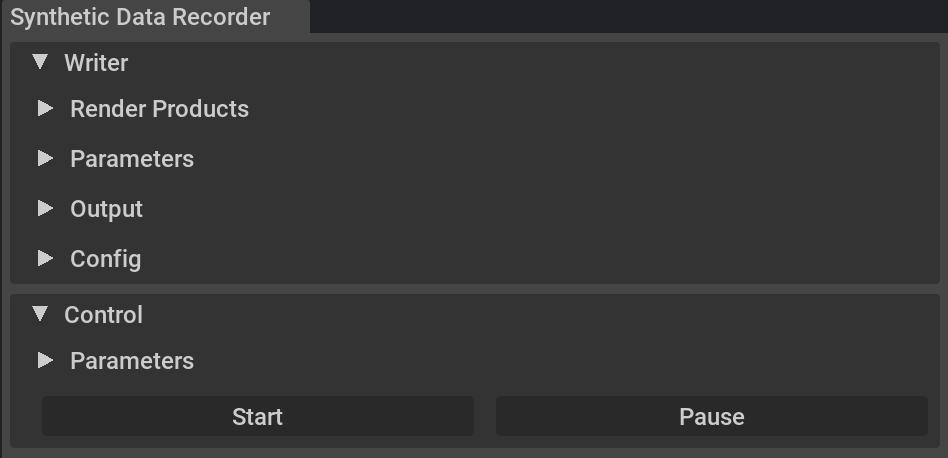
The recorder is split into two main parts:
the Writer frame - containing sensor, data, and output parameters
the Control frame - containing the recording functionalities such as start, stop, pause, and parameters such as the number of frames to execute
Writer Frame#
The Writer frame provides access to Render Products, Parameters, Output, and Config options.
The Render Products frame allows the creation of a list of render product entries using the Add New Render Product button. By default, a new entry is added to the list using the active viewport camera as its camera path (see left figure). If cameras are selected in the stage viewer, these are added to the render products list (see right figure). The render products list can include the same camera path multiple times, with each instance having a different resolution. All entry values, such as camera path or resolution, can be manually edited in the input fields.

The Parameters frame offers a choice between the default built-in Replicator writer (BasicWriter) and a custom writer. Default writer parameters, primarily annotators, can be selected from the checkbox list. Parameters for custom writers, which are unknown beforehand, must be provided in the form of a JSON file containing all required parameters. The path to the JSON file is entered in the Parameters Path input field.

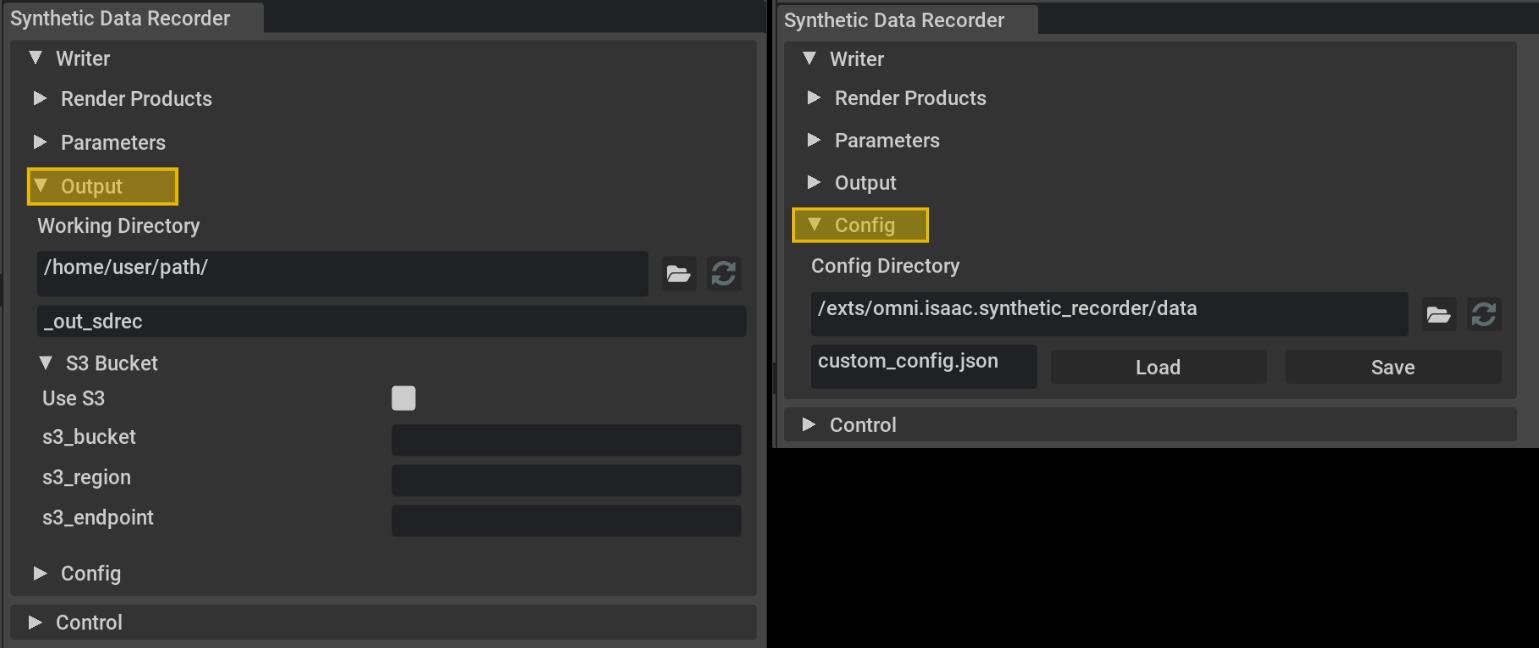
The Output frame (left figure) specifies the working directory path where the data is saved, along with the folder name for the current recording. The output folder name is incremented in case of conflicts. The recorder also supports writing to S3 buckets by enabling Use S3, entering the required fields, and ensuring AWS credentials are properly configured.
Note
When writing to S3, the Increment folder naming feature is not supported and defaults to Timestamp.
The Config frame (right figure) allows loading and saving the GUI writer state as a JSON configuration file. By default, the extension loads the most recently used configuration state.
Control Frame#
The Control frame contains the recording functionalities such as Start/Stop and Pause/Resume, and parameters such as the number of frames to record or the number of subframes to render for each recorded frame.
The Start button creates a writer, given the selected parameters, and starts the recording.
The Stop button stops the recording and clears the writer.
The Pause button pauses the recording without clearing the writer.
The Resume button resumes the recording.
The Number of Frames input field sets the number of frames to record, after which the recorder is stopped and the writer cleared. If the value is set to
0, the recording runs indefinitely or until the Stop button is pressed.The RTSubframes field sets the number of additional subframes to render for each per frame. This can be used if randomized materials are not loaded in time or if temporal rendering artifacts (such as ghosting) are present due to objects being teleported.
The Control Timeline checkbox starts, stops, pauses, and resumes the timeline together with the recorder.
The Verbose checkbox enables verbose logging for the recorder (events such as start, stop, pause, resume, and the number of frames recorded).

Note
To improve the rendering quality, or to avoid any rendering artifacts caused by low lighting conditions or fast-moving objects, increase the RTSubframes parameter. This renders multiple subframes for each frame, thereby improving the quality of recorded data at the expense of longer rendering times per frame. For more details, see the subframes documentation.
Custom Writer Example#
To support custom data formats, the custom writer can be registered and loaded from the GUI. In this example, a custom writer called MyCustomWriter is registered using the Script Editor for use with the recorder.
The Synthetic Data Recorder initializes the selected disk or cloud backend, then calls writer.initialize(backend=..., **parameters). Starting in recent Isaac Sim / Replicator releases, those keyword arguments are applied when the writer is constructed. Custom writers must therefore accept a backend argument (the configured DiskBackend or S3Backend instance) or accept arbitrary keyword arguments with **kwargs. They should write using that backend rather than constructing a separate BackendDispatch from a raw output path when backend is supplied.
MyCustomWriter
import numpy as np
import omni.replicator.core as rep
from omni.replicator.core import AnnotatorRegistry, BackendDispatch, Writer
from omni.replicator.core import functional as F
from omni.replicator.core.scripts.backends import BaseBackend


class MyCustomWriter(Writer):
    """Minimal disk writer for rgb / normals (compatible with ``DiskBackend`` from the Synthetic Data Recorder)."""

    def __init__(
        self,
        rgb: bool = True,
        normals: bool = False,
        output_dir: str | None = None,
        backend: BaseBackend | None = None,
        **kwargs,
    ):
        self.version = "0.0.1"
        self.data_structure = "renderProduct"

        if backend is not None and not isinstance(backend, BaseBackend):
            raise TypeError("`backend` must inherit from `omni.replicator.core.scripts.backends.BaseBackend`.")

        if backend is not None:
            self.backend = backend
        elif output_dir:
            self.backend = BackendDispatch(output_dir=output_dir)
        else:
            raise ValueError("Provide `backend` (for example from the recorder) or `output_dir`.")

        self.annotators = []
        if rgb:
            self.annotators.append(AnnotatorRegistry.get_annotator("rgb"))
        if normals:
            self.annotators.append(AnnotatorRegistry.get_annotator("normals"))
        self._frame_id = 0

    def write(self, data: dict):
        if "renderProducts" in data:
            for rp_name, annotators_data in data["renderProducts"].items():
                rp_prefix = f"{rp_name}/"
                if "rgb" in annotators_data:
                    rgb_entry = annotators_data["rgb"]
                    rgb_arr = rgb_entry["data"] if isinstance(rgb_entry, dict) and "data" in rgb_entry else rgb_entry
                    self.backend.schedule(F.write_image, path=f"{rp_prefix}rgb/rgb_{self._frame_id}.png", data=rgb_arr)
                if "normals" in annotators_data:
                    n_entry = annotators_data["normals"]
                    n_arr = n_entry["data"] if isinstance(n_entry, dict) and "data" in n_entry else n_entry
                    colored = ((n_arr * 0.5 + 0.5) * 255).astype(np.uint8)
                    self.backend.schedule(
                        F.write_image, path=f"{rp_prefix}normals/normals_{self._frame_id}.png", data=colored
                    )
            self._frame_id += 1
            return

        for annotator in list(data.keys()):
            annotator_split = annotator.split("-")
            render_product_path = ""
            multi_render_prod = 0
            if len(annotator_split) > 1:
                multi_render_prod = 1
                render_product_name = annotator_split[-1]
                render_product_path = f"{render_product_name}/"

            if annotator.startswith("rgb"):
                if multi_render_prod:
                    render_product_path += "rgb/"
                filename = f"{render_product_path}rgb_{self._frame_id}.png"
                print(f"[{self._frame_id}] Writing {filename} ..")
                self.backend.schedule(F.write_image, path=filename, data=data[annotator])

            if annotator.startswith("normals"):
                if multi_render_prod:
                    render_product_path += "normals/"
                filename = f"{render_product_path}normals_{self._frame_id}.png"
                print(f"[{self._frame_id}] Writing {filename} ..")
                colored_data = ((data[annotator] * 0.5 + 0.5) * 255).astype(np.uint8)
                self.backend.schedule(F.write_image, path=filename, data=colored_data)

        self._frame_id += 1

    def on_final_frame(self):
        self._frame_id = 0


rep.writers.register_writer(MyCustomWriter)
my_params.json
1{
2    "rgb": true,
3    "normals": true
4}

Data Visualization Writer#
The Data Visualization writer is a custom writer that can be used to visualize the annotation data on top of rendered images. The writer and its implementation details can be found in /isaacsim.replicator.writers/python/scripts/writers/data_visualization_writer.py, and can be imported using from isaacsim.replicator.writers import DataVisualizationWriter. The custom writer can be selected from the Parameters frame and its parameters can be loaded from a JSON file using the Parameters Path input field. Here is an example JSON file that can be used to parameterize the writer:
my_data_visualization_params.json
 1{
 2    "bounding_box_2d_tight": true,
 3    "bounding_box_2d_tight_params": {
 4        "background": "rgb",
 5        "outline": "green",
 6        "fill": null
 7    },
 8    "bounding_box_2d_loose": true,
 9    "bounding_box_2d_loose_params": {
10        "background": "normals",
11        "outline": "red",
12        "fill": null
13    },
14    "bounding_box_3d": true,
15    "bounding_box_3d_params": {
16        "background": "rgb",
17        "fill": "blue",
18        "width": 2
19    }
20}
And the resulting data:

For more information on the supported parameters, see the class docstring:
DataVisualizationWriter class docstring
"""Data Visualization Writer

This writer can be used to visualize various annotator data.

Supported annotators:
- bounding_box_2d_tight
- bounding_box_2d_loose
- bounding_box_3d

Supported backgrounds:
- rgb
- normals

Args:
    output_dir (str):
        Output directory for the data visualization files forwarded to the backend writer.
    bounding_box_2d_tight (bool, optional):
        If True, 2D tight bounding boxes will be drawn on the selected background (transparent by default).
        Defaults to False.
    bounding_box_2d_tight_params (dict, optional):
        Parameters for the 2D tight bounding box annotator. Defaults to None.
    bounding_box_2d_loose (bool, optional):
        If True, 2D loose bounding boxes will be drawn on the selected background (transparent by default).
        Defaults to False.
    bounding_box_2d_loose_params (dict, optional):
        Parameters for the 2D loose bounding box annotator. Defaults to None.
    bounding_box_3d (bool, optional):
        If True, 3D bounding boxes will be drawn on the selected background (transparent by default). Defaults to False.
    bounding_box_3d_params (dict, optional):
        Parameters for the 3D bounding box annotator. Defaults to None.
    frame_padding (int, optional):
        Number of digits used for the frame number in the file name. Defaults to 4.

"""
Replicator Randomized Cameras#
To take advantage of Replicator randomization techniques, randomized cameras can be loaded using the Script Editor before starting the recorder to run scene randomizations during recording. In this example a randomized camera is created using the Replicator API. This can be attached as a render product to the recorder and for each frame the camera is randomized with the given parameters.
import omni.replicator.core as rep

camera = rep.create.camera()
with rep.trigger.on_frame():
    with camera:
        rep.modify.pose(
            position=rep.distribution.uniform((-5, 5, 1), (-1, 15, 5)),
            look_at="/Root/Warehouse/SM_CardBoxA_3",
        )

Recording Loop Overview#
The Synthetic Data Recorder is a GUI extension for Isaac Sim that uses the BasicWriter or custom Replicator writers for capturing data. Its implementation is located in /isaacsim.replicator.synthetic_recorder/isaacsim/replicator/synthetic_recorder/synthetic_recorder.py and utilizes the orchestrator.step(rt_subframes, pause_timeline, delta_time) function to manage the recording process. This function ensures that recorded frames remain synchronized with the stage by waiting for any “frames in flight” from the renderer. For integration with the UI, the recorder uses the asynchronous version of this function: step_async.
while self._current_frame < num_frames:
    timeline = omni.timeline.get_timeline_interface()

    if self.control_timeline and not timeline.is_playing():
        timeline.play()
        timeline.commit()

    await rep.orchestrator.step_async(rt_subframes=self.rt_subframes, delta_time=None, pause_timeline=False)

    self._current_frame += 1
The recording loop offers flexibility for different use cases. It can advance the timeline for dynamic scenes, such as simulations or animations, or operate without advancing the timeline for static captures. This approach enables recording scenarios like randomizing views, adjusting lighting conditions, or repositioning objects.