


SimReady Content Browser Search Extension Tutorial#
The SimReady Asset Search feature helps you find digital assets that match your criteria by combining a directory tree with an AI-assisted search control panel. This tutorial explains how to use these features to search your local file system and AWS S3 buckets for assets.
This tutorial assumes you are familiar with SimReady concepts and the Content Browser and workflow. It addresses the following topics:
Prerequisites#
You have installed the latest versions of the Omniverse Kit and the
omni.simready.content.browserUI extension.You have access to assets in local folders and AWS S3 buckets.
Overview#
To find assets, optionally select a folder in the directory tree to scope your search, then select a search mode and enter filters in the SimReady Asset Search control panel. The control panel initiates the search and displays results in the SimReady Content Browser, where you can view asset data, filter the results, and open assets.
The following sections explain how to use these features.
How to Open and Use the SimReady Asset Search Control Panel#
There are two ways to open the SimReady Asset Search control panel:
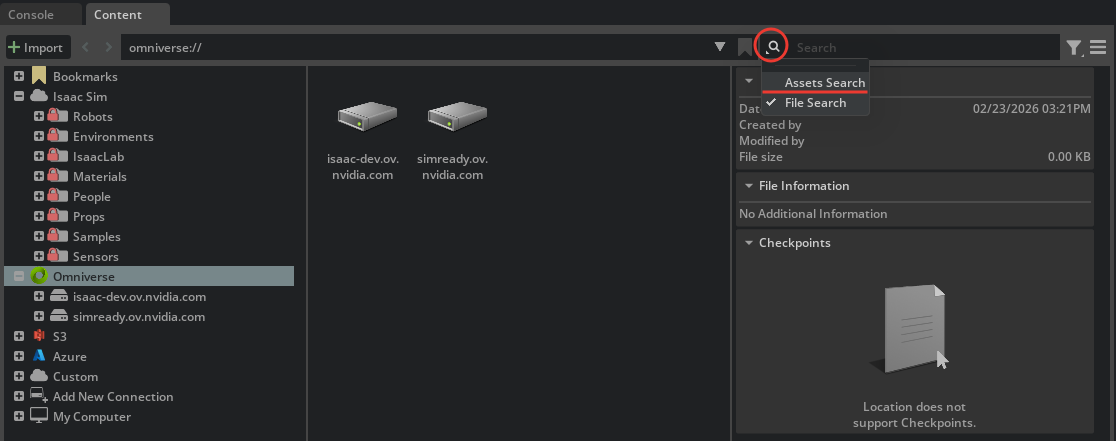
Click the Search icon in the SimReady Content Browser and select Assets Search in the context menu.
Right-click a folder in the directory tree, and select AssetSearch here in the context menu.
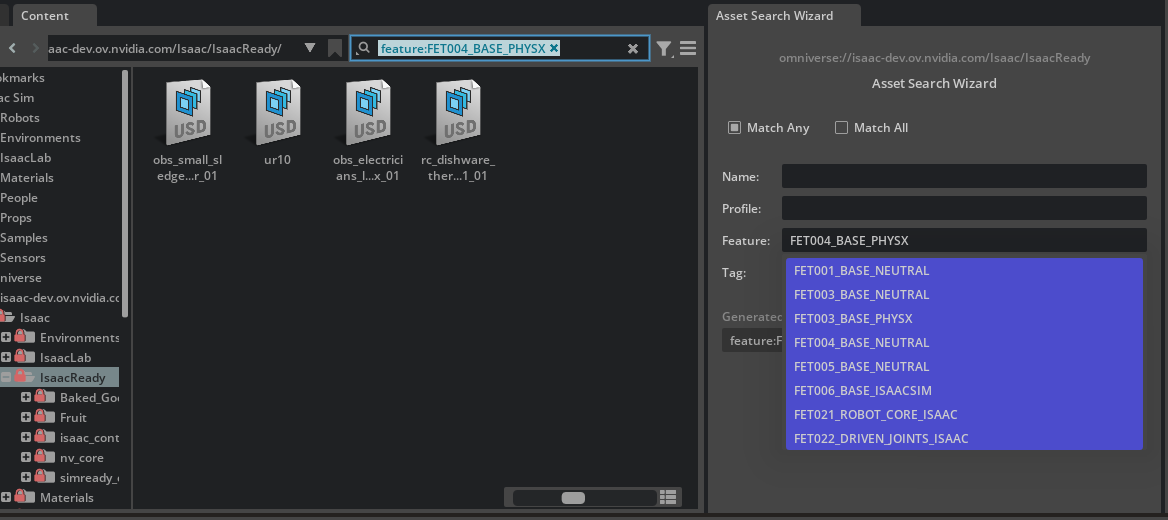
Both ways open the SimReady Asset Search control panel.

How to Limit the Scope of Your Searches#
Use the directory tree to limit the scope of your searches. The directory tree contains all folders that can contain assets. Selecting a folder limits your searches to the contents of that folder and its subfolders. Selecting a folder in the tree is optional; if you do not select one, SimReady Asset Search searches the entire directory tree by default.
The directory tree spans both your local file system and AWS S3 buckets, which gives you flexibility in how broadly or narrowly you scope your searches. You can, for example, search across all registered AWS S3 buckets or limit a search to a specific folder in your local file system. When you select a folder, it becomes the anchor path that the search API bases its search on. Until you change it, all searches are scoped to the contents of the selected folder and its subfolders.
As noted in the previous section, the contents of the SimReady Asset Search control panel are sensitive to your directory tree selection. Changing your selection initializes the control panel for a new search. (You do not need to close and reopen the control panel to initiate a new search.)
When you select a folder, the SimReady Content Browser displays its contents in a panel to the right of the directory tree. If you select a folder in that panel, the effect is the same as selecting the same folder in the directory tree.
How to Enter Search Parameters#
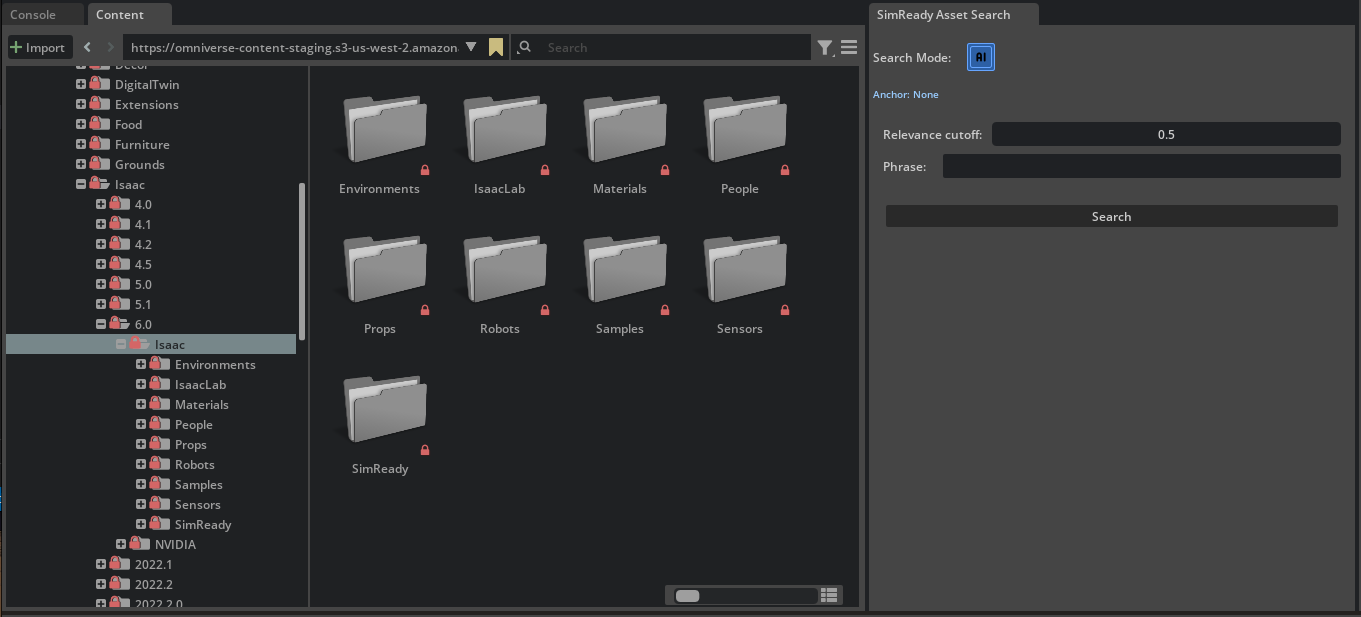
The SimReady Asset Search control panel displays the anchor path, Search Mode options, and context-sensitive filters.
The anchor path reflects which folder you select in the directory tree. This is the base path for searches; all searches are restricted to the contents of this folder and its subfolders. Select a different folder in the tree to change it. For example, selecting the
Assets/Isaac/SimReadyfolder changes the anchor path toAssets/Isaac/SimReady.The anchor path determines which Search Mode options are available. For example, if the anchor path is a folder in your local file system, only the File Index search mode is available.
The Search Mode determines which filters are available. For example, if Search Mode is File Index, only the Name filter is available.
The filters specify which assets the search API returns. If you do not select any filters, the search API returns all assets it finds. If you select one or more filters, the search API returns only assets that pass those filters.
There are three Search Mode options: File Index, AI, and WSCache.
File Index is only available if the anchor path is a folder in your local file system or an
Assets/Isaac/*S3 folder. This option enables the following filter:Name filter - Enter text in the Name field to return only assets whose pathnames match the text. For example, enter “robot” to have the search API return all assets whose pathname contains “robot”.
Index Files button - Click this to index files in the selected folder. This is needed if there are files in a local folder that have been added since the last index, or if you exited and restarted Isaac Sim since the last index. (You do not need to click this button if you select an
Assets/Isaac/*S3 folder.)

AI is only available for folders in AWS S3 buckets. This option enables the following filters:
Relevance cutoff filter - Enter a value between 0 and 1 to set the minimum relevance score for assets to be returned. Assets with a relevance score lower than the specified cutoff are not returned. (Relevance is a measure of how well the asset matches the search query. A value of 1.0 is the highest confidence match possible, a value of 0.0 is no match, and values in between are partial matches. Relevance is discussed in more detail in How to Display and Filter on Relevance Scores.)
Phrase filter - Enter a natural language phrase to search for assets that match the phrase. For example, enter “a robot with a camera” to have the search API return only assets whose properties match that description.
These filters are cumulative. The search API returns all assets that match ALL of the filters you specify, and excludes all others.
WSCache (SimReady Workspace Cache) is only available for folders in the
/SimReadyS3 bucket. This option enables the following filters:Name filter - Enter text for Name to return assets whose pathnames match the text. For example, enter “robot” to have the search API return assets whose pathnames match “robot”.
Profile filter - Click the entry field and select a SimReady profile from the dropdown menu to return assets that match the selected profile.
Feature filter - Click the entry field and select a SimReady feature from the dropdown menu to return assets that match the selected feature.
Tag filter - Click the entry field and select a SimReady tag from the dropdown menu to return assets with the associated tag.
These filters are cumulative. Select the Match Any checkbox to have the search API return all assets that match ANY of the filters you specify. Select the Match All checkbox to have the search API return only assets that match ALL of the filters you specify.

How to Index Local Files#
For the search API to find assets in a folder, its contents must be indexed. The indexes for local files are stored in memory, and are updated only when you manually index the folder. Assets added to a local folder are not automatically indexed and, if you exit from Isaac Sim and restart it, local indexes are lost. In either case, you must index the folder to make the assets searchable.
To index a local folder and its subfolders, select the folder in the directory tree and click Index Files. (This option is only available when Search Mode is File Index.)
How to Initiate a Search#
When you have scoped your search, selected a search mode, entered relevant search filters, and optionally indexed local files, click Search in the SimReady Asset Search control panel to initiate the search. The search API runs the search and returns matching assets in the SimReady Content Browser, where you can see asset data, filter the results, and open an asset.
Examples#
The following examples assume you have already opened the SimReady Asset Search control panel.
Search for assets in the Assets/Isaac/Robots folder whose pathnames contain “Fanuc”.#
Select the
Assets/Isaac/Robotsfolder in the directory tree.Select File Index for Search Mode.
Enter Fanuc for Name.
Click Search.
Note
Unless you select a local folder, there is no need to click Index Files.
Search for assets in the Assets/Isaac S3 folder or its subfolders that are robots.#
Select the
Assets/IsaacS3 folder in the directory tree.Select AI for Search Mode.
Enter or accept the default Relevance cutoff value, such as 0.5, to exclude results for which the search API has low confidence.
Enter robots for Phrase.
Click Search.
Search for assets in the Assets/Isaac/SimReady S3 folder whose Profile is “Prop-Robotics-Isaac” and Feature is “FET003_BASE_NEUTRAL”.#
Select the
Assets/Isaac/SimReadyS3 folder in the directory tree.Select WSCache for Search Mode.
Select “Prop-Robotics-Isaac” for Profile.
Select “FET003_BASE_NEUTRAL” for Feature.
Select the Match All checkbox.
Click Search.
In this example, the SimReady Content Browser lists only those assets that satisfy both of these conditions.
How to Display and Filter on Relevance Scores#
When you set Search Mode to AI, the SimReady Content Browser displays a relevance score for each asset it lists. The search API calculates this score; it is a measure of how well the asset matched the search query. A value of 1.0 is the highest confidence match possible, a value of 0.0 is no match, and values in between are partial matches. Use these scores to help you identify which assets are good matches for your search criteria.
Setting Search Mode to AI exposes a Relevance cutoff filter. Use this filter to limit the results to matches for which the search API has higher confidence. Enter your minimum acceptable relevance score in the control panel’s Relevance cutoff field. This restricts the search results to assets whose relevance scores are equal to or greater than the value you specify.