


Quick Install#
The Quick Install can be used for demos and to get a quick working idea of what the full product can do. After completing the quick install, you can create a room with a robot in it, which provides an even fuller picture of the product capabilities. These instructions are aimed at installation by someone with basic computer knowledge.
For a quick install on Linux or Windows:
Download the current Isaac Sim standalone package for your platform from the Latest Release section.
Note
On Linux, install
unzipbefore extracting the package.Keep at least 50 GB of free disk space available. The downloaded package and extracted installation can temporarily require about 40 GB together.
Running on a remote or headless machine? Use
isaac-sim.streaming.shorisaac-sim.streaming.batand connect with the Isaac Sim WebRTC Streaming Client.The first launch can take several minutes while the shader cache warms up. Watch the terminal output until the final load message appears.
The Simple Room and Franka Emika Panda Arm steps download assets over HTTPS from the Isaac Sim asset service. Hosts on restricted networks need outbound HTTPS access to the asset service, or can use Local Assets Packs for air-gapped environments.
From the terminal or command line, execute the following commands:
mkdir ~/isaacsim
cd ~/Downloads
unzip "isaac-sim-standalone-6.0.0-linux-x86_64.zip" -d ~/isaacsim
cd ~/isaacsim
./post_install.sh
./isaac-sim.sh
mkdir ~/isaacsim
cd ~/Downloads
unzip "isaac-sim-standalone-6.0.0-linux-aarch64.zip" -d ~/isaacsim
cd ~/isaacsim
./post_install.sh
./isaac-sim.sh
mkdir C:\isaacsim
cd %USERPROFILE%/Downloads
tar -xvzf "isaac-sim-standalone-6.0.0-windows-x86_64.zip" -C C:\isaacsim
cd C:\isaacsim
post_install.bat
isaac-sim.bat
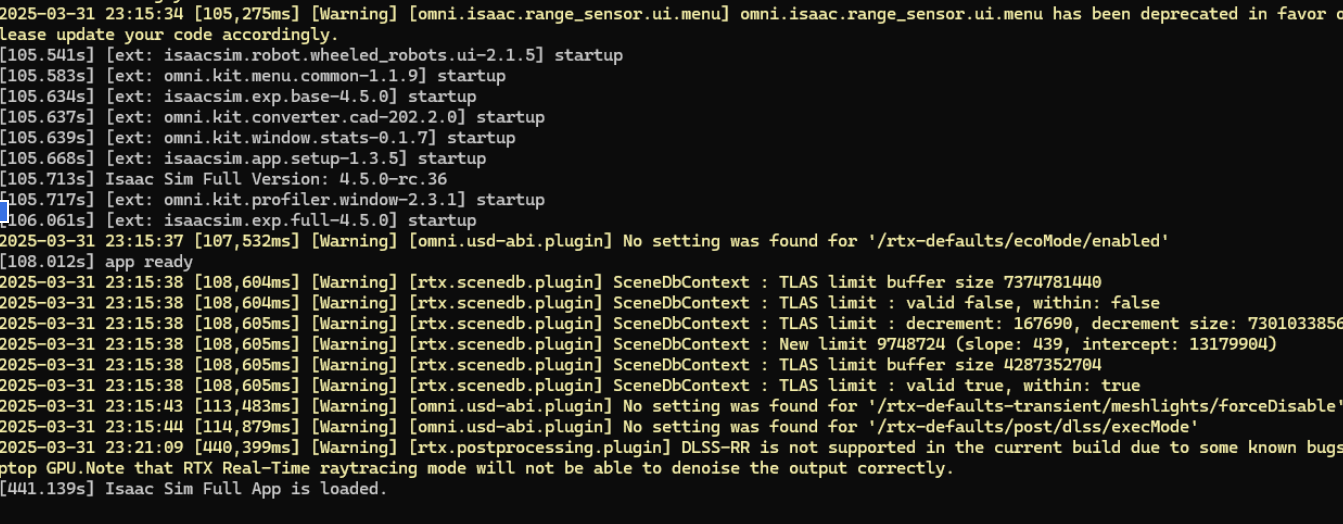
Final load message example:
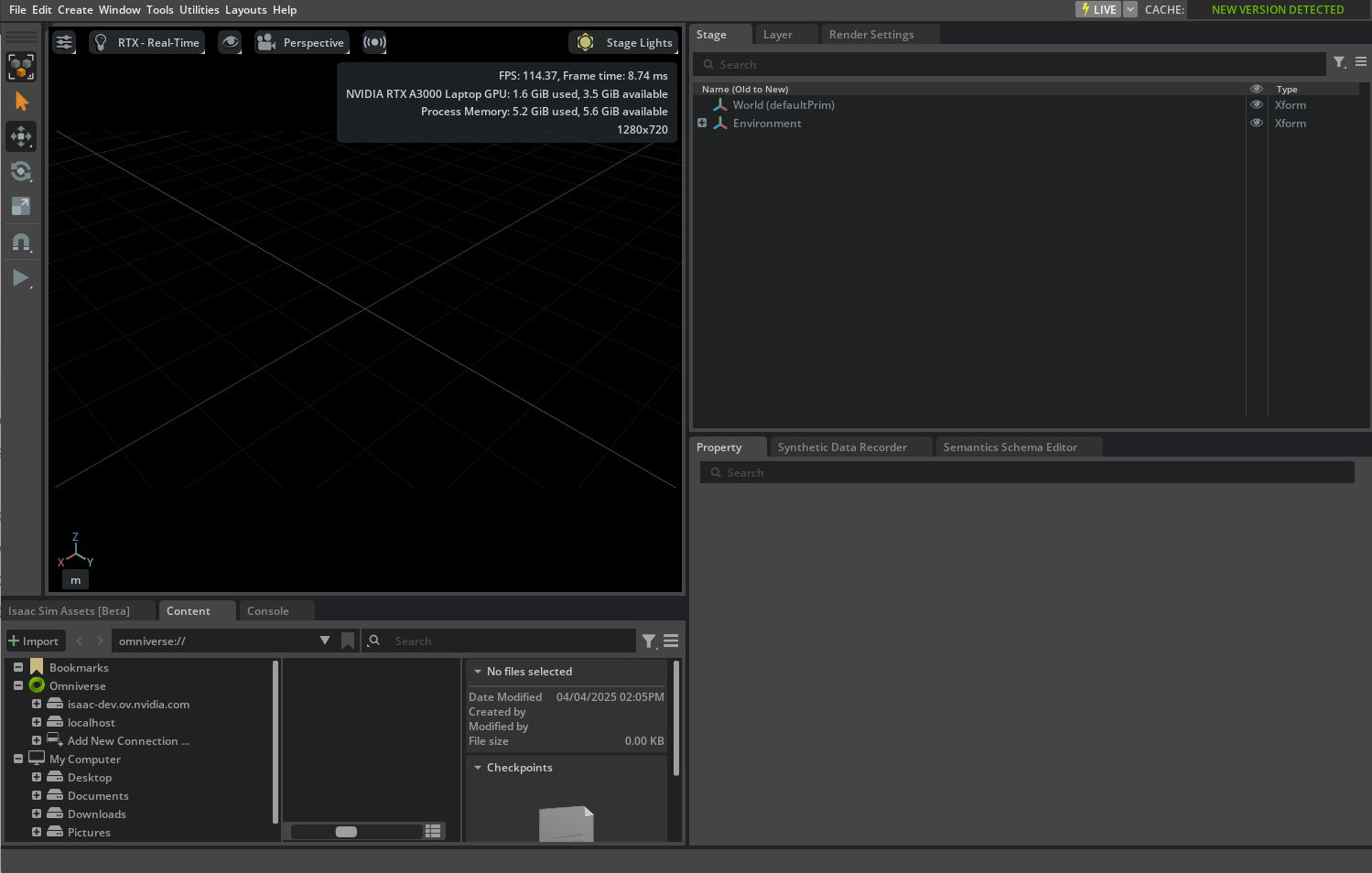
After the Isaac Sim development environment opens fully, verify that you can see:
Select Create > Environment > Simple Room.
Select Create > Robots > Franka Emika Panda Arm.
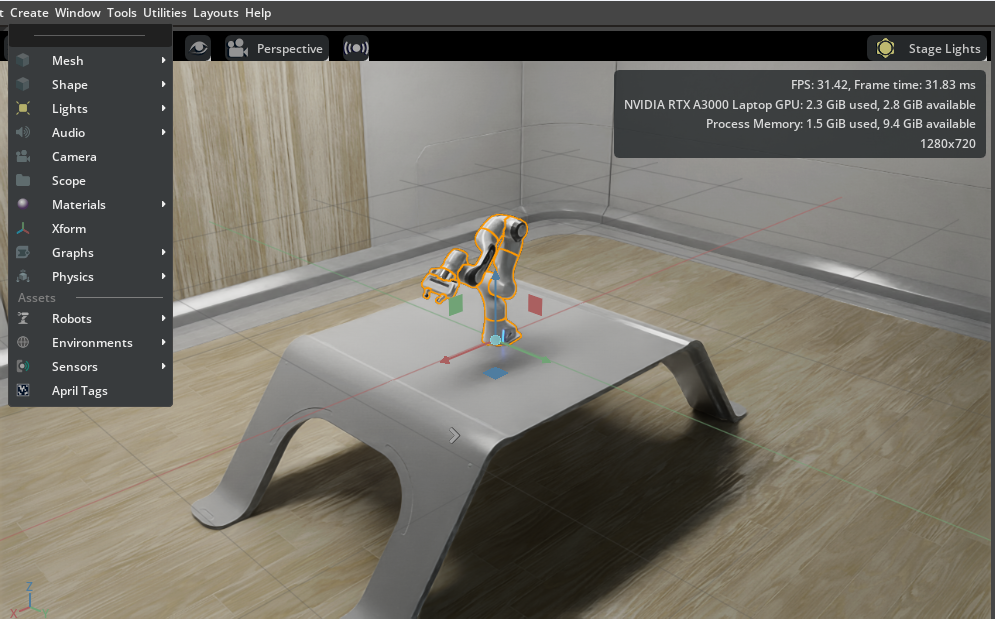
On the leftmost side of your screen, look for an arrow button, and press it to play a short simulation.
Further Reading#
Try out the following tutorials:
Then you can try Robot Setup Tutorials Series.