


Running a Reinforcement Learning Policy through ROS 2 and Isaac Sim#
Learning Objectives#
In this example, you learn to run a reinforcement learning policy through ROS 2 and Isaac Sim. You will learn to:
Set up a ROS 2 node to publish observations and receive actions from Isaac Sim for the H1 flat terrain locomotion policy.
Set up an Isaac Sim environment to run a reinforcement learning policy.
Getting Started#
Prerequisites
The
torchpackage is required to run this sample. Follow the PyTorch installation instructions to install it (if not already installed). Since PyTorch runs in a separate process, no specific version is required. It does not have to match Isaac Sim’s PyTorch version.Enable the
isaacsim.ros2.bridgeextension in the Extension Manager window by navigating to Window > Extensions.This tutorial requires the
h1_fullbody_controllerROS 2 package, which is provided in the IsaacSim-ros_workspaces repo. Complete ROS 2 Installation (Default) to make sure the ROS 2 workspace environment is set up correctly.This tutorial requires an H1 asset with joint configurations that match the locomotion policy parameters. To create this asset yourself, complete Tutorial 13: Rigging a Legged Robot for a Locomotion Policy. To skip the rigging steps, use the preconfigured asset described below.
Note
The preconfigured H1 robot is available in the content browser at Isaac Sim/Samples/Rigging/H1/h1_rigged.usd. Use this asset if you want to skip the rigging tutorial. You still need to add the IMU sensor and ROS 2 graphs in the sections below.
Hint
If you encounter
error: externally-managed-environmentwhen installing PyTorch, try installing it in a virtual Python environment.If you encounter
ModuleNotFoundError: No module named 'yaml', install PyYAML usingpip.
About the H1 Flat Terrain Locomotion Policy#
The policy is trained based on the Isaac-Velocity-Flat-H1-v0 environment from Isaac Lab. This policy tracks a velocity command on flat terrain for the H1 humanoid robot. The policy is capable of walking forward and turning left or right. The policy does not support moving backward or sideways.
Set Up Robot Joint Configurations#
If you are building the robot asset yourself, follow the steps in Tutorial 13: Rigging a Legged Robot for a Locomotion Policy to set up the robot joint configurations based on the locomotion policy parameters. If you use h1_rigged.usd, you can skip the rigging tutorial and continue with the next section. This step is important because mismatched joint configurations can result in unexpected robot behavior.
The H1 flat terrain policy environment definition file is the YAML file.
The angle units specified in the policy environment definition file are in radians. The Isaac Sim USD GUI interface expects the angles to be specified in degrees.
Add IMU Sensor#
Use the IMU sensor to obtain the body frame linear acceleration, angular velocity, and orientation. The flat terrain policy requires the linear velocity, angular velocity, and gravity vector from the pelvis link. You need to add an IMU sensor to the pelvis link to compute these values.
You can create an IMU sensor by right-clicking
/h1/pelvisand selecting Create > Isaac > Sensors > Imu Sensor.
Warning
If you add the IMU to a different link, for example, the torso link, you must first transform the IMU data to the pelvis link frame before using it in the policy.
Set Up ROS 2 Node for the H1 Humanoid Robot#
The ROS 2 node publishes the observations and receives the actions from Isaac Sim. As specified in the environment definition file, the observations require the following information:
Body frame linear velocity
Body frame angular velocity
Body frame gravity vector
Command (linear and angular velocity)
Relative joint position
Relative joint velocity
Previous Action
You can obtain the body frame linear velocity, angular velocity, and gravity vector by processing the IMU data. The command is the desired linear and angular velocity of the robot, which can be retrieved from a ROS 2 twist message. The relative joint position and velocity can be computed from the Isaac Sim joint state topic. The previous action is the action applied last iteration and can be tracked by the policy node.
The action is a joint state message, which is a dictionary of joint names and their desired positions.
In this section, we will set up OmniGraph nodes that publish the observations and receive the actions from Isaac Sim at each physics step.
Create an On-Demand OmniGraph#
Open the Unitree H1 robot model that you rigged in Tutorial 13: Rigging a Legged Robot for a Locomotion Policy, or open the preconfigured
h1_rigged.usdasset.Create a scope under
/h1to hold the ActionGraphs by right-clicking/h1and selecting Create > Scope, then rename it “Graph”.Right-click the
/h1/Graphscope and select Create > Visual Scripting > ActionGraph.Rename the ActionGraph to “ROS_Imu”.
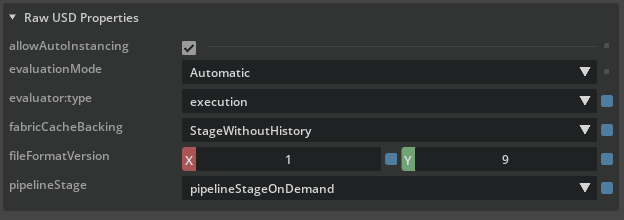
Left-click the ActionGraph node, scroll down in the property editor and set the
pipelineStagetopipelineStageOnDemand.
This ensures that the ActionGraph node runs on each Isaac Sim physics step.
Create IMU Publisher Node#
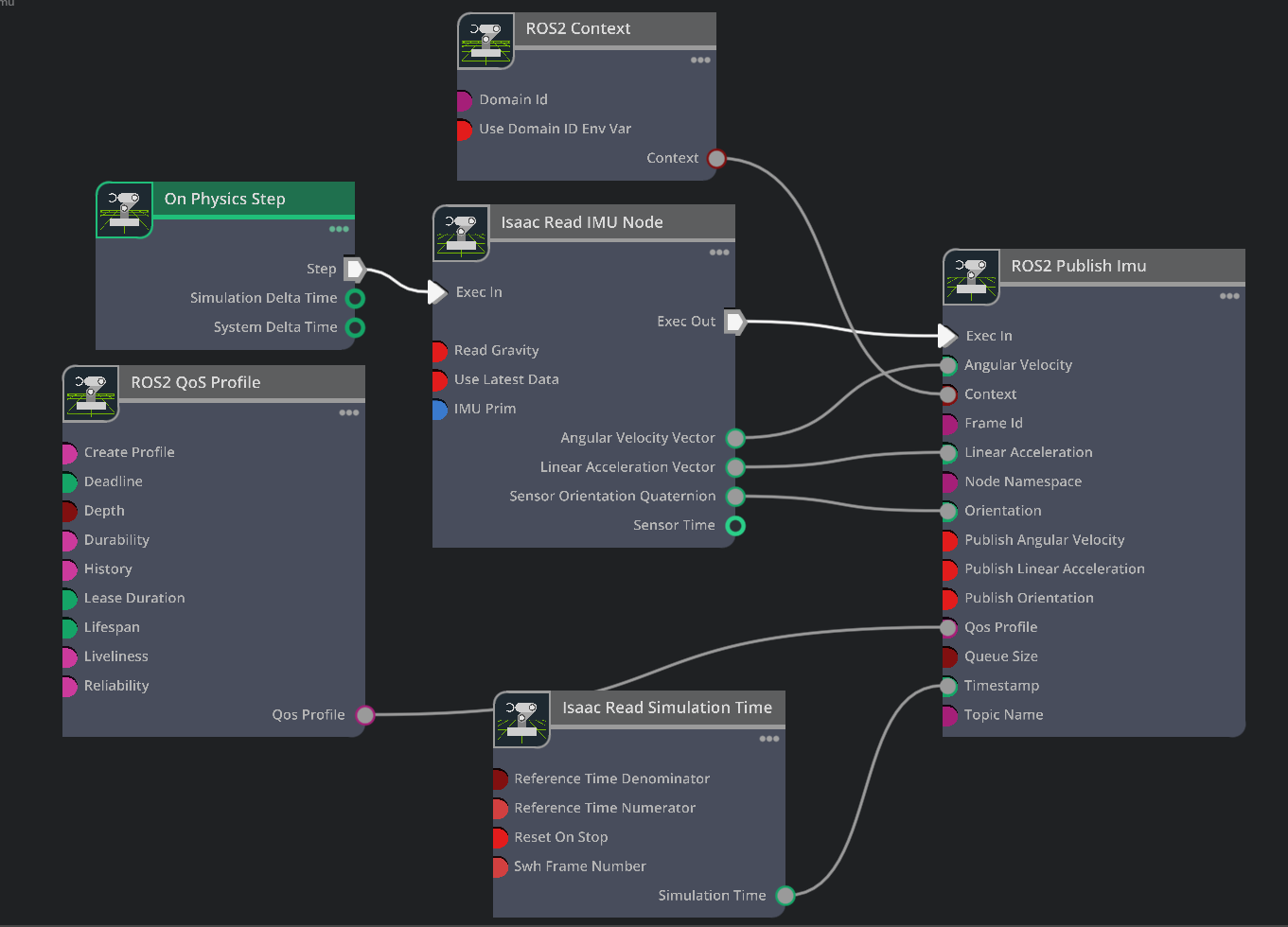
This node publishes the IMU data to ROS 2, which contains the body frame linear acceleration, angular velocity, and orientation.
Right-click the ActionGraph node and select Open Graph.
Copy the following nodes into the ActionGraph:
On Physics Step: This node is triggered when Isaac Sim steps physics, and runs the entire graph.ROS2 Context: This node creates a context for the ROS 2 node.ROS2 QoS Profile: This node sets the QoS profile for the ROS 2 node.Isaac Read IMU Node: This node reads the IMU data from Isaac Sim.Isaac Read Simulation Time: This node reads the simulation time from Isaac Sim.ROS2 Publish IMU: This node publishes the IMU data to ROS 2 using theIsaac Read IMU NodeandIsaac Read Simulation Timenodes as sources.
Connect the nodes as shown in the image below.
Set the
Isaac Read IMU NodeinputIMU Primto/h1/pelvis/Imu_Sensorto read the IMU sensor data.Set the
ROS2 Publish IMUinputFrame IDtopelvis_imu.Uncheck the
Read Gravityinput of theIsaac Read IMU Nodeto avoid reading the gravity vector from the pelvis link. This prevents gravity from being included in the pelvis-link IMU data.Check the
Reset on Stopinput ofRead Simulation Timenode to reset the simulation time when the simulation stops.
Create Joint State Publisher and Subscriber Nodes#
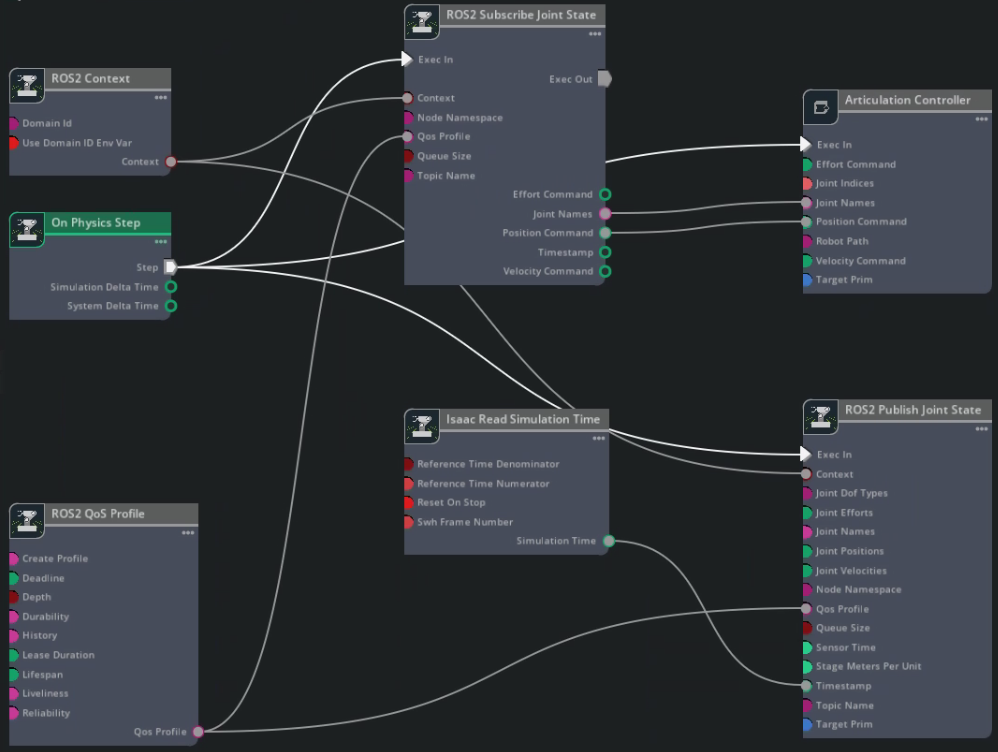
This node publishes joint states from Isaac Sim to ROS 2, including the joint names, positions, and velocities. It also subscribes to joint state commands from the external policy node.
Create a new ActionGraph node under
/h1/Graphand rename it to “ROS_Joint_States”.Set the
pipelineStagetopipelineStageOnDemand.Copy the following nodes into the ActionGraph:
On Physics Step: This node is triggered when Isaac Sim steps physics, and runs the entire graph.ROS2 Context: This node creates a context for the ROS 2 node.ROS2 QoS Profile: This node sets the QoS profile for the ROS 2 node.ROS2 Subscribe Joint State: This node subscribes to the joint state commands from the external policy node.ROS2 Publish Joint State: This node publishes the current joint states to ROS 2 from Isaac Sim.Isaac Read Simulation Time: This node reads the simulation time from Isaac Sim.Articulation Controller: This node executes the joint state commands from theROS2 Subscribe Joint Statenode.
Connect the nodes as shown in the image below.
Set the
ROS2 Publish Joint StateinputTarget Primto/h1andTopic Nameto/joint_states.Set the
ROS2 Subscribe Joint StateinputTopic Nameto/joint_command.Set the
Articulation ControllerinputTarget Primto/h1.Check the
Reset on Stopinput ofRead Simulation Timenode to reset the simulation time when the simulation stops.
Note
The completed asset is available in the content browser at Isaac Sim/Samples/ROS2/Robots/h1_ROS.usd.
Publish ROS Clock and Set Up Environment#
Now that the asset is set up, create a simulation scenario to place the robot in, configure the physics settings, and publish ROS time.
Set Up Simulation Scenario#
Create a new file. In the Content Browser, go to
Isaac Sim/Environments/Simple_Warehouseand drag thewarehouse.usdasset into the stage.Drag and drop the
h1_ROS.usdasset that you made earlier into the stage. Set the Z transform to1.0so it is above the ground.In the Layer tab, select the Root Layer, and in the Properties panel set Time Codes Per Second to
200. For more information, see Configuring Frame Rate.Create a
Physics Sceneby right-clicking the stage and selecting Create > Physics > Physics Scene.If using PhysX, because this tutorial uses only one robot, use CPU physics for better performance. Uncheck
Enable GPU Dynamicsand set theBroadphase TypetoMBP. SetTime Steps Per Secondto200.
Set Up ROS 2 Clock Publisher#
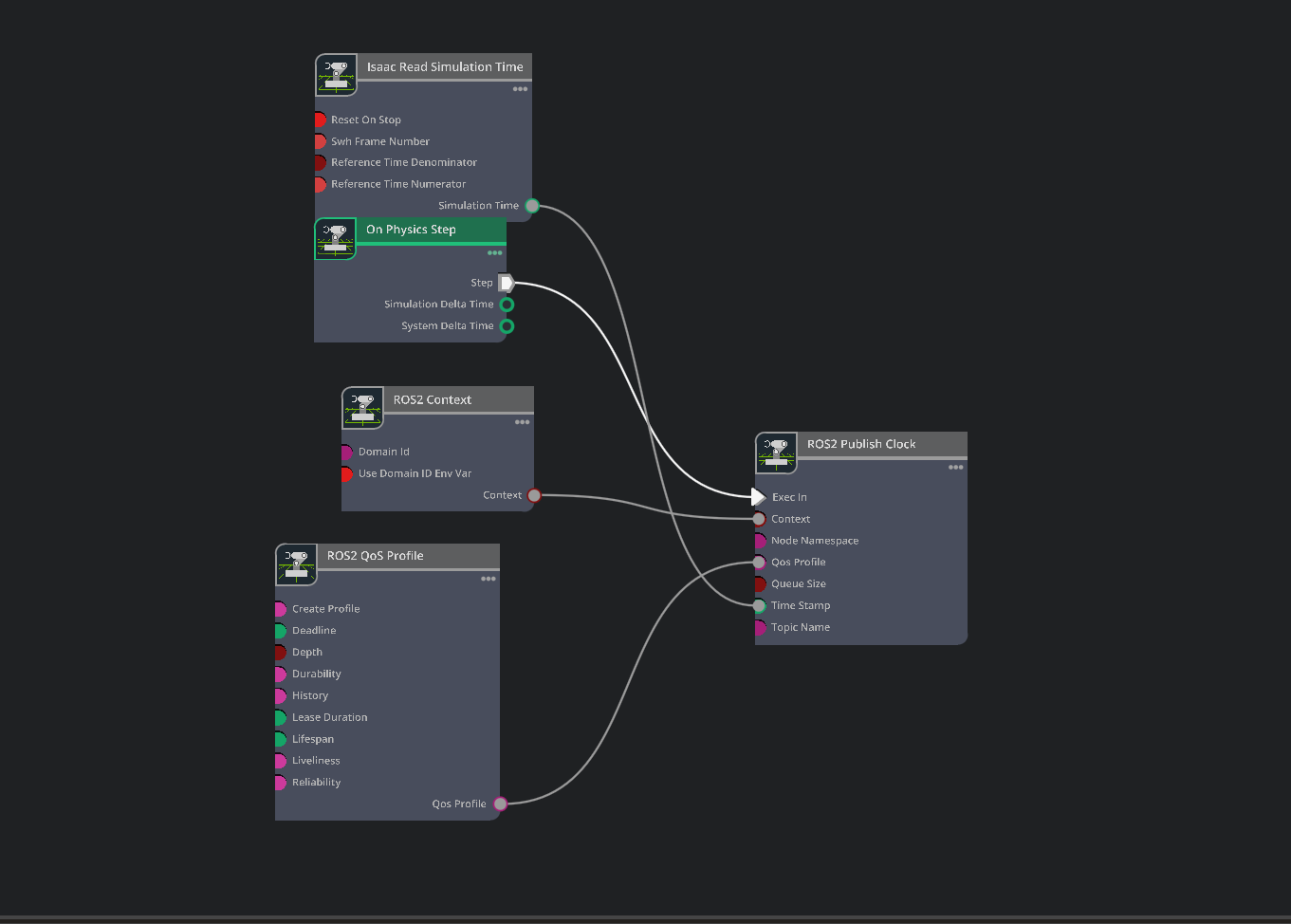
Create a new ActionGraph node and rename it to “ROS_Clock”.
Set the
pipelineStagetopipelineStageOnDemand.Copy the following nodes into the ActionGraph:
On Physics Step: This node is triggered when Isaac Sim steps physics, and runs the entire graph.ROS2 Context: This node creates a context for the ROS 2 node.ROS2 QoS Profile: This node sets the QoS profile for the ROS 2 node.ROS2 Publish Clock: This node publishes the ROS 2 clock to ROS 2.Read Simulation Time: This node reads the simulation time from Isaac Sim.
Connect the nodes as shown in the image below.
Check the
Reset on Stopinput ofRead Simulation Timenode to reset the simulation time when the simulation stops.
Note
The completed environment is available in the content browser at Isaac Sim/Samples/ROS2/Scenario/h1_ros_locomotion_policy_tutorial.usd.
Run ROS 2 Policy#
Now that the asset is set up, you can run the ROS 2 policy. Build the ROS 2 workspace and source the setup.bash file.
Launch the
h1_fullbody_controllerROS 2 package by running the following command in the environment where PyTorch is installed:ros2 launch h1_fullbody_controller h1_fullbody_controller.launch.py
Note
This ROS 2 package computes observations and actions using the ROS messages that you published above and the flat terrain locomotion policy. When no command velocities are received, the robot stands still and maintains balance. Make sure to start the ROS 2 policy before starting the simulation. Otherwise, the robot will fall over.

Open the H1 scenario you created earlier and press PLAY to start the simulation.
In a separate terminal, source ROS and launch
teleop_twist_keyboardor another desired package to publish Twist messages:ros2 run teleop_twist_keyboard teleop_twist_keyboard
You can now control the H1 humanoid robot using your keyboard. Try the controls and observe if the robot moves as expected.
Forward:
iForward + Turn Left:
uForward + Turn Right:
oTurn Left:
jTurn Right:
lStand Still:
k
Important
Moving backward is not supported in this version of the policy. Pressing
m,,, or.causes the robot to fall over.Setting linear and angular velocity above 0.75 exceeds the velocity limits of the policy and causes the robot to fall over.
The robot might drift over time when there are no command velocities. This is expected behavior.
Summary#
This tutorial covered:
Creating and setting up a ROS 2 node to publish observations and receive actions from Isaac Sim for the H1 flat terrain locomotion policy.
Setting up an Isaac Sim environment to run a reinforcement learning policy.
Next Steps#
Learn more about Isaac Lab here and the Isaac Sim native method for policy deployment.