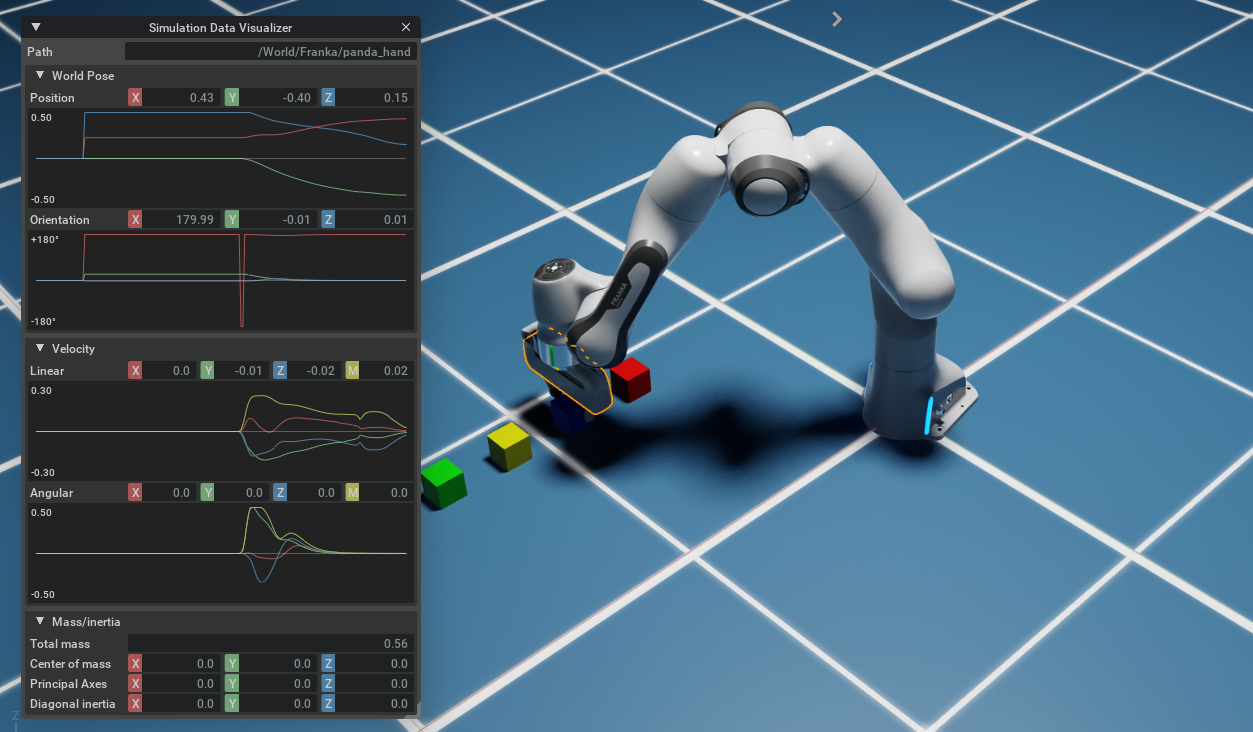
Simulation Data Visualizer#
The Simulation Data Visualizer is used to visualize information for the selected prim. You can use this tool to better understand the behaviors of physics-enabled geometry during simulation.
If a non-physics prim is selected, position changes over the course of simulation are tracked. However, when a physics element is selected, it shows more physics properties, including position and velocities (linear, angular).
Conventions#
The simulation data visualizer provides the following information:
Position: in Stage units [X, Y, Z]
Rotation: in degrees [X, Y, Z]
Linear Velocity: in Stage units/s
Angular Velocity: in degrees/s
Linear Acceleration: in Stage units/s^2
Mass: in Stage mass unit
For velocities, there’s a fourth plot M, which is the magnitude of the vector.
Inspect Physics Example#
To run this utility:
Open the Simulation Data Visualizer by going to the Visibility Menu (eye icon on viewport) > Show by Type > Physics > Simulation Data Visualizer.
Activate Windows > Examples > Robotics Examples which will open the
Robotics Examplestab.Load some simulation-ready example, such as the Cortex Franka example, by clicking Robotics Examples > Cortex > Franka Cortex Examples.
Press the Load Robot button.
Select the /World/Franka/panda_hand prim from the Stage.
Press the START button to begin simulating.
After simulation starts, the physics state of the selected rigid body updates in the Inspect Physics window.