

创建可视化标记#
本指南介绍如何通过 markers.VisualizationMarkers 在场景中绘制坐标系、箭头、球体和自定义网格等调试几何体。标记仅用于显示,不包含物理属性,也不会影响仿真。
对于简单的点、线和样条,Isaac Sim 的 isaacsim.util.debug_draw 扩展更轻量。需要复杂形状时,使用 VisualizationMarkers 。
Kit、Newton GL、Rerun 和 Viser 支持标记,Newton RTX 暂不支持。各可视化器启用标记的方法见 可视化 。
快速开始#
运行内置的 markers 示例:
uv run --extra isaacsim isaaclab example markers
传入 --visualizer newton_gl 或其他受支持后端,可切换可视化器;默认为 kit 。
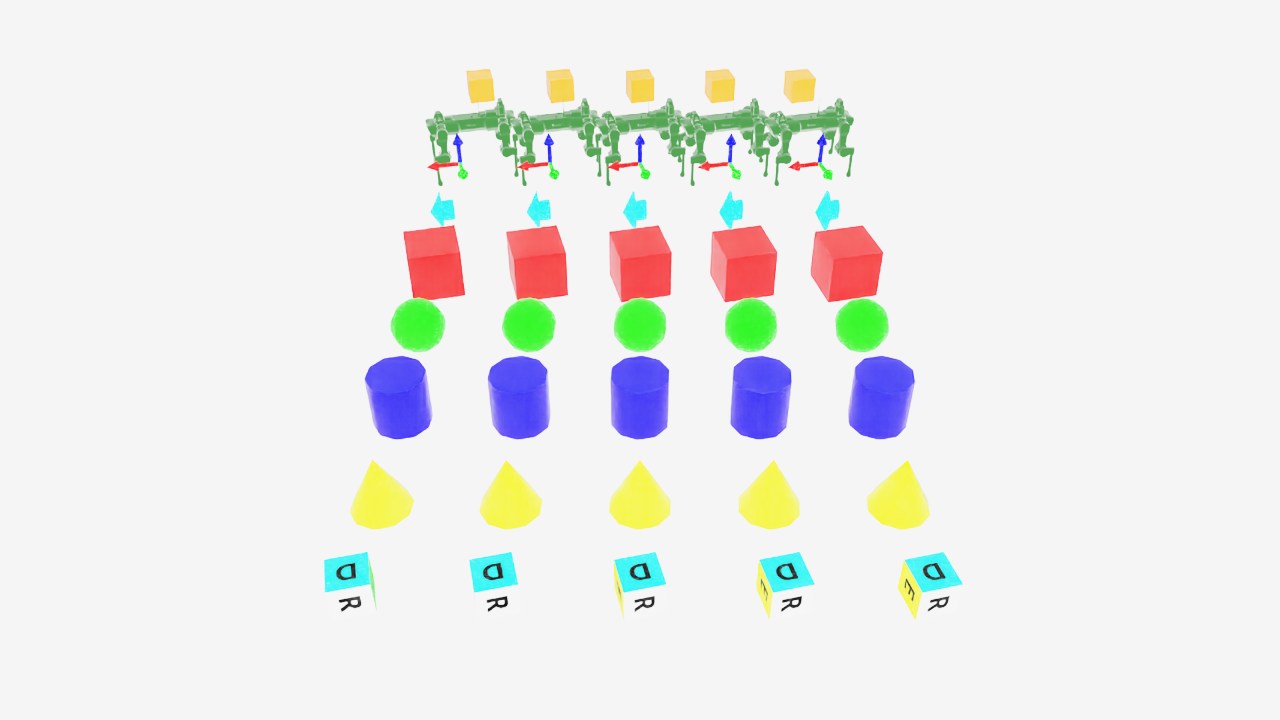
示例脚本中的全部标记原型按网格排列。各列原地旋转,并定期向前轮换到下一个原型。#
关闭窗口或按 Ctrl+C 可停止。
markers.py 的代码
  1# Copyright (c) 2022-2026, The Isaac Lab Project Developers (https://github.com/isaac-sim/IsaacLab/blob/main/CONTRIBUTORS.md).
  2# All rights reserved.
  3#
  4# SPDX-License-Identifier: BSD-3-Clause
  5
  6"""This script demonstrates different types of markers.
  7
  8.. code-block:: bash
  9
 10    # Usage with default PhysX physics and default kit visualizer.
 11    uvx --from 'isaaclab[isaacsim]' isaaclab example markers
 12
 13"""
 14
 15import argparse
 16from typing import TYPE_CHECKING
 17
 18from isaaclab.app import add_launcher_args, launch_simulation
 19from isaaclab.utils import instantiate
 20
 21parser = argparse.ArgumentParser(
 22    description="This script demonstrates different types of markers.",
 23    conflict_handler="resolve",
 24)
 25parser.add_argument("--physics", default="isaacsim_physx", choices=["isaacsim_physx"], help="Physics backend.")
 26parser.add_argument("--max_steps", type=int, default=-1, help="Stop after this many steps; negative runs forever.")
 27add_launcher_args(parser)
 28parser.set_defaults(visualizer=["kit"])
 29args_cli = parser.parse_args()
 30if args_cli.max_steps == 0 or args_cli.max_steps < -1:
 31    parser.error("--max_steps must be positive or -1.")
 32
 33import torch
 34
 35import isaaclab.sim as sim_utils
 36from isaaclab.markers.visualization_markers_cfg import VisualizationMarkersCfg
 37from isaaclab.utils.assets import ISAAC_NUCLEUS_DIR, ISAACLAB_NUCLEUS_DIR
 38from isaaclab.utils.math import quat_from_angle_axis
 39
 40if TYPE_CHECKING:
 41    from isaaclab.markers import VisualizationMarkers
 42
 43
 44def define_markers() -> "VisualizationMarkers":
 45    """Define markers with various different shapes."""
 46    marker_cfg = VisualizationMarkersCfg(
 47        prim_path="/Visuals/myMarkers",
 48        markers={
 49            "frame": sim_utils.UsdFileCfg(
 50                usd_path=f"{ISAAC_NUCLEUS_DIR}/Props/UIElements/frame_prim.usd",
 51                scale=(0.5, 0.5, 0.5),
 52            ),
 53            "arrow_x": sim_utils.UsdFileCfg(
 54                usd_path=f"{ISAAC_NUCLEUS_DIR}/Props/UIElements/arrow_x.usd",
 55                scale=(1.0, 0.5, 0.5),
 56                visual_material=sim_utils.PreviewSurfaceCfg(diffuse_color=(0.0, 1.0, 1.0)),
 57            ),
 58            "cube": sim_utils.CuboidCfg(
 59                size=(1.0, 1.0, 1.0),
 60                visual_material=sim_utils.PreviewSurfaceCfg(diffuse_color=(1.0, 0.0, 0.0)),
 61            ),
 62            "sphere": sim_utils.SphereCfg(
 63                radius=0.5,
 64                visual_material=sim_utils.PreviewSurfaceCfg(diffuse_color=(0.0, 1.0, 0.0)),
 65            ),
 66            "cylinder": sim_utils.CylinderCfg(
 67                radius=0.5,
 68                height=1.0,
 69                visual_material=sim_utils.PreviewSurfaceCfg(diffuse_color=(0.0, 0.0, 1.0)),
 70            ),
 71            "cone": sim_utils.ConeCfg(
 72                radius=0.5,
 73                height=1.0,
 74                visual_material=sim_utils.PreviewSurfaceCfg(diffuse_color=(1.0, 1.0, 0.0)),
 75            ),
 76            "mesh": sim_utils.UsdFileCfg(
 77                usd_path=f"{ISAAC_NUCLEUS_DIR}/Props/Blocks/DexCube/dex_cube_instanceable.usd",
 78                scale=(10.0, 10.0, 10.0),
 79            ),
 80            "mesh_recolored": sim_utils.UsdFileCfg(
 81                usd_path=f"{ISAAC_NUCLEUS_DIR}/Props/Blocks/DexCube/dex_cube_instanceable.usd",
 82                scale=(10.0, 10.0, 10.0),
 83                visual_material=sim_utils.PreviewSurfaceCfg(diffuse_color=(1.0, 0.25, 0.0)),
 84            ),
 85            "robot_mesh": sim_utils.UsdFileCfg(
 86                usd_path=f"{ISAACLAB_NUCLEUS_DIR}/Robots/ANYbotics/ANYmal-C/anymal_c.usd",
 87                scale=(2.0, 2.0, 2.0),
 88                visual_material=sim_utils.GlassMdlCfg(glass_color=(0.0, 0.1, 0.0)),
 89            ),
 90        },
 91    )
 92    return instantiate(marker_cfg)
 93
 94
 95def main():
 96    """Main function."""
 97    sim_cfg = sim_utils.SimulationCfg(dt=0.01, device=args_cli.device)
 98    with launch_simulation(sim_cfg, args_cli):
 99        sim = sim_utils.SimulationContext(sim_cfg)
100        # Set main camera
101        sim.set_camera_view([0.0, 18.0, 12.0], [0.0, 3.0, 0.0])
102
103        # Spawn things into stage
104        # Lights
105        cfg = sim_utils.DomeLightCfg(intensity=3000.0, color=(0.75, 0.75, 0.75))
106        cfg.func("/World/Light", cfg)
107
108        # create markers
109        my_visualizer = define_markers()
110
111        # define a grid of positions where the markers should be placed
112        num_markers_per_type = 5
113        grid_spacing = 2.0
114        # Calculate the half-width and half-height
115        half_width = (num_markers_per_type - 1) / 2.0
116        half_height = (my_visualizer.num_prototypes - 1) / 2.0
117        # Create the x and y ranges centered around the origin
118        x_range = torch.arange(-half_width * grid_spacing, (half_width + 1) * grid_spacing, grid_spacing)
119        y_range = torch.arange(-half_height * grid_spacing, (half_height + 1) * grid_spacing, grid_spacing)
120        # Create the grid
121        x_grid, y_grid = torch.meshgrid(x_range, y_range, indexing="ij")
122        x_grid = x_grid.reshape(-1)
123        y_grid = y_grid.reshape(-1)
124        z_grid = torch.zeros_like(x_grid)
125        # marker locations
126        marker_locations = torch.stack([x_grid, y_grid, z_grid], dim=1)
127        marker_indices = torch.arange(my_visualizer.num_prototypes).repeat(num_markers_per_type)
128
129        sim.reset()
130        print("[INFO]: Setup complete...")
131
132        # Yaw angle
133        yaw = torch.zeros_like(marker_locations[:, 0])
134        step_count = 0
135        # Step while a visualizer window is still open (or none exist, e.g. headless); works for kit and newton.
136        while sim.is_running() and (args_cli.max_steps < 0 or step_count < args_cli.max_steps):
137            # rotate the markers around the z-axis for visualization
138            marker_orientations = quat_from_angle_axis(yaw, torch.tensor([0.0, 0.0, 1.0]))
139            # visualize
140            my_visualizer.visualize(marker_locations, marker_orientations, marker_indices=marker_indices)
141            # roll corresponding indices to show how marker prototype can be changed
142            if yaw[0].item() % (0.5 * torch.pi) < 0.01:
143                marker_indices = torch.roll(marker_indices, 1)
144            # perform step
145            sim.step()
146            step_count += 1
147            # increment yaw
148            yaw += 0.01
149
150
151if __name__ == "__main__":
152    main()
配置标记#
prim_path:创建标记UsdGeom.PointInstancer的 prim 路径。markers:标记原型字典,键是原型名称,值是生成配置,可以是任意SpawnerCfg,包括 USD 文件引用。
备注
由于标记不参与仿真,创建时会移除其原型生成配置中的物理属性。
def define_markers() -> "VisualizationMarkers":
    """Define markers with various different shapes."""
    marker_cfg = VisualizationMarkersCfg(
        prim_path="/Visuals/myMarkers",
        markers={
            "frame": sim_utils.UsdFileCfg(
                usd_path=f"{ISAAC_NUCLEUS_DIR}/Props/UIElements/frame_prim.usd",
                scale=(0.5, 0.5, 0.5),
            ),
            "arrow_x": sim_utils.UsdFileCfg(
                usd_path=f"{ISAAC_NUCLEUS_DIR}/Props/UIElements/arrow_x.usd",
                scale=(1.0, 0.5, 0.5),
                visual_material=sim_utils.PreviewSurfaceCfg(diffuse_color=(0.0, 1.0, 1.0)),
            ),
            "cube": sim_utils.CuboidCfg(
                size=(1.0, 1.0, 1.0),
                visual_material=sim_utils.PreviewSurfaceCfg(diffuse_color=(1.0, 0.0, 0.0)),
            ),
            "sphere": sim_utils.SphereCfg(
                radius=0.5,
                visual_material=sim_utils.PreviewSurfaceCfg(diffuse_color=(0.0, 1.0, 0.0)),
            ),
            "cylinder": sim_utils.CylinderCfg(
                radius=0.5,
                height=1.0,
                visual_material=sim_utils.PreviewSurfaceCfg(diffuse_color=(0.0, 0.0, 1.0)),
            ),
            "cone": sim_utils.ConeCfg(
                radius=0.5,
                height=1.0,
                visual_material=sim_utils.PreviewSurfaceCfg(diffuse_color=(1.0, 1.0, 0.0)),
            ),
            "mesh": sim_utils.UsdFileCfg(
                usd_path=f"{ISAAC_NUCLEUS_DIR}/Props/Blocks/DexCube/dex_cube_instanceable.usd",
                scale=(10.0, 10.0, 10.0),
            ),
            "mesh_recolored": sim_utils.UsdFileCfg(
                usd_path=f"{ISAAC_NUCLEUS_DIR}/Props/Blocks/DexCube/dex_cube_instanceable.usd",
                scale=(10.0, 10.0, 10.0),
                visual_material=sim_utils.PreviewSurfaceCfg(diffuse_color=(1.0, 0.25, 0.0)),
            ),
            "robot_mesh": sim_utils.UsdFileCfg(
                usd_path=f"{ISAACLAB_NUCLEUS_DIR}/Robots/ANYbotics/ANYmal-C/anymal_c.usd",
                scale=(2.0, 2.0, 2.0),
                visual_material=sim_utils.GlassMdlCfg(glass_color=(0.0, 0.1, 0.0)),
            ),
        },
    )
    return instantiate(marker_cfg)
绘制标记#
visualize() 设置标记位姿,还可通过 marker_indices 指定各标记实例使用的原型。
my_visualizer.visualize(marker_locations, marker_orientations, marker_indices=marker_indices)
参数保持 None 时,沿用之前的值。传入行数与上次不同,会调整标记实例数量。完整参数列表( translations 、 orientations 、 scales 、 marker_indices 、 environment_ids )见 visualize() 的文档字符串。
标记的实际应用#
标记常用于训练期间调试各环境状态,例如比较指令速度与当前速度,或显示接触事件:
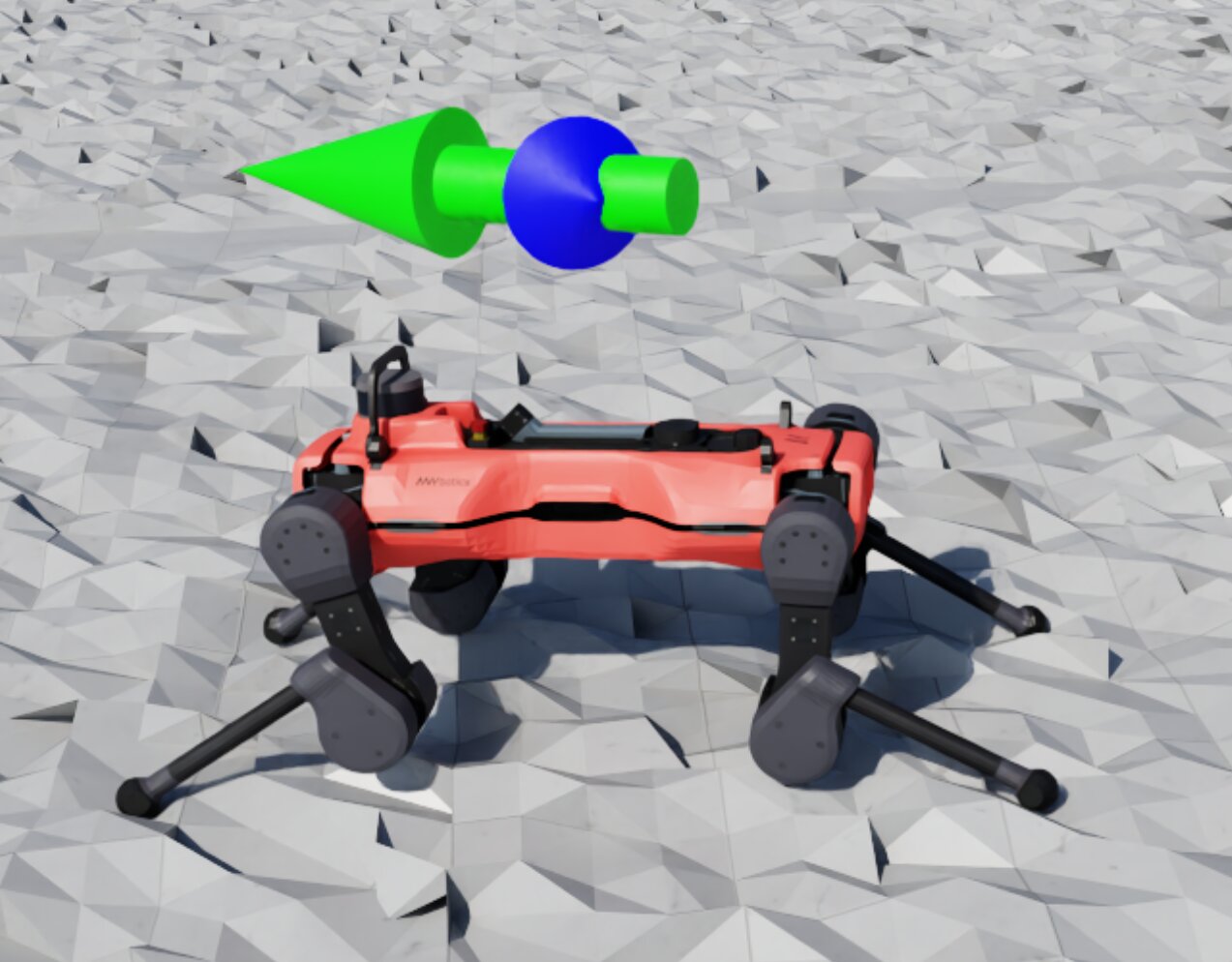
AnymalD 机器人上表示速度指令(绿色)和当前速度(蓝色)的箭头标记。
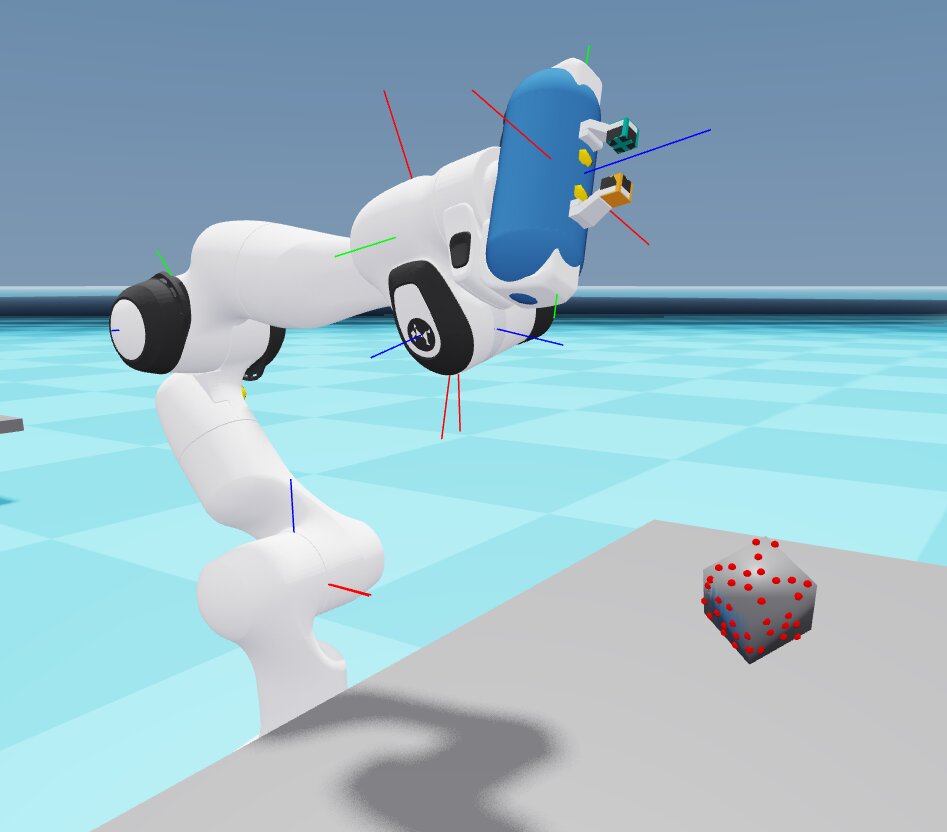
Franka 机械臂上的关节箭头标记,以及立方体上的接触传感器标记。