


[isaacsim.ros2.urdf] Ros2 Robot Description URDF Importer#
Version: 2.3.6
Overview#
The isaacsim.ros2.urdf extension expands the URDF Importer to fetch and import robot descriptions directly from ROS 2 nodes. Instead of requiring local URDF files, it queries ROS 2 nodes for their robot_description parameter and resolves package:// URLs to filesystem paths, streamlining the workflow for importing robots that are already configured in a ROS 2 environment. The extension registers a File → Import from ROS2 URDF Node menu entry that opens a dedicated import window.
Functionality#
Robot Description Retrieval#
The extension queries ROS 2 nodes to retrieve robot descriptions through the robot_description parameter. RobotDefinitionReader handles this process as a singleton that maintains a transient ROS 2 node for querying. When a target node name is provided, it calls the GetParameters service on that node in a background thread, fetches the URDF content, and automatically resolves any package:// URLs to absolute filesystem paths.
reader = RobotDefinitionReader()
reader.start_get_robot_description("robot_state_publisher")
Package URL Resolution#
ROS 2 URDF files commonly reference resources using package:// URLs. The extension provides utilities to resolve these URLs to absolute filesystem paths by locating the package’s share directory. package_path_to_system_path converts a package name and optional relative path into an absolute system path, while replace_package_urls_with_paths processes entire URDF strings to replace all package URLs with their resolved paths.
# Resolve a single package path
mesh_path = package_path_to_system_path("my_robot_description", "meshes/base_link.dae")

# Replace all package URLs in a URDF string
updated_urdf, package_found = replace_package_urls_with_paths(urdf_string)
Import Window#
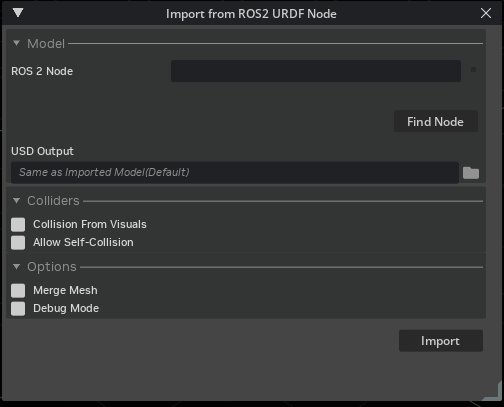
RobotDescription manages the import window opened from the File menu. It orchestrates the full workflow: building the option widget, querying the ROS 2 node for the URDF, writing a temporary URDF file, running the standard URDF import pipeline, and opening the resulting USD stage. The retrieved URDF is written to a system temp directory and deleted after import. When no explicit USD output folder is set in the UI, the URDF importer writes the USD alongside the temporary URDF; set the USD Output folder in the Model section to control where the final USD is saved. Status feedback is displayed in the UI — green when a node is found successfully, red when the node or parameter is unavailable.
Import UI Widget#
Ros2UrdfOptionWidget provides the UI controls within the import window, organized into collapsible sections:
Model — ROS 2 node name field, a Find Node button to trigger the parameter fetch, a status label with color-coded feedback, and a USD output folder picker.
Colliders — Collision from visuals toggle, a collision type dropdown (Convex Hull, Convex Decomposition, Bounding Sphere, Bounding Cube) that appears when collision from visuals is enabled, and an allow self-collision toggle.
Options — Robot type dropdown (e.g. Manipulator, Humanoid), merge mesh toggle, and debug mode toggle.
Import — Button to execute the import with the current settings.
Command Integration#
URDFImportFromROS2Node encapsulates the import operation as a Kit command, allowing the robot description import to be triggered programmatically or through UI interactions.
Deprecated since version 2.3.0: The URDFImportFromROS2Node Kit command is deprecated. Use RobotDefinitionReader and URDFImporter directly instead.
Integration#
This extension builds upon isaacsim.asset.importer.urdf.ui by adding ROS 2-specific import capabilities. It uses isaacsim.ros2.bridge for the ROS 2 runtime environment and communicates with ROS 2 nodes via rclpy and the standard GetParameters service. The workflow integrates with the existing URDF import pipeline — once the robot description is retrieved and package:// URLs are resolved, the standard URDF importer handles the actual USD asset creation.
Enable Extension#
The extension can be enabled (if not already) in one of the following ways:
Define the next entry as an application argument from a terminal.
APP_SCRIPT.(sh|bat) --enable isaacsim.ros2.urdf
Define the next entry under [dependencies] in an experience (.kit) file or an extension configuration (extension.toml) file.
[dependencies]
"isaacsim.ros2.urdf" = {}
Open the Window > Extensions menu in a running application instance and search for isaacsim.ros2.urdf.
Then, toggle the enable control button if it is not already active.